Introduction
You can view and update templates based on the permissions you have.
Notes:
- You can only view Global templates, but cannot update them.
- If you are a client user, you can view and update templates created only by you.
The following is an example of a VMware monitoring template and how to view and edit the template.
View Template details
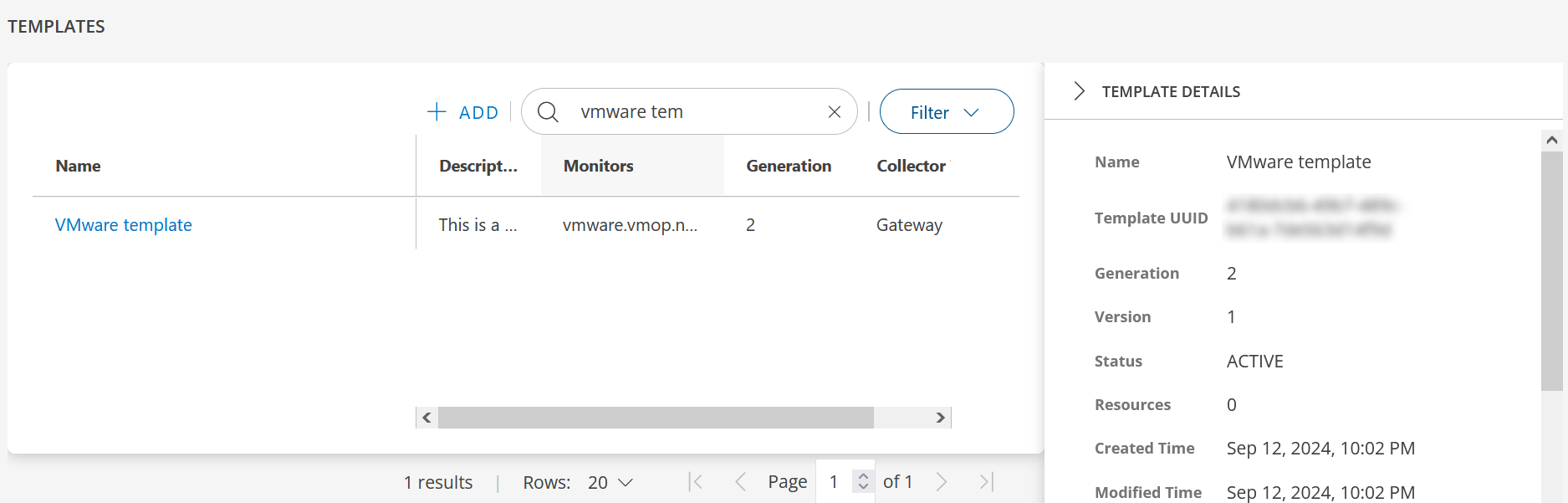
Follow these steps to view template information like Name, Template UUID, Status, Resources, Created Time, Modified Time:
To select your client, click the Client/Partner dropdown from the top-left corner of the screen. Either type your client’s name in the search box or select your client from the list.
Click Setup > Account.
Click on the Monitoring tile and select Templates card.
From the TEMPLATES listing screen, use the search box to search for template name.
Click anywhere in the template name row. The TEMPLATE DETAILS slide-out is displayed.
Update Template
Follow these steps to update template details:
To select your client, click the Client/Partner dropdown from the top-left corner of the screen. Either type your client’s name in the search box or select your client from the list.
Click Setup > Account.
Click on the Monitoring tile and select Templates card.
From the TEMPLATES listing screen, search for the template.
Click on template name. The template details screen is displayed.
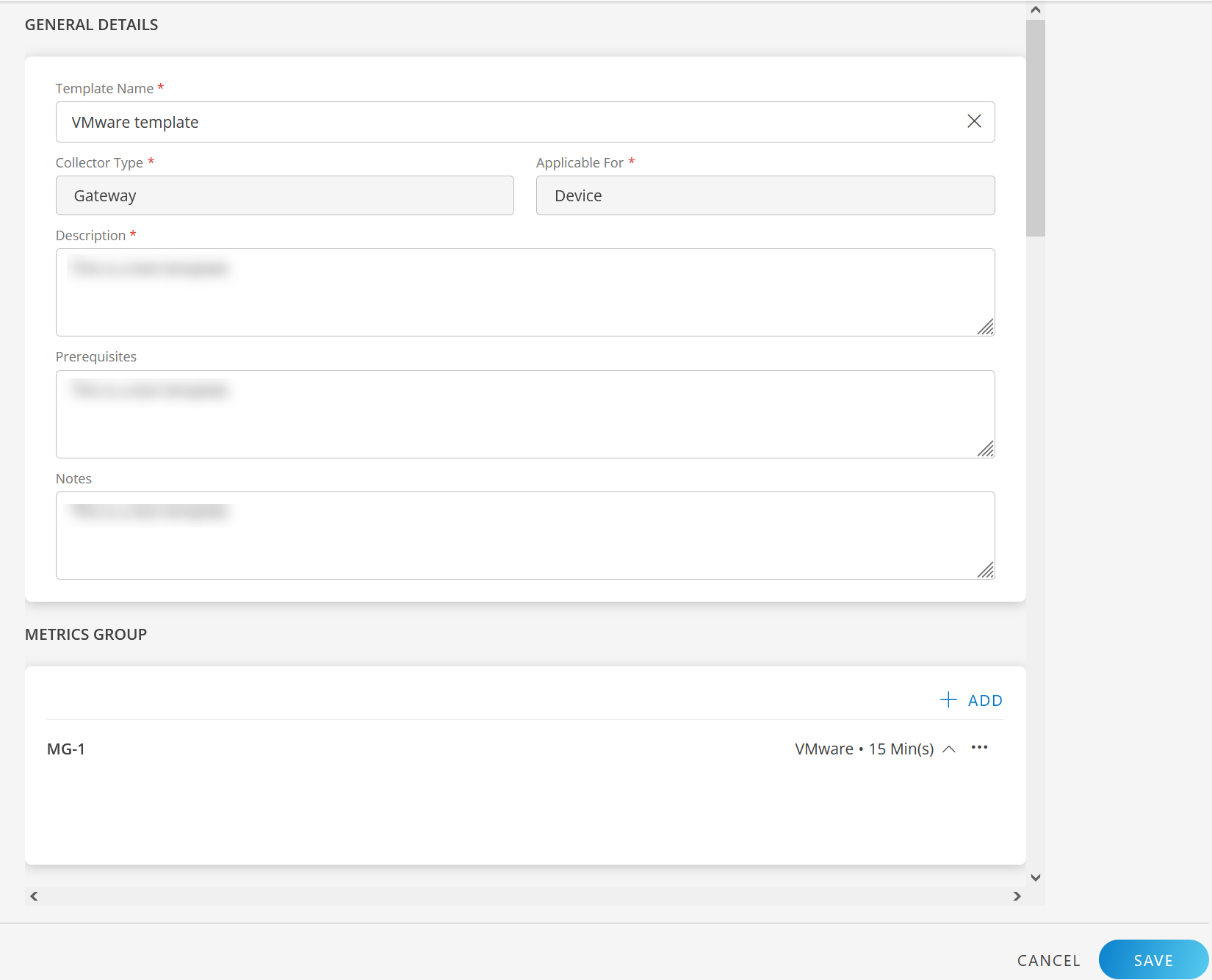
Do the necessary changes in the fields:
Field Name Field Type Description Name String Change the template name, if required. Collector Type Dropdown This field is not editable. Applicable For Dropdown This field is not editable. Description String Update template description, if required. Prerequisites String Update prerequisites as needed. Notes String Update notes, if required. Based on the type of template, the sections that are displayed on the screen may change.
Modify the fields in the section(s), as per your requirements.
Click SAVE. The template details are updated, and a confirmation message appears.
View Global Template details
You can use the Filter option to view Global template details.
Follow these steps to view global template details:
To select your client, click the Client/Partner dropdown from the top-left corner of the screen. Either type your client’s name in the search box or select your client from the list.
Click Setup > Account.
Click on the Monitoring tile and select Templates card.
From the TEMPLATES listing screen, click the Filter button. The FILTER popup window is displayed.
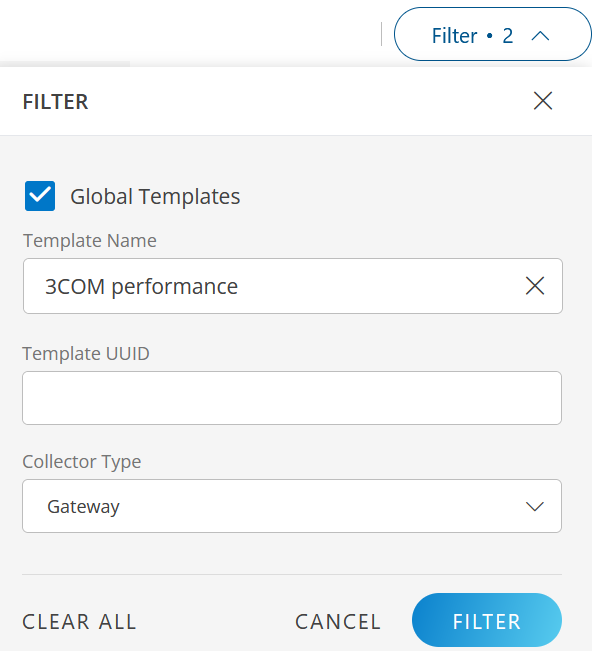
Enter the following information:
Field Name Field Type Description Global Templates Checkbox Select the checkbox (mandatory). Template Name String Enter the template name. Template UUID String Enter the Template UUID. Collector Type Dropdown Select a collector type.
Note: Select All to filter global templates by all collector types.Click FILTER. The Global templates are filtered and listed on the screen in a tabular format.
Template Details like Template Name, Description, Metrics, Collector Type are displayed.
Click on the template name. The template screen is displayed.
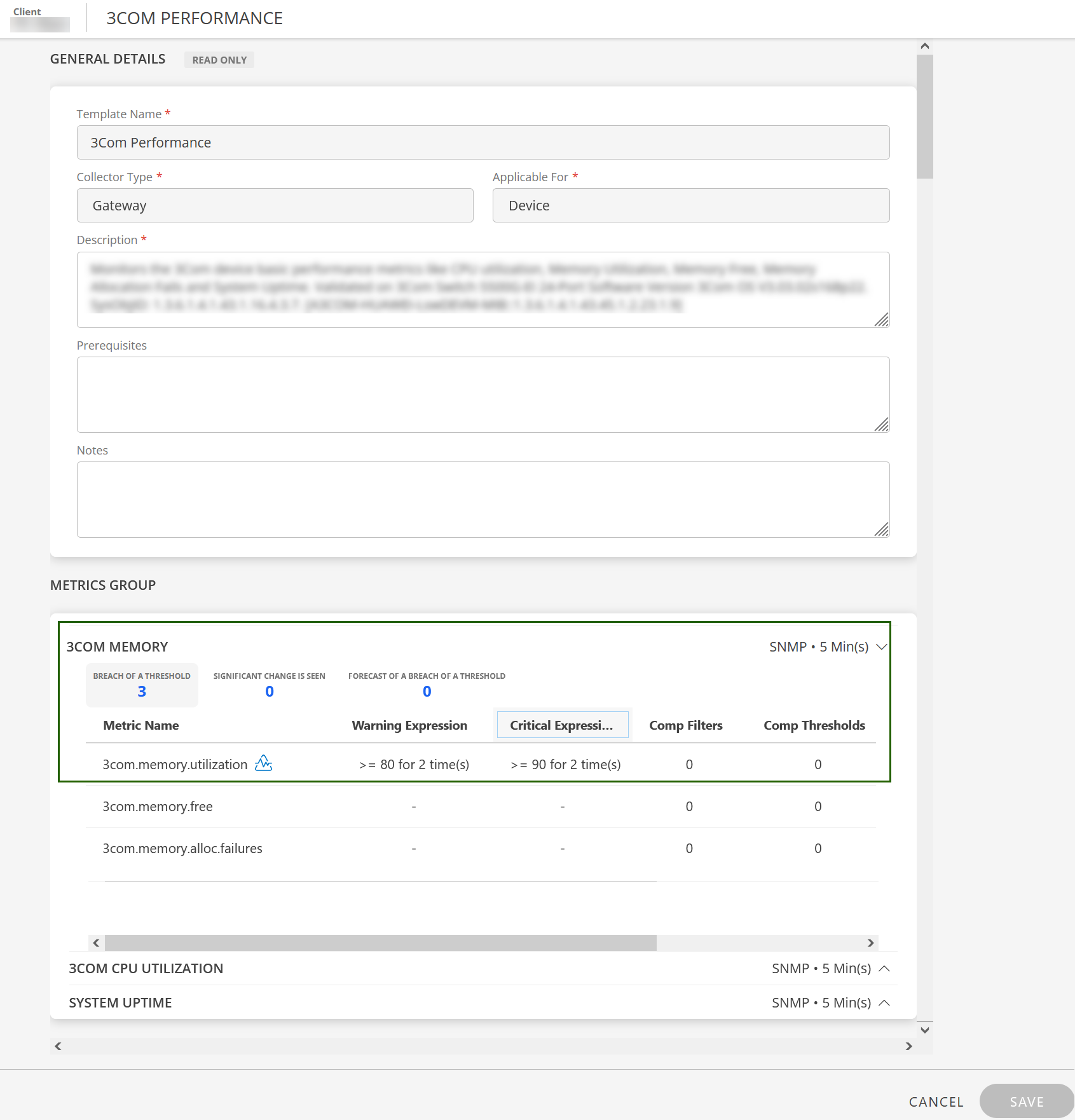
The Template details screen is restricted to READ-ONLY. You cannot make any modifications.
The METRICS GROUP section displays Metric Group name, Adapter Type, Frequency. Additional details like Metric Name, Warning Expression, Critical Expression are shown when you click down arrow (expand icon). The additional details vary based on the Collector Type and Adapter Type.The above image shows Metric Group name =
3COM MEMORY,Adapter Type =SNMP,and
Frequency =5 Min(s).
Note: Users with Monitors_View permission will see the template screen
in READ-ONLY mode.