Introduction
You can use Filter option to:
- Search for multiple templates that share the same criteria.
- Filter templates based on Template Name, Template UUID, and Collector Type.
Filter templates
Follow these steps to filter templates:
To select your client, click the Client/Partner dropdown from the top-left corner of the dashboards screen. Either type your client’s name in the search box or select your client from the list.
Click Setup > Account. The Account Details screen is displayed.
Click on the Monitoring tile.
Select TEMPLATES card.
From the TEMPLATES listing screen, click Filter. The FILTER dialog box is displayed.
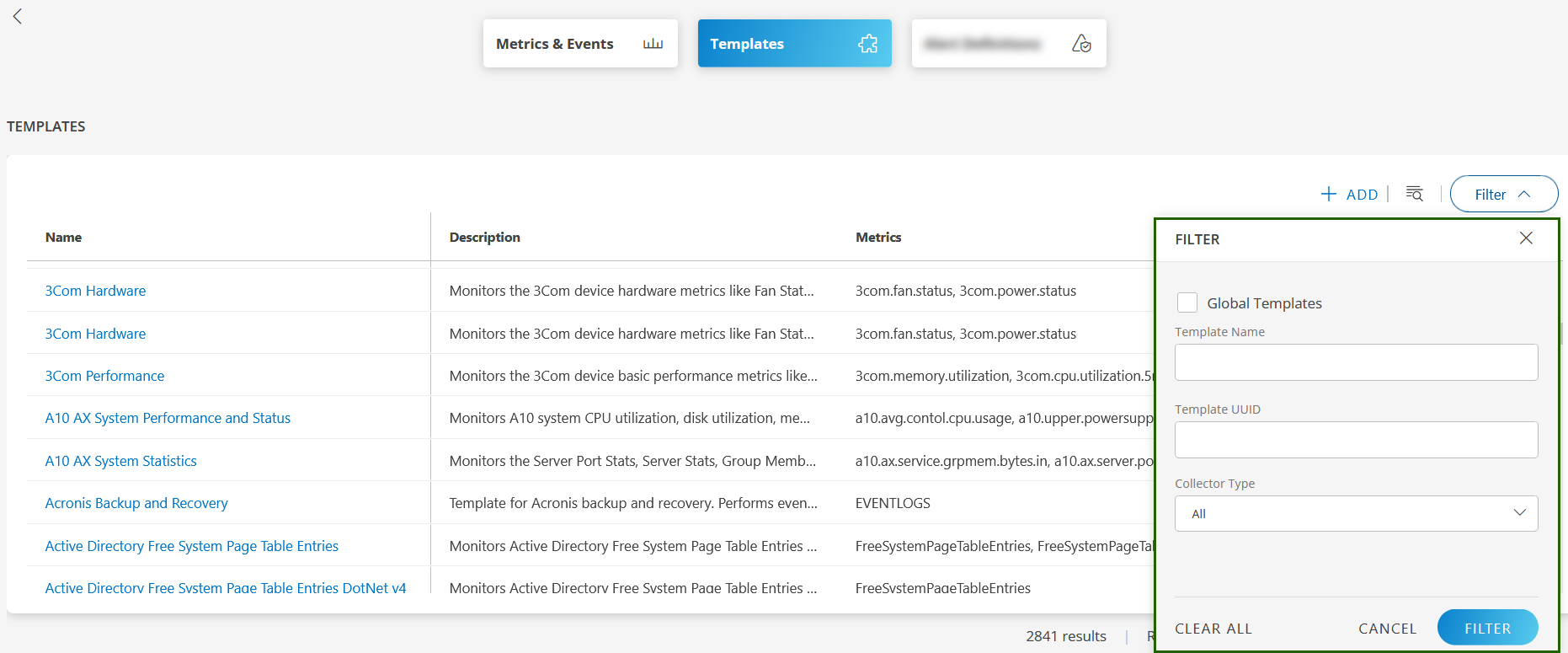
Enter the Template Name in the Template Name field.
Enter the Template UUID in the Template UUID field.
Select collector type (Gateway, Cloud, etc.) from the Collector Type dropdown.
You can select All to filter templates by all collector types.- Select Global Templates checkbox to view all Out-of-the-box global templates supported by OpsRamp.
- Select Global Templates checkbox to view all Out-of-the-box global templates supported by OpsRamp.
Click FILTER. The filtered list is displayed.
- Click CLEAR ALL to clear the selection.
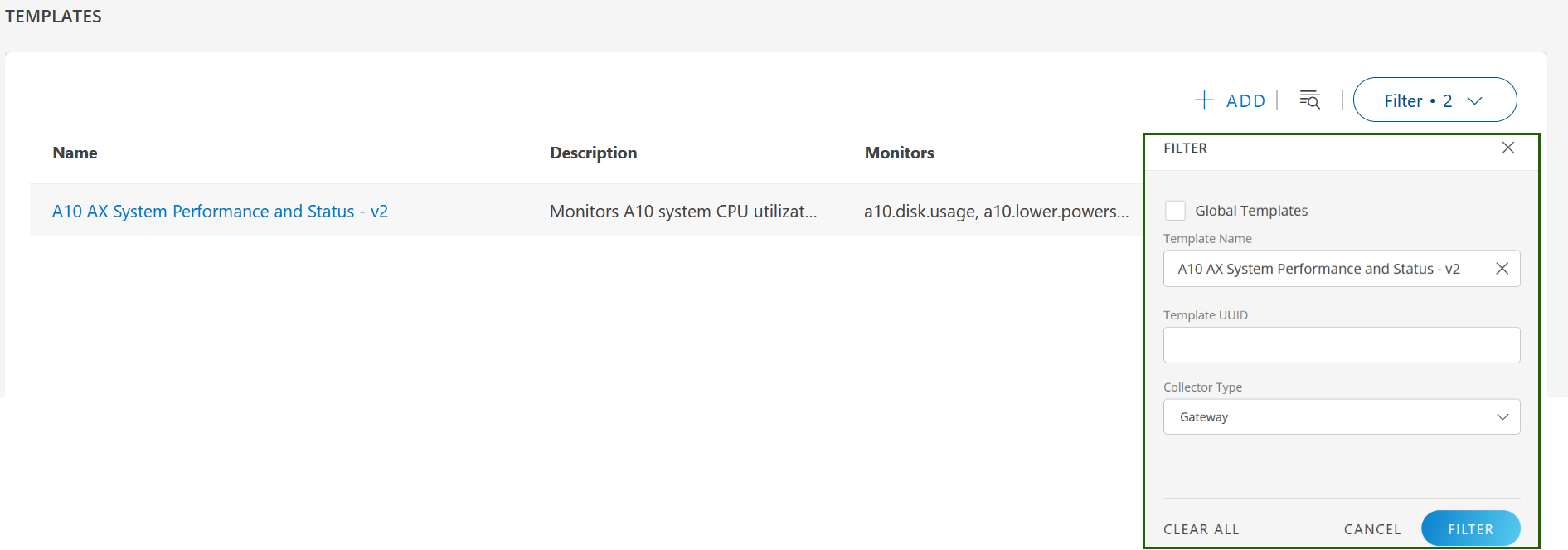
Following is an example of a filtered list where Template Name is A10 AX System Performance and Status - v2 and Collector Type is Gateway: