Introduction
You can clone a Global template and make changes to it according to your requirements.
Clone templates
Follow these steps to clone a template:
To select your client, click the Client/Partner dropdown from the top-left corner of the dashboards screen. Either type your client’s name in the search box or select your client from the list.
Click Setup > Account. The Account Details screen is displayed.
Click on the Monitoring tile.
Select TEMPLATES card. The TEMPLATES listing screen is displayed.
Click Filter. The FILTER dialog box is displayed.
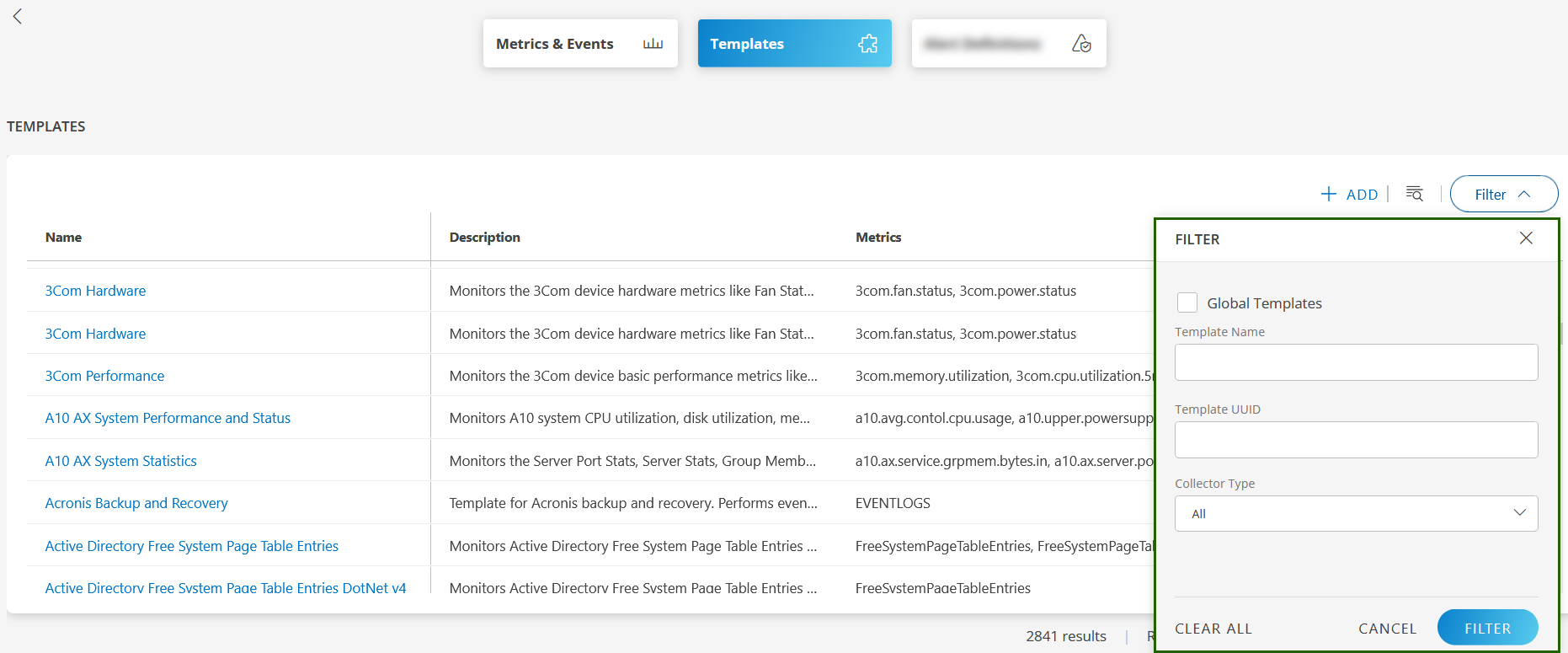
Select Global Templates checkbox.
Enter the Template Name in the Template Name field.
Enter the Template UUID (if required) in the Template UUID field.
Select the collector type (Example: Agent, Gateway, AWS) from the Collector Type dropdown.
Click FILTER. The template is displayed.
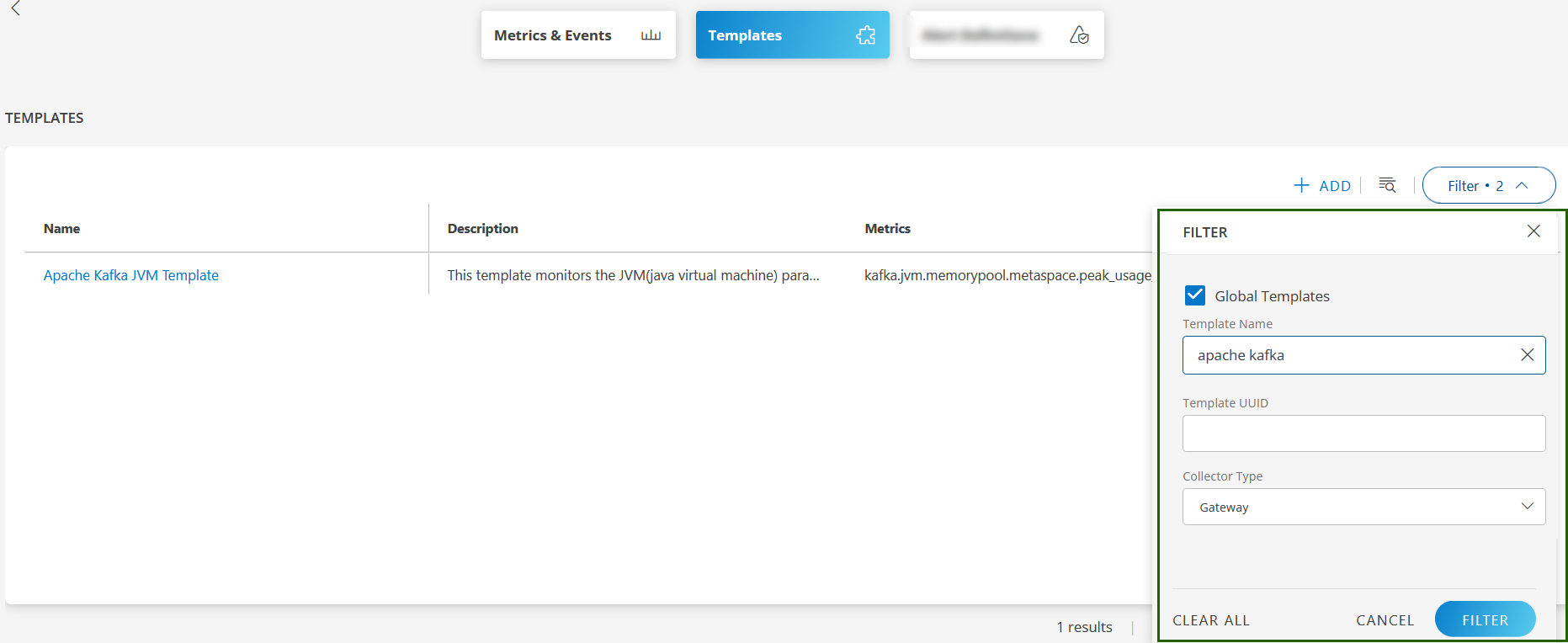
Hover over the template name or anywhere in the row and click the action (three dots) icon.
Select Copy. The COPY TEMPLATE popup dialog box is displayed.
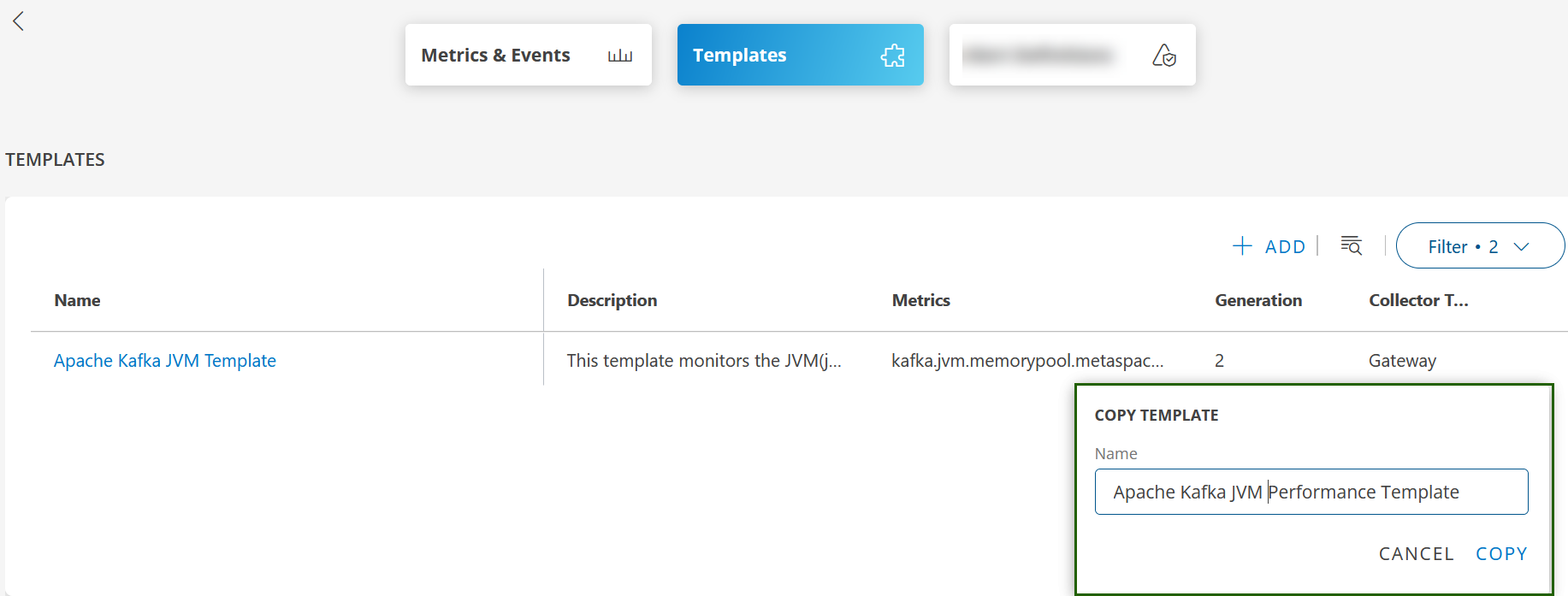
Modify the template name and click COPY. The monitoring template is cloned and a confirmation message appears.
Follow these steps to view the cloned template:
- Use the Filter option to search for the template.
To search using the Filter option:- Clear the Global Templates selection and enter the modified template name in the Template Name box.
- Click FILTER.
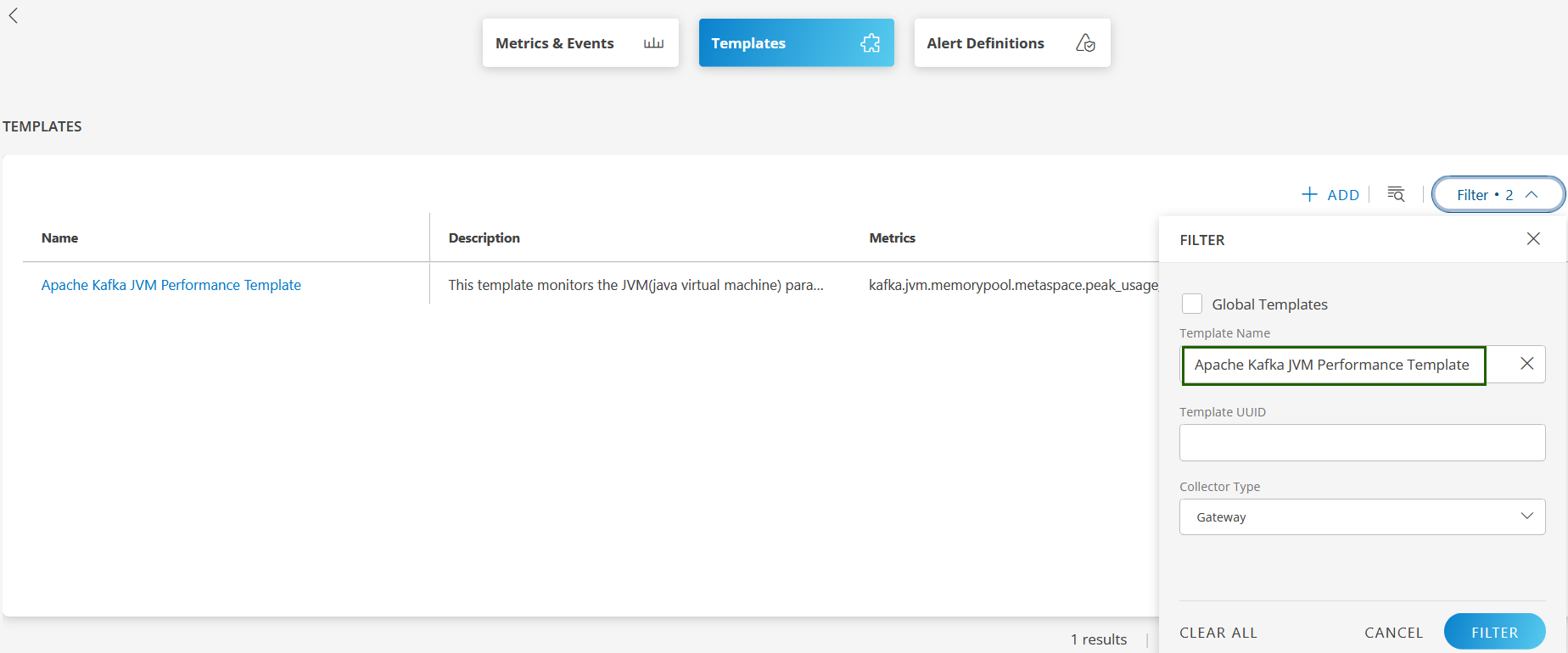
- The newly cloned template is displayed on the TEMPLATES listing screen.
Follow these steps to modify the template:
Click the template name. The template details screen is displayed.
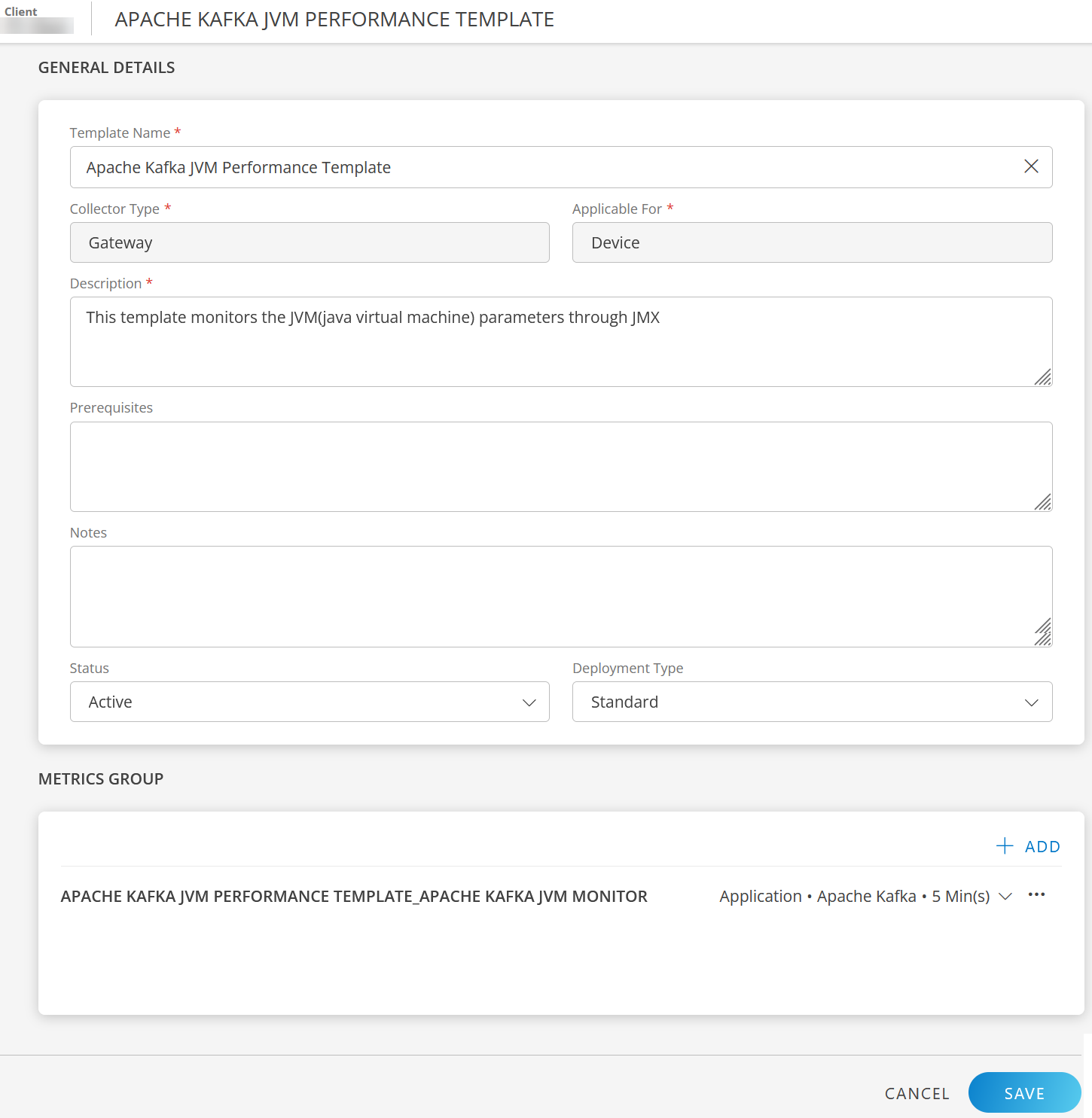
The following fields are editable:
Field Name Field Type Description Template Name String You can change the Template Name again, if required. Description String Update template description. Prerequisites String Update the prerequisites. Notes String Update notes. Tags String Update tags. Status Dropdown Default status is Active. Deployment Type Dropdown Default type is Standard. Select an option. Modify the fields in the section(s) as required.
Click SAVE. The template is updated.