Introduction
- The Export functionality allows you to export metrics in JSON format. The file is downloaded to your computer and stored in the Downloads folder.
- The Import functionality allows you to import a JSON formatted metric file as a metric.
Note
Metrics are exported or imported based on the scope.If you import metrics at the partner scope, only partner-specific metrics are imported. Client-specific metrics are not imported.
Export metrics
As a partner, you can export metric(s) to a client and import them to another client.
Follow these steps to export metric(s):
To select your client, click the Client/Partner dropdown from the top-left corner of the dashboards screen. Either type your client’s name in the search bar or select your client from the list.
Click Setup > Account. The Account Details screen is displayed.
Click on the Monitoring tile.
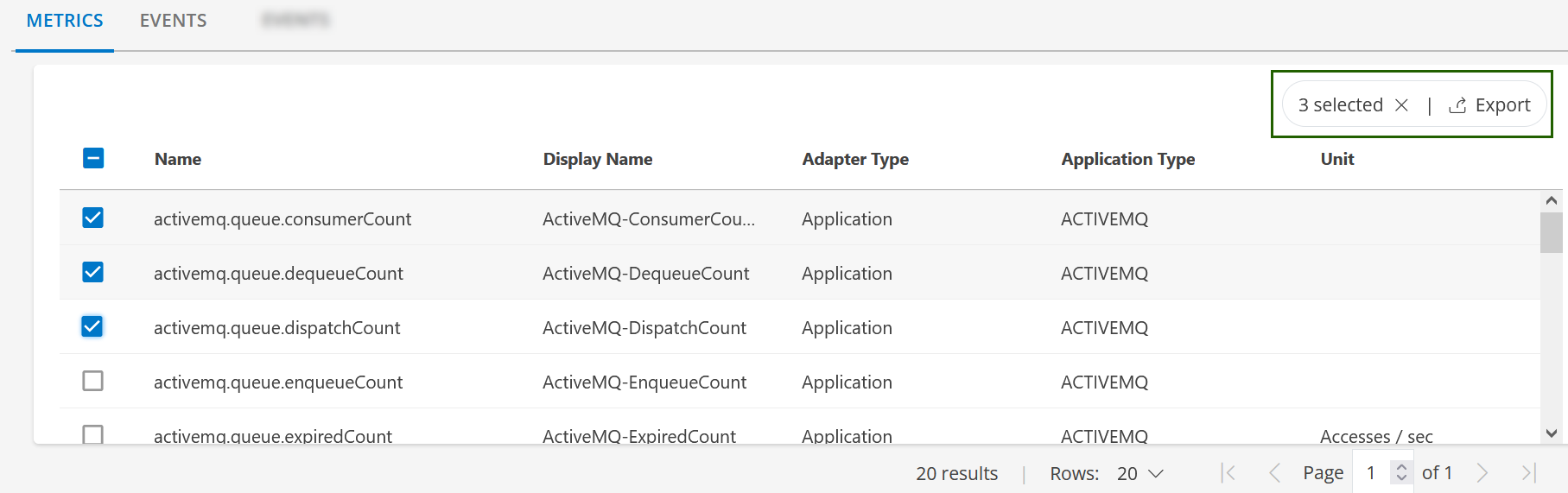
From the METRICS listing screen, use the search box to search for the metric(s). The metric details are displayed.
Alternatively, use Filter to filter the metrics.Select the metric(s) and click Export. The metric(s) are exported in JSON format.
Import metrics
Follow these steps to import metric(s):
To select your client, click the Client/Partner dropdown from the top-left corner of the dashboards screen. Either type your client’s name in the search bar or select your client from the list.
Click Setup > Account. The Account Details screen is displayed.
Click on the Monitoring tile.
From the METRICS listing screen, click the Import icon. The IMPORT METRICS dialog box is displayed.
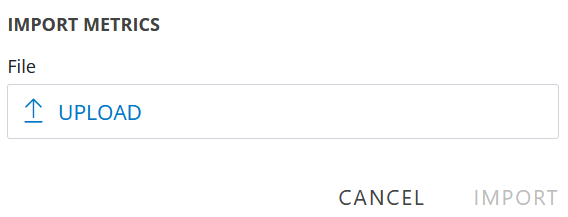
Click UPLOAD, select the JSON file from the File Upload dialog box, and click Open.
Click IMPORT. The metric(s) are imported and displayed in the METRICS listing screen.
Note: If the metric import fails, a message is displayed with the reason for failure.