Introduction
You can use Filter option to:
- Search for multiple metrics that share the same criteria.
- Filter metrics based on Adapter Type.
Filter metrics
Follow these steps to filter metrics:
To select your client, click the Client/Partner dropdown from the top-left corner of the My Dashboards screen. Either type your client’s name in the search bar or select your client from the list.
Click Setup > Account. The Account Details screen is displayed.
Click on the Monitoring tile.
From the METRICS listing screen, click Filter. The FILTER dialog box is displayed.
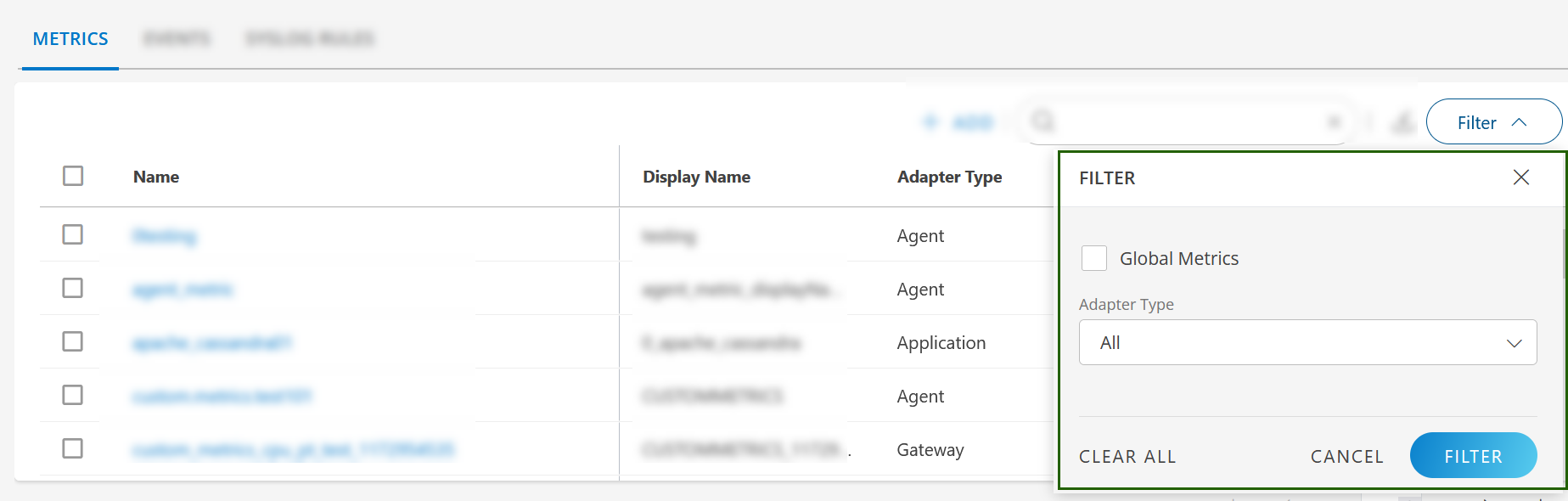
Select Adapter Type from the drop-down list.
For Adapter Type as “Application”, select Application Type from the “Application Type” drop-down list.Select Global Metrics checkbox to view all Out-of-the-box global metrics supported by OpsRamp.
Click FILTER. The filtered list is displayed.
- Click CLEAR ALL to clear the selection.
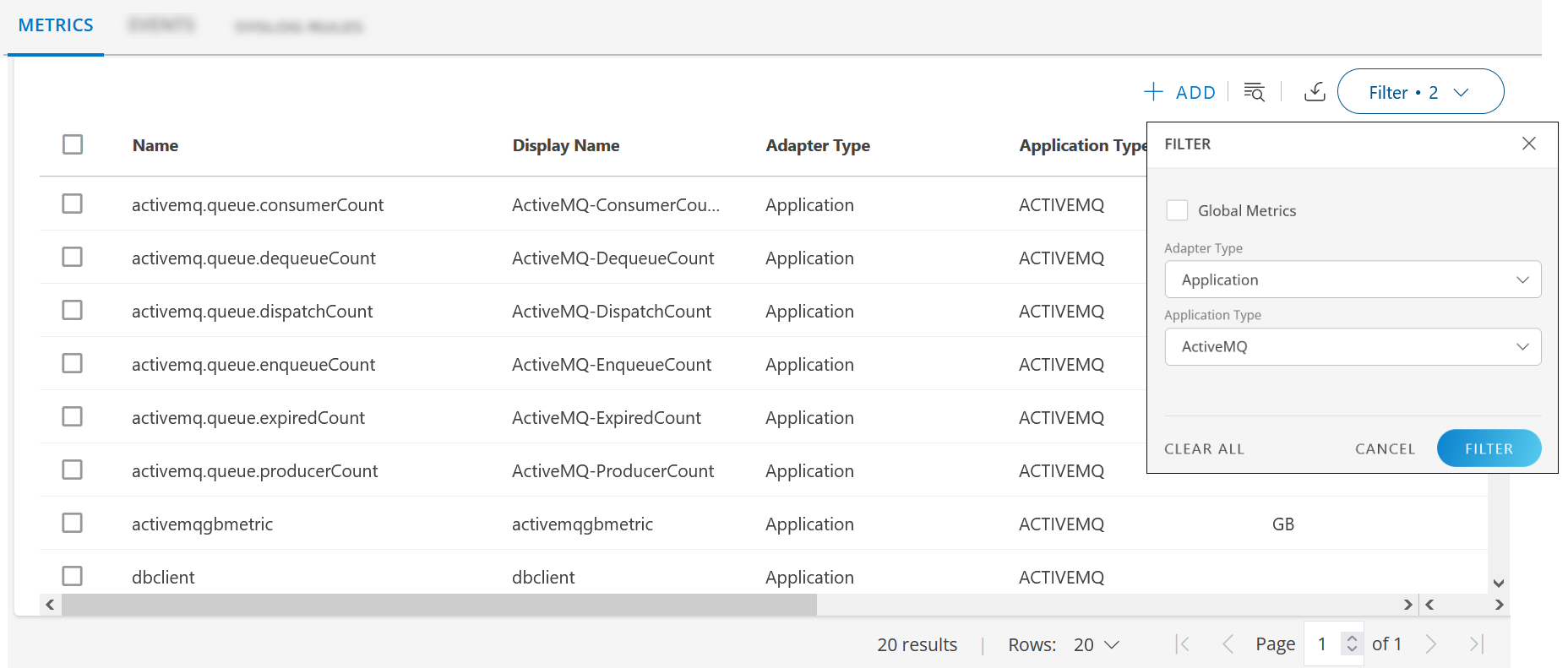
Following is an example of a filtered list where Adapter Type is Application and Application Type is ActiveMQ: