Introduction
You can view and update events based on the permissions you have.
Note: You can only view Global events, but cannot update them.
View Events
Follow these steps to view event information like Name, Adapter Type, Display Name, Description:
To select your client, click the Client/Partner dropdown from the top-left corner of the dashboards screen. Either type your client’s name in the search box or select your client from the list.
Click Setup > Account. The Account Details screen is displayed.
Click on the Monitoring tile.
Click on the EVENTS tab.
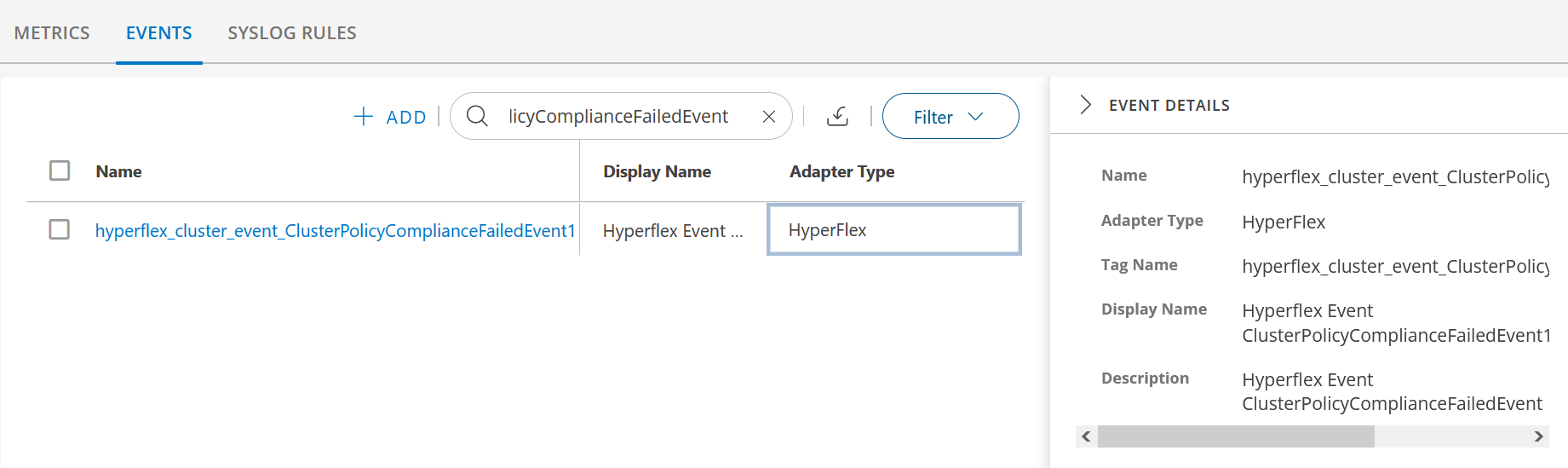
From the EVENTS listing screen, use the search box to search for event name. The event details are displayed.
Click anywhere in the event name row. The EVENT DETAILS slide-out is displayed.
Update Events
Follow these steps to update event details:
To select your client, click the Client/Partner dropdown from the top-left corner of the dashboards screen. Either type your client’s name in the search box or select your client from the list.
Click Setup > Account. The Account Details screen is displayed.
Click on the Monitoring tile.
Click on the EVENTS tab.
From the EVENTS listing screen, use the search option to search for the event. The event details are displayed.
Click on event name. The event details screen is displayed.
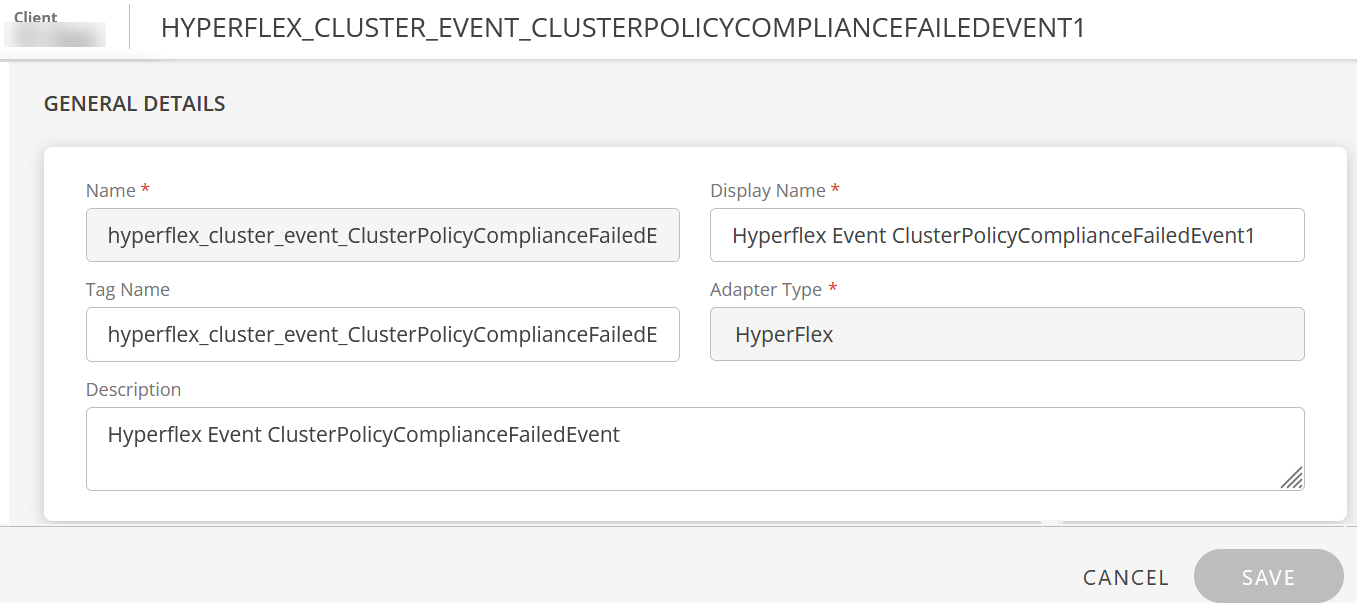
Edit the fields as required:
Field Name Field Type Description Name String This field is not editable. Display Name String Change the display name, if required. Adapter Type Dropdown This field is not editable. Tag Name String Change the tag name, if required. Description String Update event description as needed. Click SAVE.
Event details are updated, and a confirmation message appears.