×![]()
Create an Event
You can create events at the Service Provider, Partner and Client scopes.
Note: You cannot delete an event once it is created.
Follow these steps to create an event:
To select your client, click the Client/Partner dropdown from the top-left corner of the dashboards screen. Either type your client’s name in the search box or select your client from the list.
Click Setup > Account. The Account Details screen is displayed.
Click on the Monitoring tile.
Click on EVENTS tab. The EVENTS listing screen is displayed.
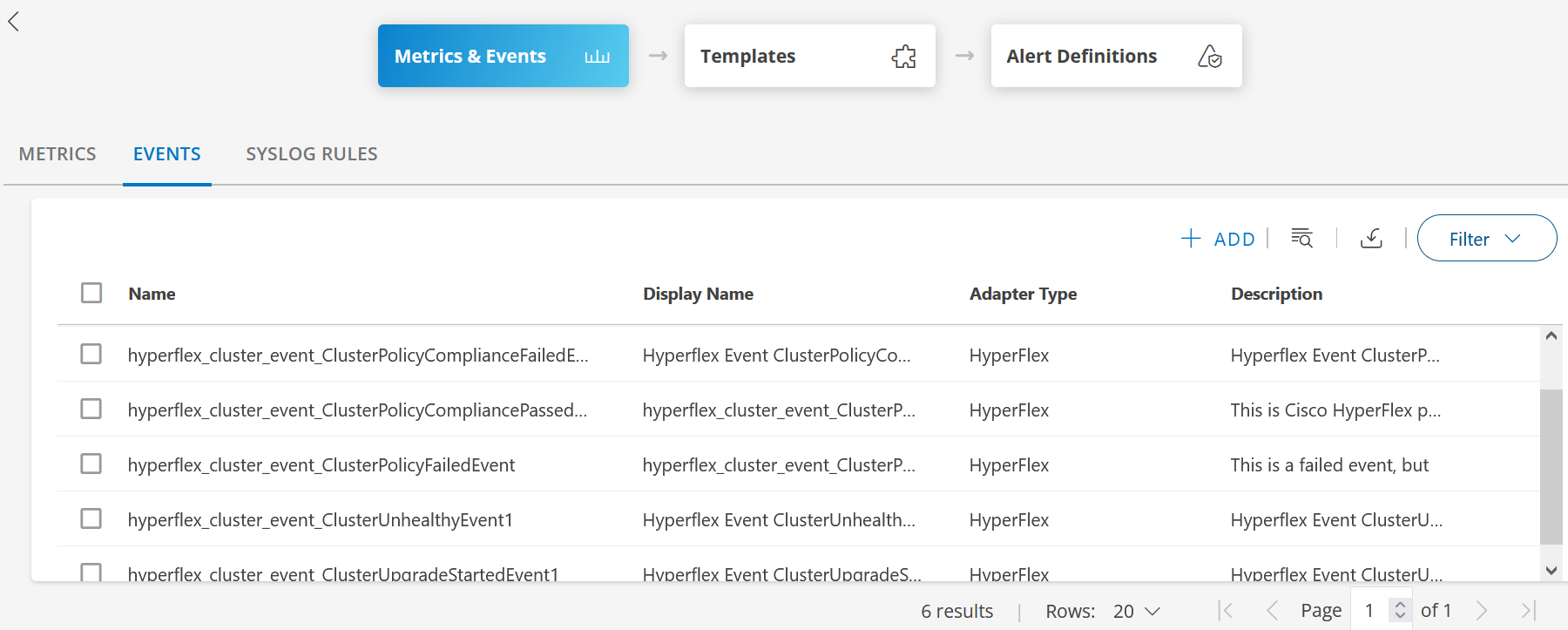
Click +ADD. The ADD EVENT screen is displayed.
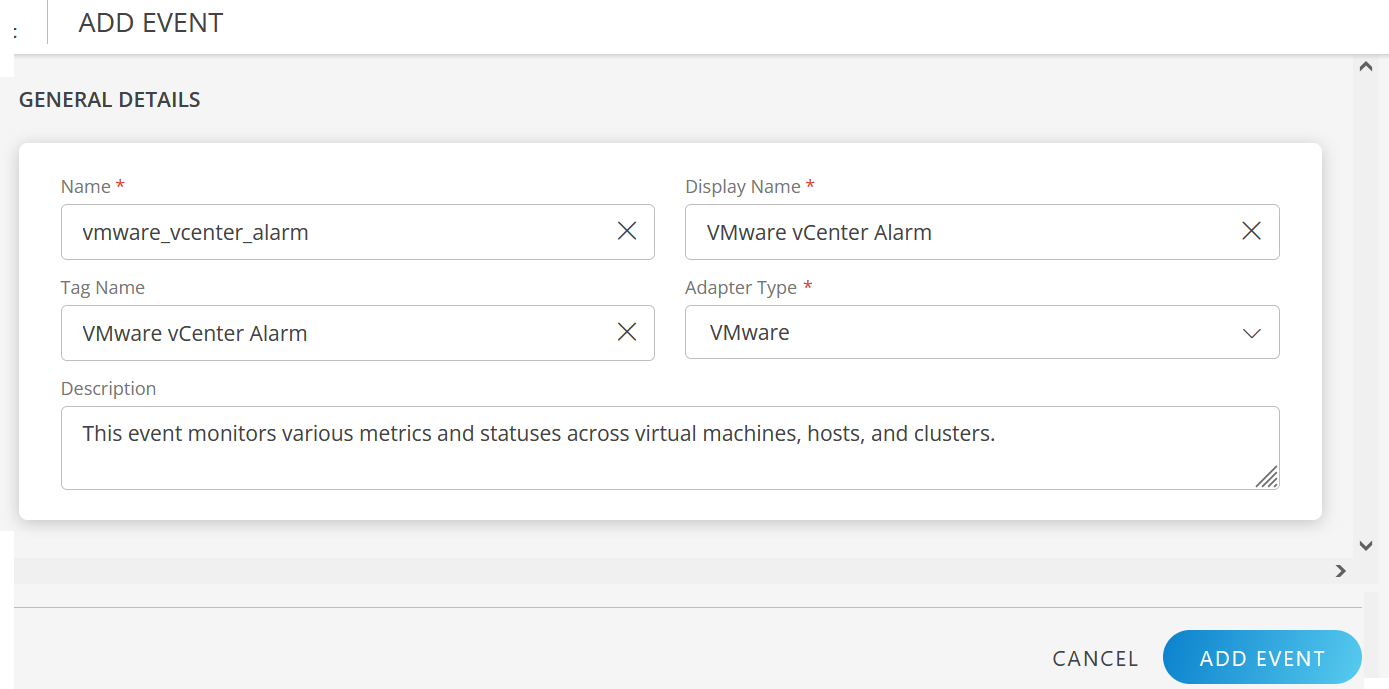
Enter the following details:

GENERAL DETAILS
Field Name Field Type Description Name String Unique name associated with the event.
Example: For VMware, enter the unique alarm name.
See Event name format for more information.Display Name String Unique display name. Adapter Type Dropdown Select the adapter type.
Example: VMware, Cisco UCS, EMC VNX.Tag Name String User-defined name for filtering. Description String Event description. Click ADD EVENT. The event is added, and a confirmation message appears.

Event name format
The following are acceptable formats for an event name:
- Event names should not contain a dot (.), instead use an underscore (_) between the words.
hyperflex.cluster.event.ClusterPolicyComplianceFailedEventis not validhyperflex_cluster_event_ClusterPolicyComplianceFailedEventis valid - An event name can have a maximum of ten underscores “_”. An event name cannot start or end with an underscore.
- An event name can contain numeric values (0-9) but cannot start with a numeric value.
- An event name should be case-insensitive.
- The length of the event name should be less than or equal to 255, including underscores.