Introduction
Gateway firmware updates are regularly published. These updates are for security patches, bug fixes, and new features. This document describes how to update gateway firmware.
There are two kinds of firmware updates:
- Minor updates are made during product releases and are published about every three months.
- Major updates are made when the underlying firmware operating system reaches end-of-life (EOL). Major updates are published about every 5 years.
Gateways running unsupported firmware cannot connect to the cloud so it is important to keep gateways updated. See the Gateway support policy for more information. Also, the gateway virtual appliance is designed to host only OpsRamp software and is disabled if you install non- OpsRamp software.
Use the UI for major and minor updates.
Minor Update
Minor firmware updates can be done on your existing gateways.
Prerequisite
The gateway must be running and communicating with the cloud.
Step 1: Permissions
Following permissions required to update the NextGen Gateway from OpsRamp Portal:
| Category | Permission Type | Permission Value |
|---|---|---|
| Collectors | Gateway Firmware | Allow Update |
| Collectors | Manage Management Profile | Manage |
Follow these steps to enable the above permission set:
- Navigate to Setup > Account > Users and Permissions.
- Click the Permissions Sets tab.
- Click + ADD. The Add Permission page is displayed.
- Under Permission Set Details screen, enter a Permission Set Name and short Description.
- Select the above mentioned permissions and click Save.
Refer to the Permission Sets document for more details on obtaining the necessary permissions.
Step 2: Update the Gateway
- Go to Resource Management > Management Profiles and select the applicable client.
- Select Management OpsRamp Gateways.
- From the available gateways list, select the gateway you want to update.
- Click the Allow icon, which displays a confirmation pop-up.
- Click Yes to continue.
- Click the Update Now button.
- In the confirmation pop-up, click Yes to continue. The gateway is offline for few minutes while it downloads the new version.
- To update multiple gateways, select the gateways you want and click the Allow button.
- Wait five to fifteen minutes before verifying the gateway is online.
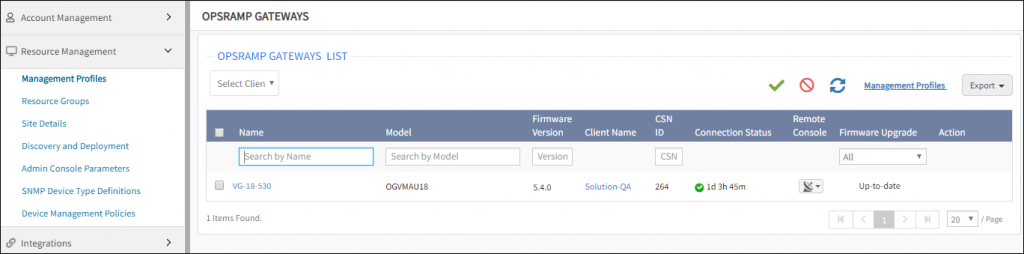
- Verify that the gateway Firmware Upgrade status displays up to date and that the Firmware Version status is the latest version, similar to the following figure: