Introduction
The deployment tool helps user to deploy the OpsRamp Agent in bulk across Windows servers.
This guide describes how to install the OpsRamp Agent on windows using Agent deployment tool.
- Step 1: Install Microsoft Windows OS Integration
- Step 2: Choose connection type (Direct or Proxy) and download deployment tool and Windows EXE Installer file
- Step 3: Install the Agent using Deployment Tool
Prerequisites
- Make sure all the servers are reachable from Jump server
- Jump server and all target devices should be in same credentials set.
- Recommend having the same set of Domain Credentials across all the devices with Admin access.
- Able to connects the
ADMIN$share and theIPC$share on the target computer. - OpsRamp are using
Xcmd.exethird party utility to pushing and install the the agent from source device to target machines. See https://docs.bmc.com/docs/AtriumOrchestratorContent/201603/xcmd-utility-667807366.html
Note
OpsRamp recommends to have the same set of credentials for all the devices on which Agent needs to be installed.Download the Deployment Tool
- To select your client, navigate to All Clients, and click the Client/Partner dropdown menu.
Note: You may either type your client’s name in the search bar or select your client from the list. - Navigate to Setup > Account. The Account Details screen is displayed.
- Click Integrations. The Installed Integrations screen is displayed with all the installed applications.
Note: If you do not have any installed applications, you will be navigated to the Available Integrations page with all the available applications. - Click + ADD on the Installed Integrations page. It will redirect to the Available Integrations page.
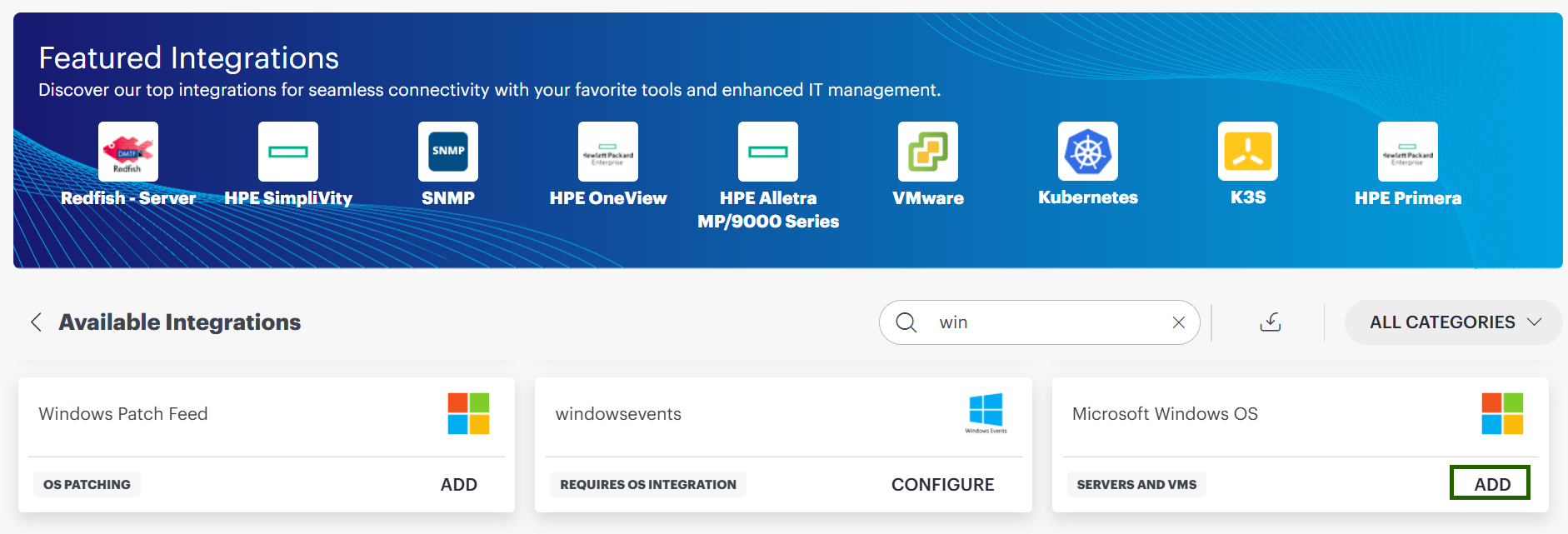
- Search for the integration (Microsoft Windows OS) either by entering the name of the integration in the search bar or by selecting the category (Servers and VMs) from the All Categories dropdown list.
- Click ADD on the Microsoft Windows OS tile. The Install Windows Agent page appears.
- Select your agent connection type and platform to download and install agent on the machines you want to manage.
Note: Do not modify the file name of the Agent installer during the installation. Agent installs in silent mode and does not require a reboot.
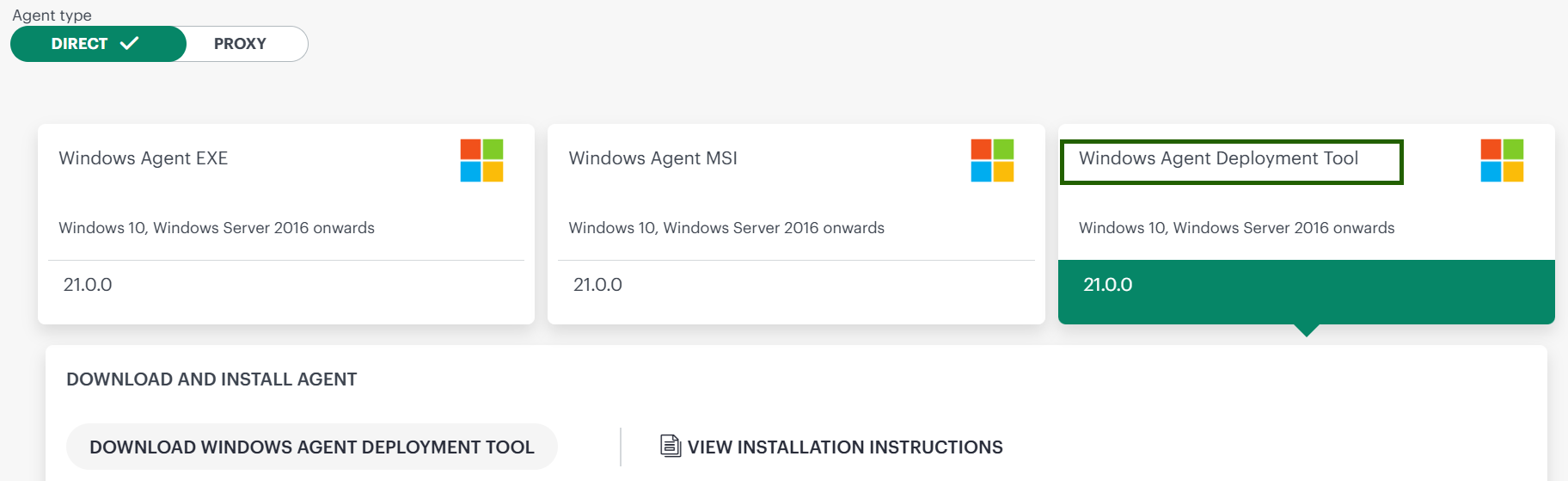
- If you selected Agent Type as Direct, then
- Click on Windows Agent Deployment Tool widget and then click Windows Agent Deployment Tool button to download the Windows Agent Deployment Tool file.
- You can refer the instruction page to see the downloadable steps (optional).
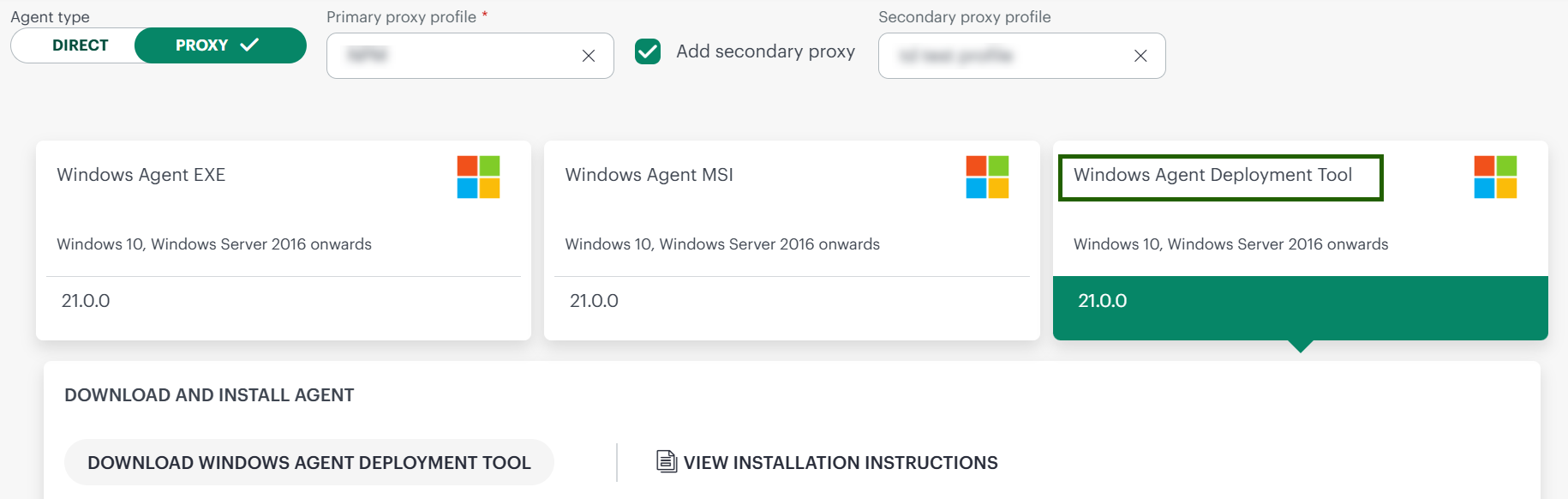
- If you selected Agent Type as Proxy, then
- From the Primary proxy profile section, select the primary proxy profile.
- To include the secondary proxy profile, enable the “Add Secondary Proxy” checkbox. (Optional)
- Once enabled, select the secondary proxy profile from the dropdown list.
- Now, click on Windows Agent Deployment Tool widget and then click Download Windows Agent Deployment Tool button to download the Windows Agent Deployment Tool file.
- You can refer the instruction page to see the downloadable steps (optional).
- If you selected Agent Type as Direct, then
- The file is downloaded and saved in your local system.
Install the Agent using Deployment Tool
- Navigate to the downloaded file.
- Copy the downloaded Agent Deployment Tool to the jump server.
- Run the AgentDeployment.exe file as administrator.
- The new screen will displayed. Enter the Input Discovery IPs details.
- Option 1: Range of SubNet IPs
- Provide the range of IPs where agnet deployment tool should be installed.
- Enter Domain\Username and Password details
- Option 2: SubNet (one wildcard)
- Provide a SubNet IPs where agnet deployment tool should be installed.
- Enter Domain\Username and Password details
- Option 3: Only for Specific IPs
- Provide a specific IP where tool should be installed.
- Enter Domain\Username and Password details
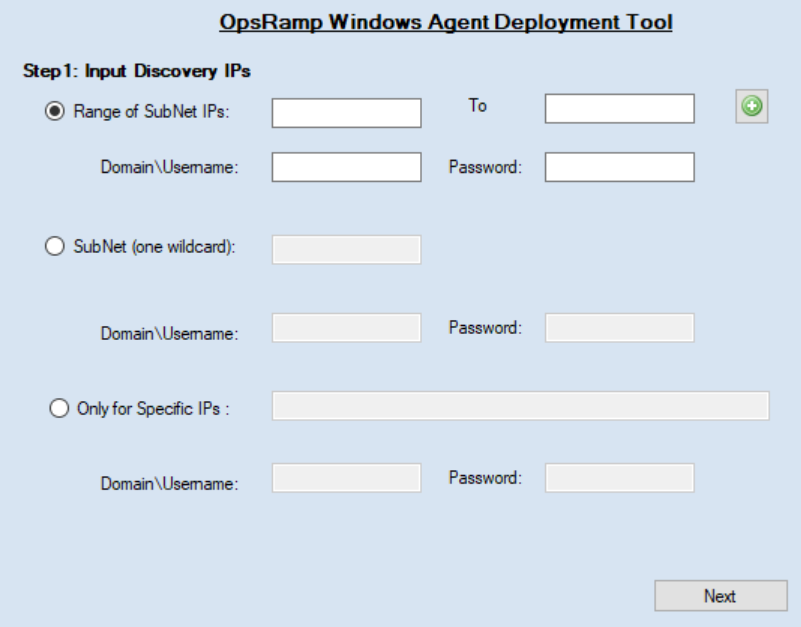
Click Next.
From the list of Available Devices, select the devices on which you want to install Agent and move to Selected Devices.
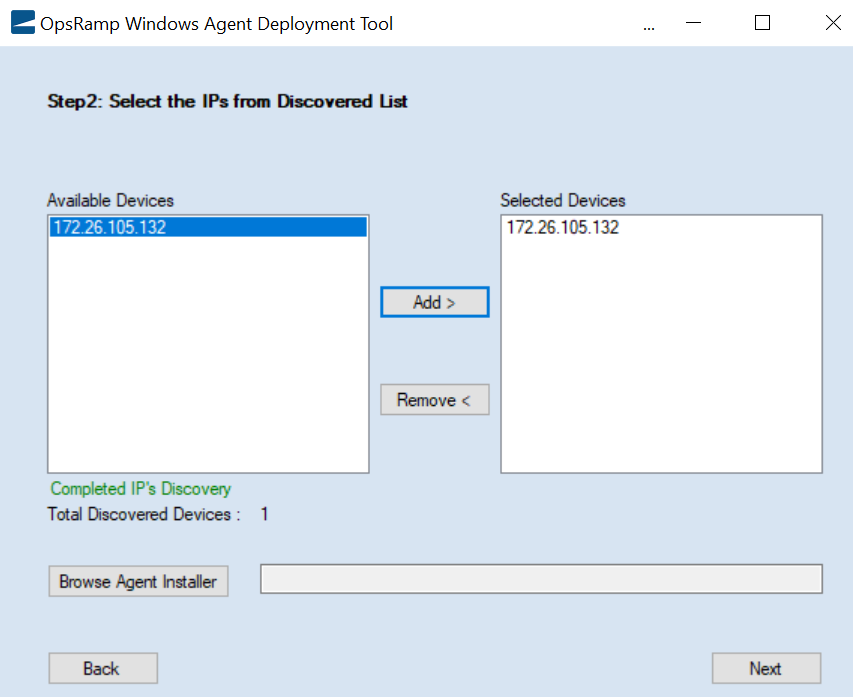
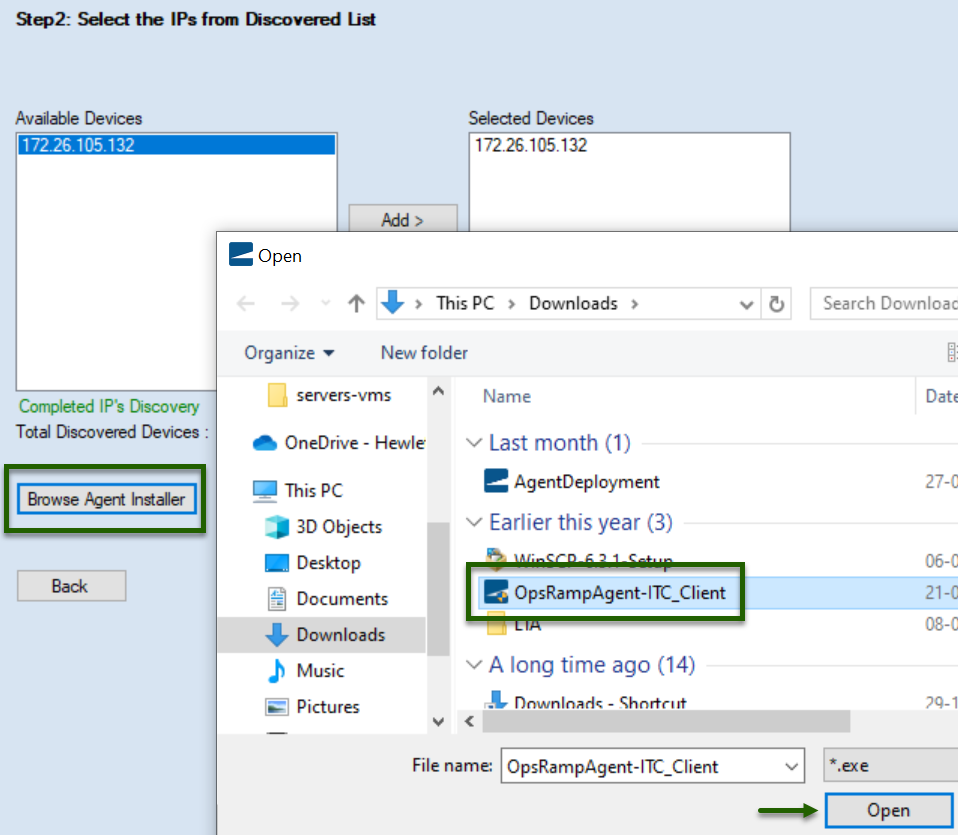
Click Browse Agent Installer and select the OpsRamp Windows Agent file that is downloaded from OpsRamp. Click Next.
Click Install.