This guide describes how to install the OpsRamp Agent on an ARM (Advanced RISC Machine) processor.

  • Step 1: Install the Agent
  • Step 2: Choose connection type and download the Agent for 64-bit ARM processor:
  • Step 3: Install the Agent for:
    • Root User Agent
    • Default Non-root User Agent
    • Non-root Custom User Agent

Permissions

Following permissions required to install the Linux OS Integration:

CategoryPermission TypePermission Value
Account AdministrationDevicesCreate
CollectorsManage Management ProfileView

Download the Agent

  1. To select your client, navigate to All Clients, and click the Client/Partner dropdown menu.
    Note: You may either type your client’s name in the search bar or select your client from the list.
  2. Navigate to Setup > Account. The Account Details screen is displayed.
  3. Click Integrations. The Installed Integrations screen is displayed with all the installed applications.
    Note: If you do not have any installed applications, you will be navigated to the Available Integrations page with all the available applications.
  4. Click + ADD on the Installed Integrations page. It will redirect to the Available Integrations page.
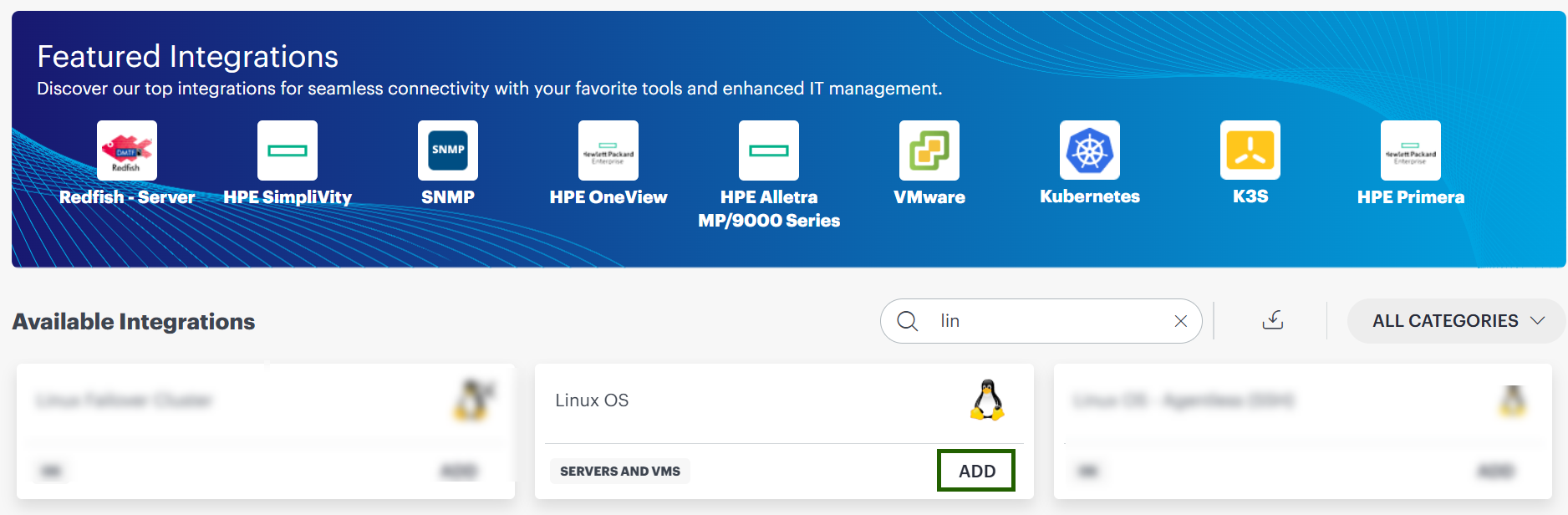
  5. Search for the integration (Microsoft Windows OS) either by entering the name of the integration in the search bar or by selecting the category (Servers and VMs) from the All Categories dropdown list.
  6. Click ADD on the Linux OS tile. The Install Windows Agent page appears.
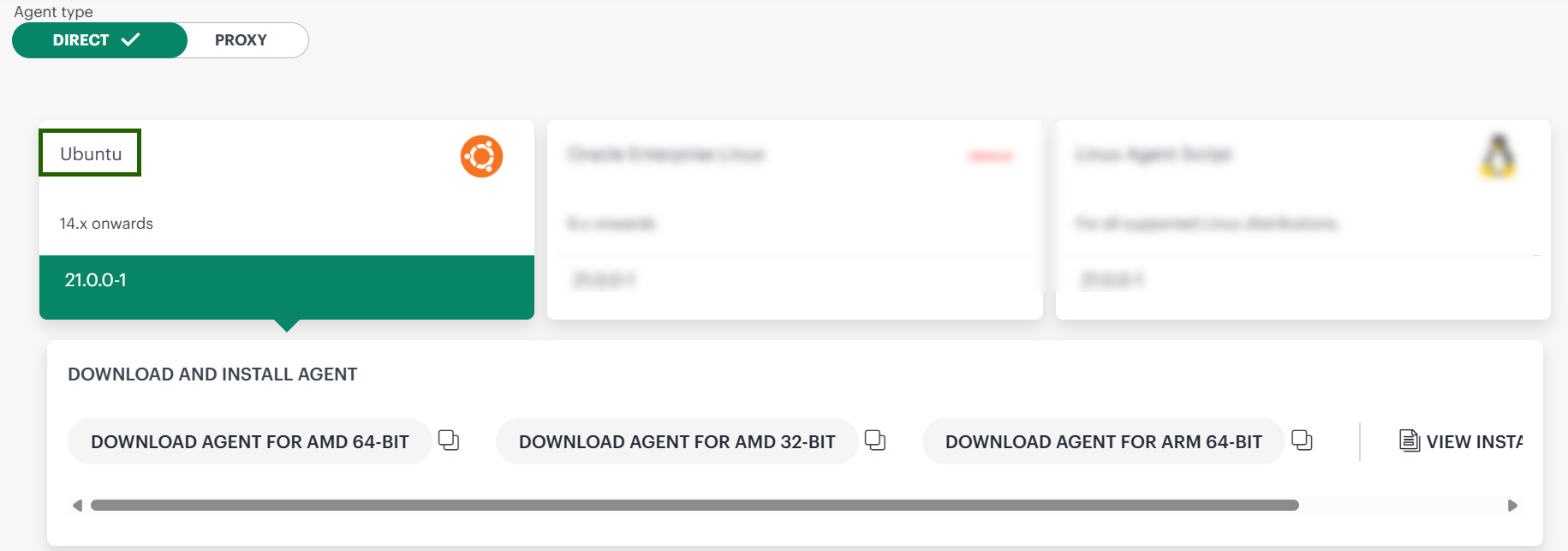
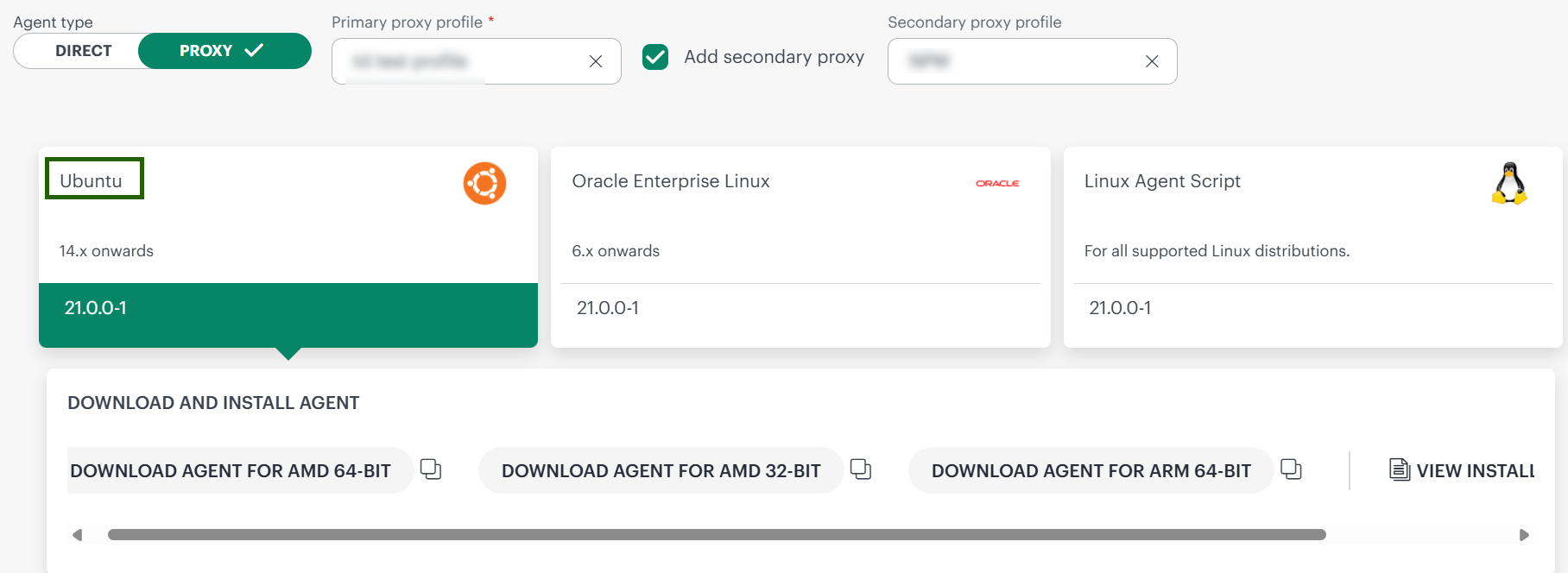
  7. Select your agent connection type and platform to download and install agent on the machines you want to manage. Note: Do not modify the file name of the Agent installer during the installation. Agent installs in silent mode and does not require a reboot.
    • If you selected Agent Type as Direct, then
      • Click on Ubuntu widget and then click downloaded option available, you have to choose from following:
        • AMD 64 Bit
        • AMD 32 Bit
        • ARM 64 Bit
      • You can also copy SHA-256 checksum to dwonload the agent.
      • You can refer the instruction page to see the downloadable steps (optional).
    • If you selected Agent Type as Proxy, then
      • From the Primary proxy profile section, select the primary proxy profile.
      • To include the secondary proxy profile, enable the “Add Secondary Proxy” checkbox. (Optional)
      • Once enabled, select the secondary proxy profile from the dropdown list.
      • Click on Ubuntu widget and then click downloaded option available, you have to choose from following:
        • AMD 64 Bit
        • AMD 32 Bit
        • ARM 64 Bit
      • You can also copy SHA-256 checksum to dwonload the agent.
      • You can refer the instruction page to see the downloadable steps (optional).
        Note: Make sure that you verify the SHA-256 checksum of the downloaded file.
  8. The file is downloaded and saved in your local system.
Install the Agent

Tabbed Interface with Table
Root User Agent
Default Non-root User Agent
Non-root Custom User Agent
1. Install the Agent with 64 bit run the following command.
    sudo dpkg -i opsramp-agent_XX.X.X-X_aarch64.deb
    
2. Start the Agent with the authentication tokens generated for your organization. See the Instructions page in OpsRamp portal to get your authentication tokens.
  • Enable all features
  •     sudo /opt/opsramp/agent/bin/configure -K {accessKey} -S {securityKey} -s client-name.api.opsramp.com -F {Integration ID} -L true 
        
  • Specific features
  •     sudo /opt/opsramp/agent/bin/configure -K {accessKey} -S {securityKey} -s client-name.api.opsramp.com -F {Integration ID} -L true -f "agent:RemoteCommand,agent:PatchManagement,agent:Automation,agent:RemoteConsole"
        
3. The server appears on the OpsRamp Infrastructure page within a few seconds.

See the /tmp/opsramp-agent_install.log file for installation progress.

The default, non-root agent installation automatically creates the default user.

1. Install the Agent with 64 bit run the following command.
    sudo ISNONROOT=Y  dpkg -i opsramp-agent_XX.X.X-X_aarch64.deb
    
2. Start the Agent with the authentication tokens generated for your organization. See the Instructions page in OpsRamp portal to get your authentication tokens.
  • Enable all features
  •     sudo /opt/opsramp/agent/bin/configure -K {accessKey} -S {securityKey} -s client-name.api.opsramp.com -F {Integration ID} -L true 
        
  • Specific features
  •     sudo /opt/opsramp/agent/bin/configure -K {accessKey} -S {securityKey} -s client-name.api.opsramp.com -F {Integration ID} -L true -f "agent:RemoteCommand,agent:PatchManagement,agent:Automation,agent:RemoteConsole"
        
3. The server appears on the OpsRamp Infrastructure page within a few seconds.

See the /tmp/opsramp-agent_install.log file for installation progress.

To install the agent as a custom user with non-root privilege, create a new user group and custom user before installing the agent.

  1. Create a new user group:
        groupadd --system {username}
        
  2. Create a custom user:
        useradd -g {username} -d /opt/opsramp -m {username} -s /bin/sh --system
        
  3. Set the user password:
        echo {username}:{password} | chpasswd
        
  4. Install the Agent with 64 bit run the following command.
        sudo AGENTUSER=username dpkg -i opsramp-agent_XX.X.X-X_aarch64.deb
        
  5. Start the Agent with the authentication tokens generated for your organization. See the Instructions page in OpsRamp portal to get your authentication tokens.
    • Enable all features
    •     sudo /opt/opsramp/agent/bin/configure -K {accessKey} -S {securityKey} -s client-name.api.opsramp.com -F {Integration ID} -L true 
          
    • Specific features
    •     sudo /opt/opsramp/agent/bin/configure -K {accessKey} -S {securityKey} -s client-name.api.opsramp.com -F {Integration ID} -L true -f "agent:RemoteCommand,agent:PatchManagement,agent:Automation,agent:RemoteConsole"
          
  6. The server appears on the OpsRamp Infrastructure page within a few seconds.

See the /tmp/opsramp-agent_install.log file for installation progress.

Uninstall the Agent

  1. To uninstall the agent run the following command:
    dpkg -P opsramp-agent
  2. Delete the folder:
    rmdir /opt/opsramp/agent

See the /tmp/opsramp-agent_uninstall.log file for uninstall progress.