Overview
Earlier syslog integration in OpsRamp focused on alert-based processing, where syslog messages were evaluated using predefined rules and filters and alerts were generated accordingly.
OpsRamp now enhances Syslog support to handle both alerting and log collection. To enable syslog collection, the platform introduces an OTEL‑based integration that installs the Gateway Managed OTEL Collector on NextGen gateways, captures Syslog, applies YAML‑based filters, and forwards the processed log streams to OpsRamp for centralized storage and analysis.
Prerequisites
Before installing the Gateway Managed OTEL Collector:
- Enable Log Management at the client level. This permission is required to ingest and forward logs to the cloud.
- Ensure your environment uses OpsRamp NextGen Gateway version 21.1.0 or later. Using the latest version is recommended for complete feature coverage and improvements.
Enabling Log Management
To enable Log Management, select Partner and Client and then click Setup → Account → Settings → ADD-ONS. In ADD-ONS select Log Management checkbox and click Save to reflect the changes.
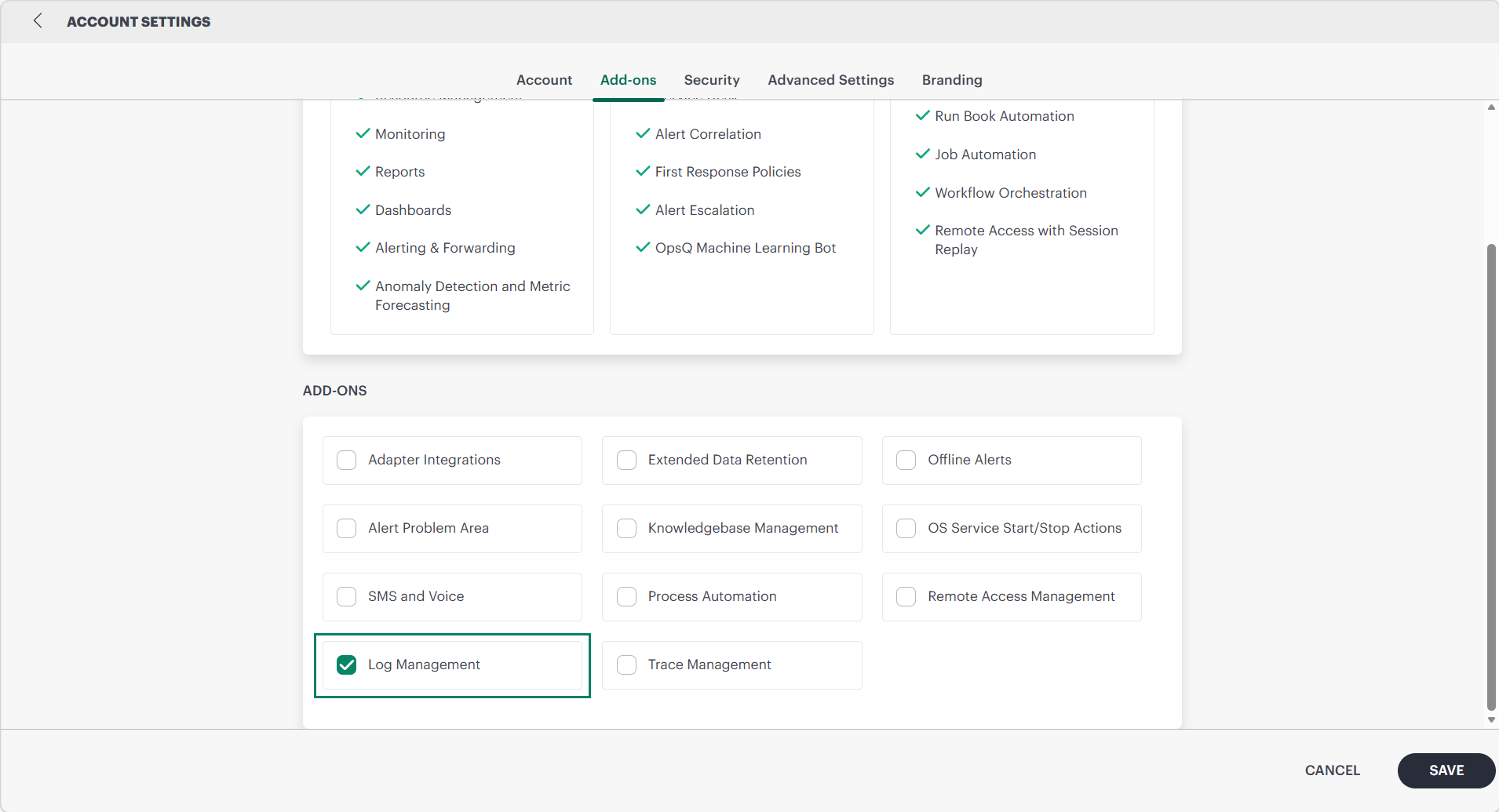
Along with enabling Log Management, you must also enable the Syslog Collection option in the SysLog Monitor Configuration so that Syslog messages received at the gateway can be forwarded to the OpsRamp cloud.
If disabled, logs cannot be forwarded, even if the OTEL Collector is installed. If both options are disabled, logs cannot be forwarded, even if the OTEL Collector is installed.
Installing the Gateway Managed OTEL Collector
To install the integration:
- Navigate to Partner → All Clients and select the appropriate Client
- Go to Setup → Account
- Open Integrations to view installed integrations
- Click + ADD to install a new integration
- Locate and select Gateway Managed OpenTelemetry (OTEL) Collector
- Provide the Basic Information:
- Name – Enter integration name
- Description (Optional) – Describe the purpose of the integration
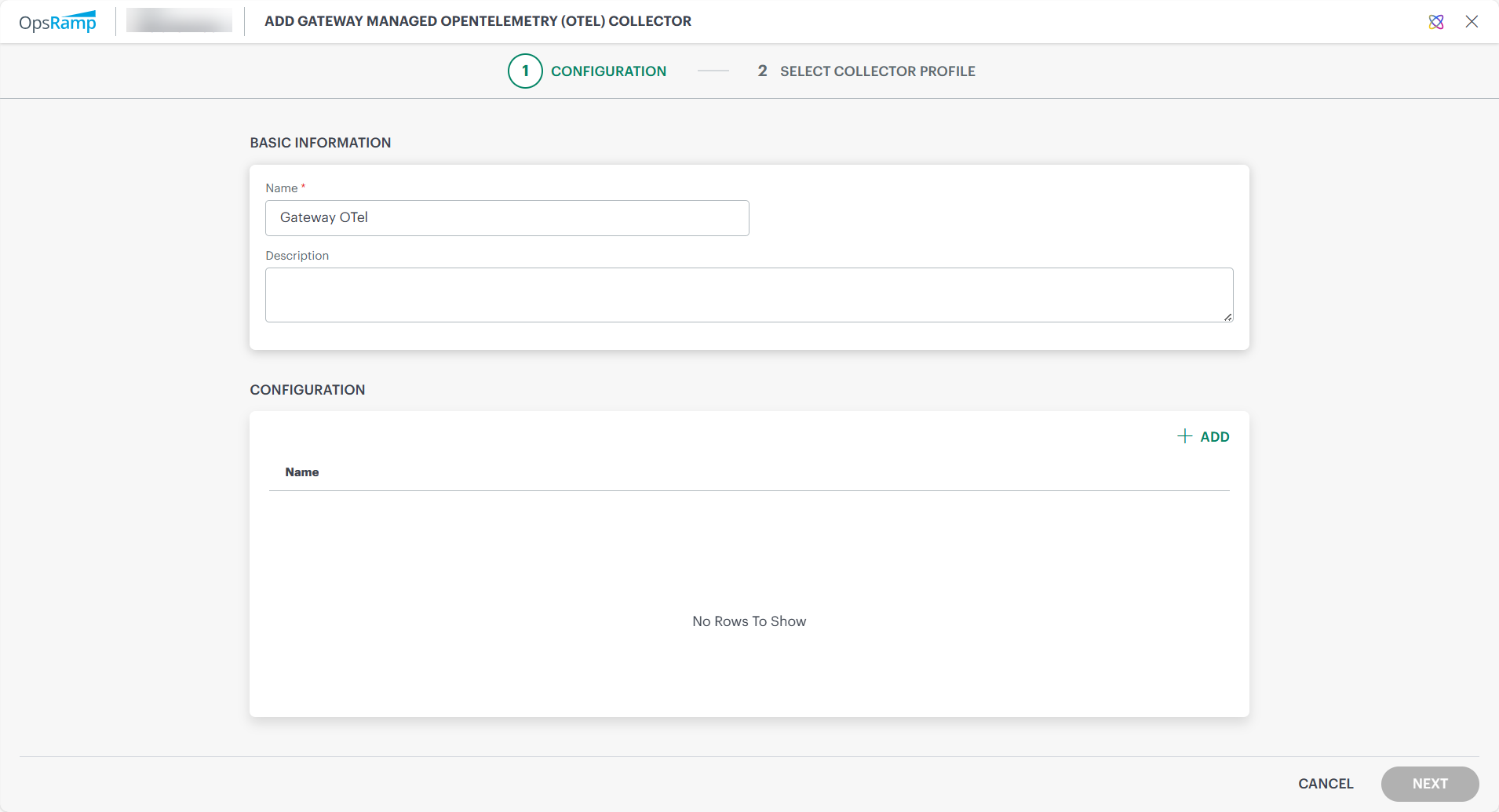
Adding an OTEL Configuration
In the configuration window:
- Click + ADD
- Provide the following configuration details:
Configuration Fields
| Field Name | Type | Description |
|---|---|---|
| Name | String | Name of the configuration |
| Run Gateway-managed OTEL on the same node as OpsRamp Gateway | Checkbox | Runs OTEL Collector on the same Gateway node or any eligible Kubernetes node. When this option is enabled, the OTEL Collector runs on the same node as the OpsRamp Gateway. When it is disabled, the Collector can run on any eligible node in the Kubernetes cluster where a gateway is available.Note: Select the checkbox to ensure that the OTEL collector deploys only to the intended single node when multiple nodes are available. |
| OTEL Configuration YAML | YAML | Defines how logs are collected, filtered, and exported |
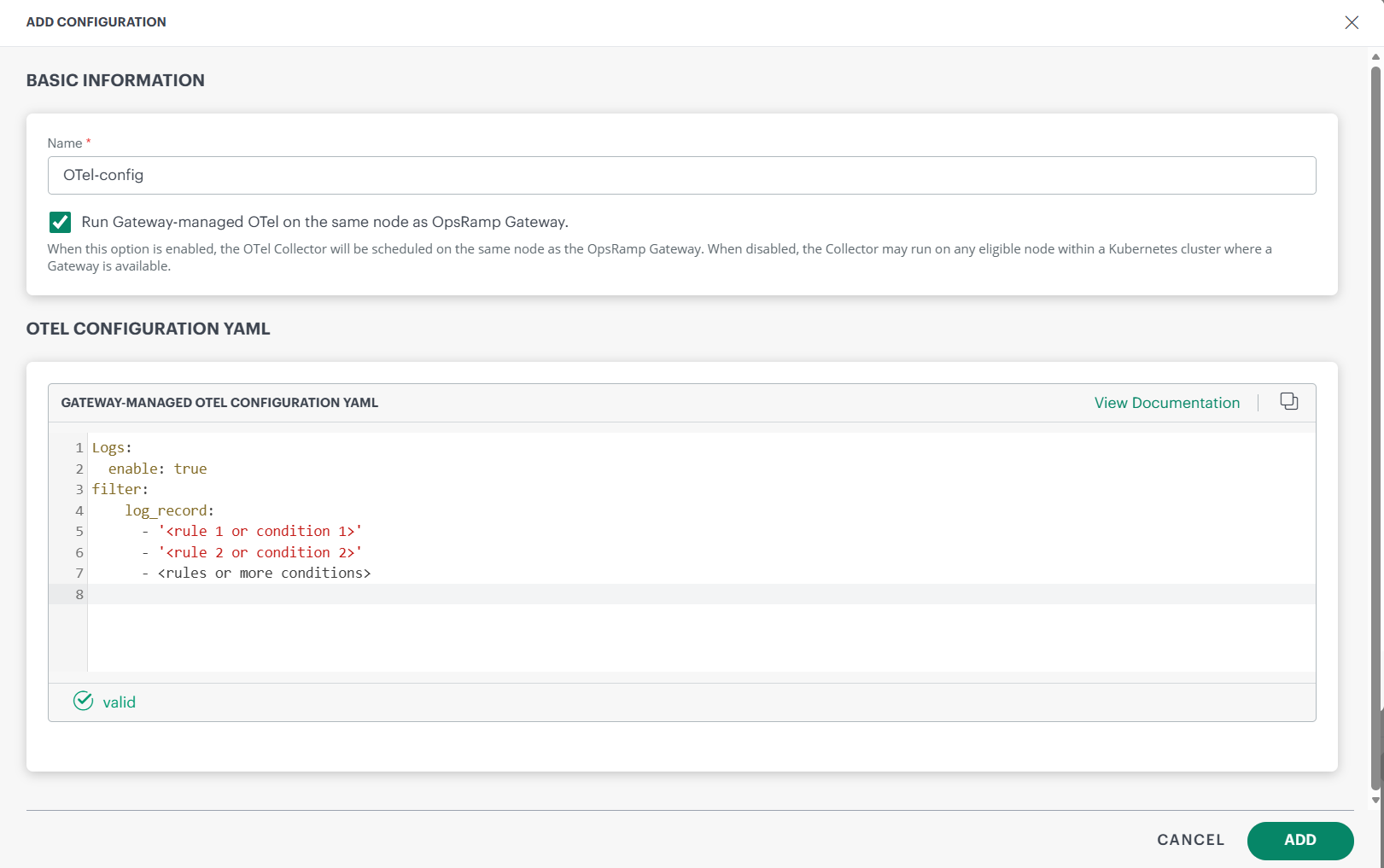
Configuring the OTEL Collector Using YAML
The OTEL Collector uses a YAML configuration file to control how syslog messages are collected, filtered, processed, and forwarded to OpsRamp.
The following is the YAML configuration
Logs:
  enable: true
  filter:
   log_record:
    - '<rule 1 or condition 1>'
    - '<rule 2 or condition 2>'
    - <rules or more conditions>
All Rules under log_record are evaluated using OR logic; if any condition evaluates to true, the corresponding log entry is dropped.
You can define detailed filtering rules to determine which syslog messages are included or excluded before forwarding. For more information see filtering rules and conditions.
You can define filters for syslog attributes such as:
- Level
- IP address
- Priority
- Facility
- Message content
Filtering Use Cases
Level
To filter logs by level, use the following syntax. The log level is stored in the level attribute and accessed as attributes["level"].
Example 1: Drop Debug-level logs
Logs:
  enable: true
  filter:
   log_record:
    - 'attributes["level"] == "Debug"'
This filter drops any log entry whose level attribute equals Debug. level has following values Emergency,Alert, Critical, Error, Warn, Notice, Info, Debug, Unknown
Example 2: Drop Info or Warn logs (OR behavior)Option 1 — separate list entries (OR behavior):
Logs:
  enable: true
  filter:
   log_record:
    - 'attributes["level"] == "Info"'
    - 'attributes["level"] == "Warn"'
Option 2 — a single condition with or:
Logs:
  enable: true
  filter:
   log_record:
- 'attributes["level"] == "Warn" or attributes["level"] == "Info"'IP Address
To filter logs by IP addresses, use the syntax below. These are captured on the resource object under resource.attributes["ipaddress"]: the string value holds the source host’s IPv4 or IPv6 address (e.g., "<172.26.26.20>").
Example 1: Drop logs from an IP range
Logs:
  enable: true
  filter:
   log_record:
    - 'IsMatch(resource.attributes["ipaddress"], "^172\\.26\\.\\d{1,3}\\.\\d{1,3}$")'
Drops logs whose ipaddress matches the regex^172\.26\.\d{1,3}\.\d{1,3}$ (the 172.26.x.x range).
IsMatch(target, pattern) uses Go’s regexp.MatchString semantics.
Example 2: Drop logs from a single IP
Logs:
  enable: true
  filter:
   log_record:
    - 'resource.attributes["ipaddress"] == "172.26.26.20"'
Drops all logs whose ipaddress == “172.26.26.20”.
Priority
To filter logs by priority, use the numeric value stored in the priority attribute and access it as attributes["priority"]. This lets you drop logs with one specific priority or any logs whose priority falls within a numeric range.
Example 1: Drop logs with a single priority
Logs:
  enable: true
  filter:
   log_record:
- 'attributes["priority"] == 13'Example 2: Drop logs in a priority range
Logs:
  enable: true
  filter:
   log_record:
    - 'attributes["priority"] >= 10 and attributes["priority"] <= 15'
Drops logs where priority is between 10 and 15 (inclusive).
Facility
To filter logs by facility, use the numeric value stored in the facility attribute and access it as attributes["facility"]. This lets you drop logs with one specific facility or any logs whose facility falls within a numeric range.
Example 1: Drop logs with a specific facility
Logs:
  enable: true
  filter:
   log_record:
    - 'attributes["facility"] == 1'
Drops logs where facility == 1.
Example 2: Drop logs in a facility range
Logs:
  enable: true
  filter:
   log_record:
- 'attributes["facility"] >= 16 and attributes["facility"] <= 23'Message
To filter logs by message content, use the text stored in body. This lets you drop logs that match an exact message, contain a specific substring, or match a regular expression pattern
Example 1: Drop logs with an exact message
Logs:
  enable: true
  filter:
   log_record:
- 'body == "RFC3164 syslog sent over UDP"'Example 2: Drop logs where the message matches a regex
Logs:
  enable: true
  filter:
   log_record:
- 'IsMatch(body, ".*RFC3164.*")'Recommended Logs Filter Configuration
All conditions for logs sit in one filter: block.
Each list entry is OR’d.Drop if:
- level is Debug, or
- IP is in 172.26.x.x, or
- priority is 13, or
- facility is 1, or
- message contains RFC3164
Logs:
  enable: true
  filter:
   log_record:
    - 'attributes["level"] == "Debug"'
    - 'IsMatch(resource.attributes["ipaddress"], "^172\\.26\\.\\d{1,3}\\.\\d{1,3}$")'
    - 'attributes["priority"] == 13'
    - 'attributes["facility"] == 1'
    - 'IsMatch(body, ".*RFC3164.*")'
Require multiple conditions (use and)
Drop only if both level and IP match::
Logs:
  enable: true
  filter:
   log_record:
    - 'attributes["level"] == "Debug" and resource.attributes["ipaddress"] == "172.26.26.20"'
Collector Profile Selection
After validating your YAML configuration, the installation wizard prompts you to select a Collector Profile. Only NextGen Gateway Collector Profiles are displayed.
Note
Only one Gateway‑Managed OpenTelemetry (OTEL) Collector can run on each NextGen Gateway.To complete installation:
- Select a connected Collector Profile.
- Confirm the selection.
- Click Finish.
After enabling this integration, allow time for the OTEL Collector to finish installing on the gateway. Once installation is complete, only NextGen gateways with the OTEL Collector installed will appear in the syslog monitor configuration when you enable the Syslog Collection option.
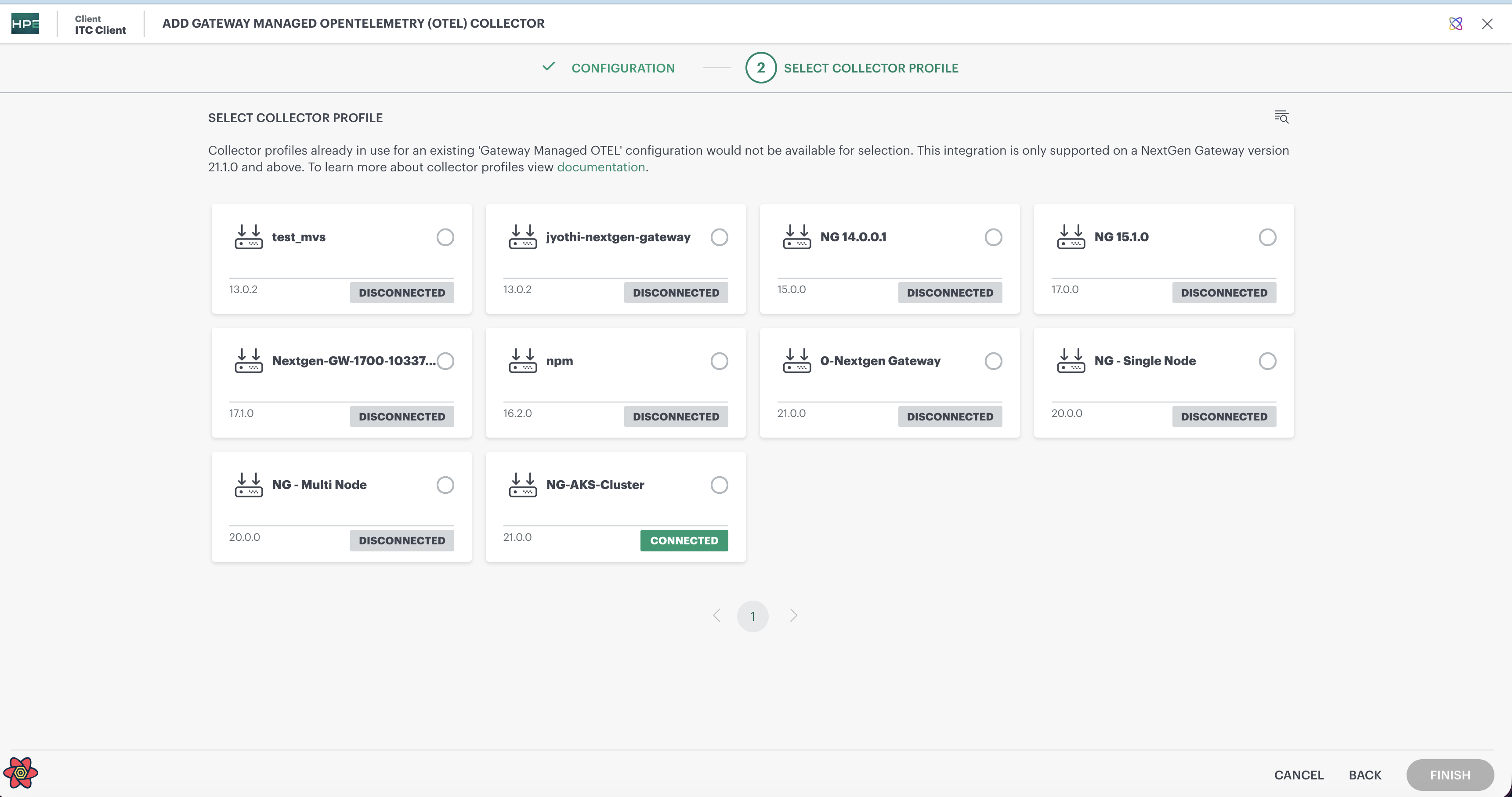
Note
The Gateway version is displayed in the collector profile selection is important for OTEL‑based integrations, as OTEL collectors and pipelines are supported only on specific Gateway versions (21.0.0 and above). This visibility helps customers identify OTEL‑compatible gateways and select the correct collector profile.Syslog Forwarding
Once syslog messages are collected on the gateway and processed through the OTEL Collector’s YAML filters, the ingestion workflow continues with forwarding.
Syslog forwarding completes the ingestion pipeline by sending filtered syslog messages from the gateway to OpsRamp platform through the Collector Profile, which provides the necessary transport channel and cloud connectivity for reliable log delivery.
Additional References
For details on syslog collection, see Syslog collection.