Create a Resource Tile
From Dashboard > Dashboard 2.0, create a new dashboard or select from an existing dashboard collection.
See Create Dashboards to learn about creating dashboards.
Click CREATE TILE or + from the toolbar.
In the ADD TILE screen that appears, select RESOURCE.
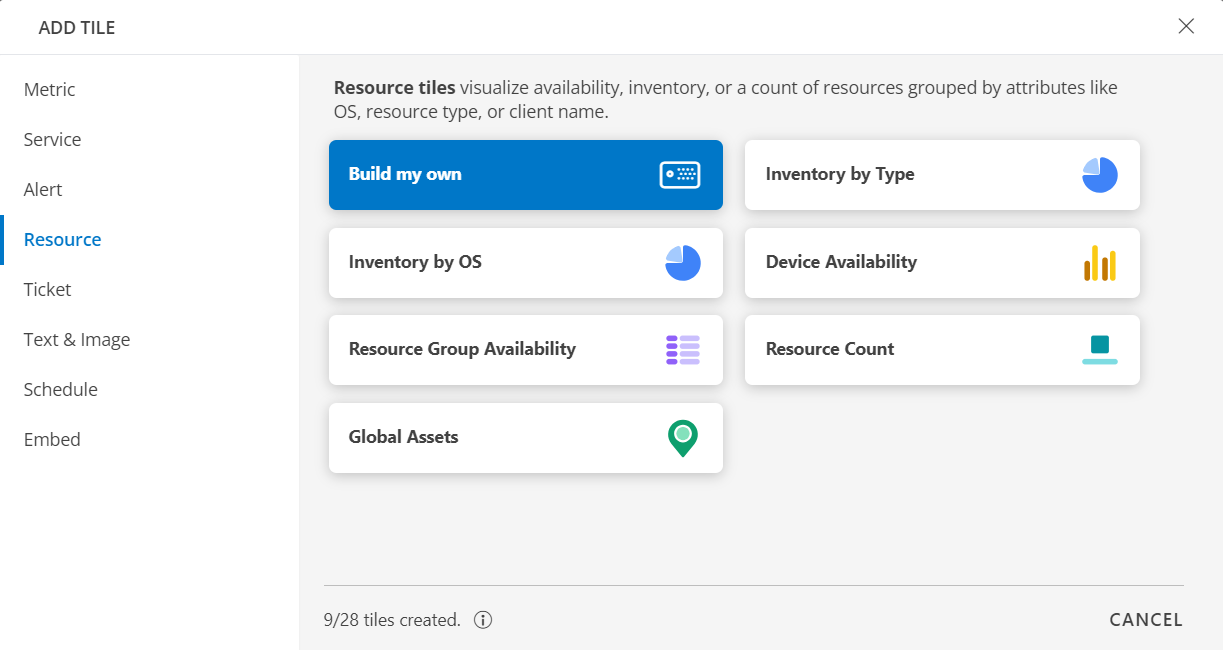
- Select one of the following:
| Tile Option | Functionality |
|---|---|
| Build my own | Visualize availability, inventory, or a count of resources grouped by attributes like OS, resource type, or client name. |
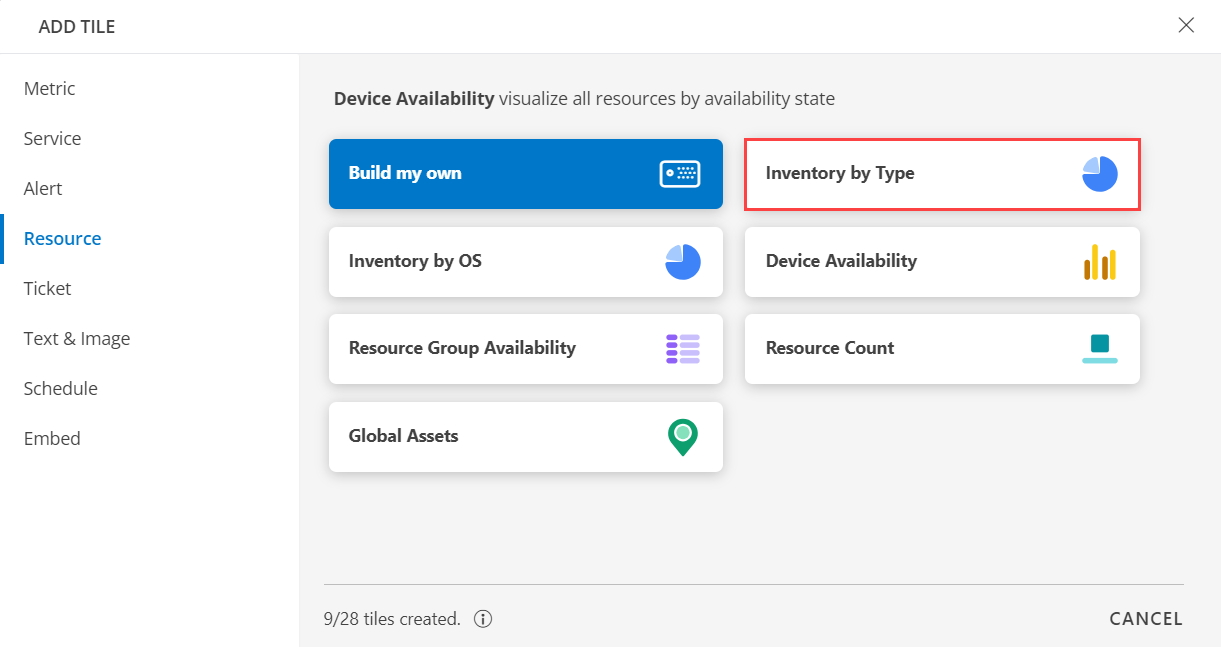
| Inventory by Type | Visualize all resources by resource type. |
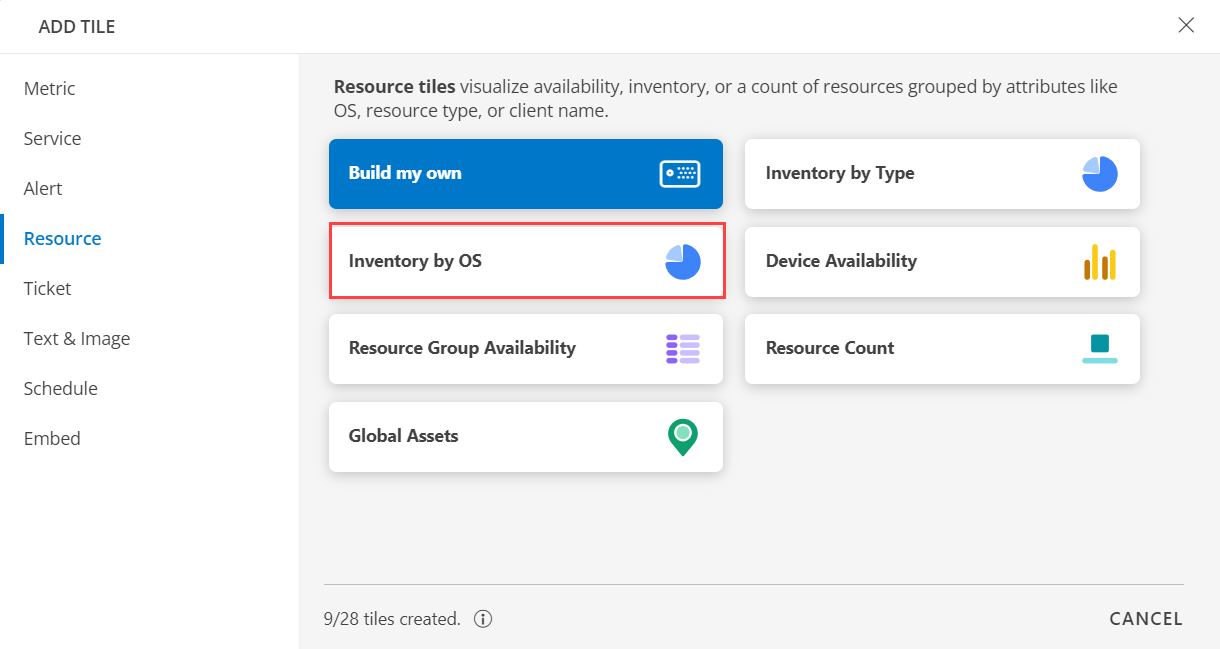
| Inventory by OS | Visualize all resources by OS. |
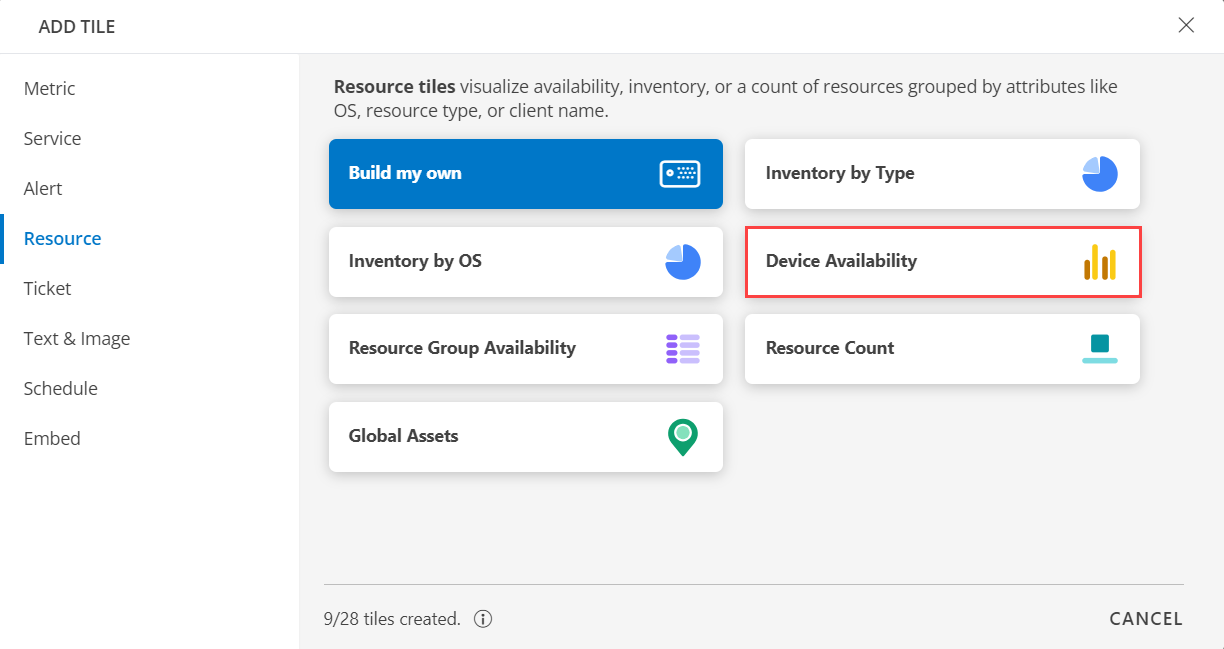
| Device Availability | Visualize all resources by availability state. |
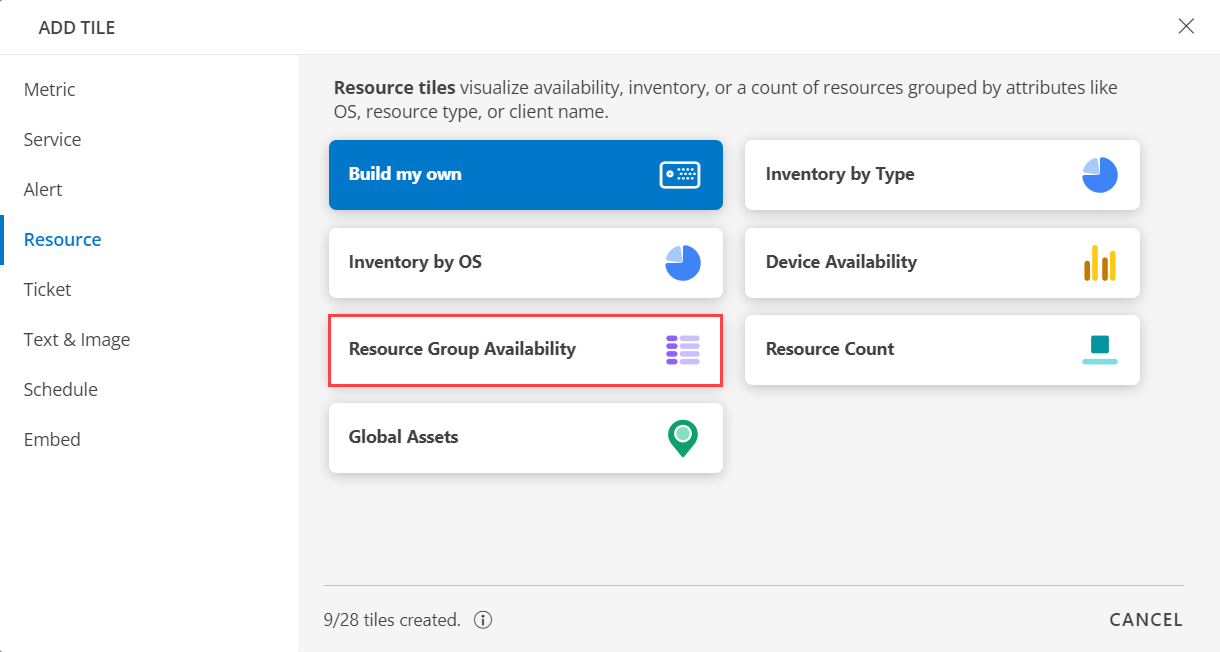
| Resource Group Availability | Visualize all resources in resource group by availability state. |
| Resource Count | Visualize count of resources of a given Resource Type. |
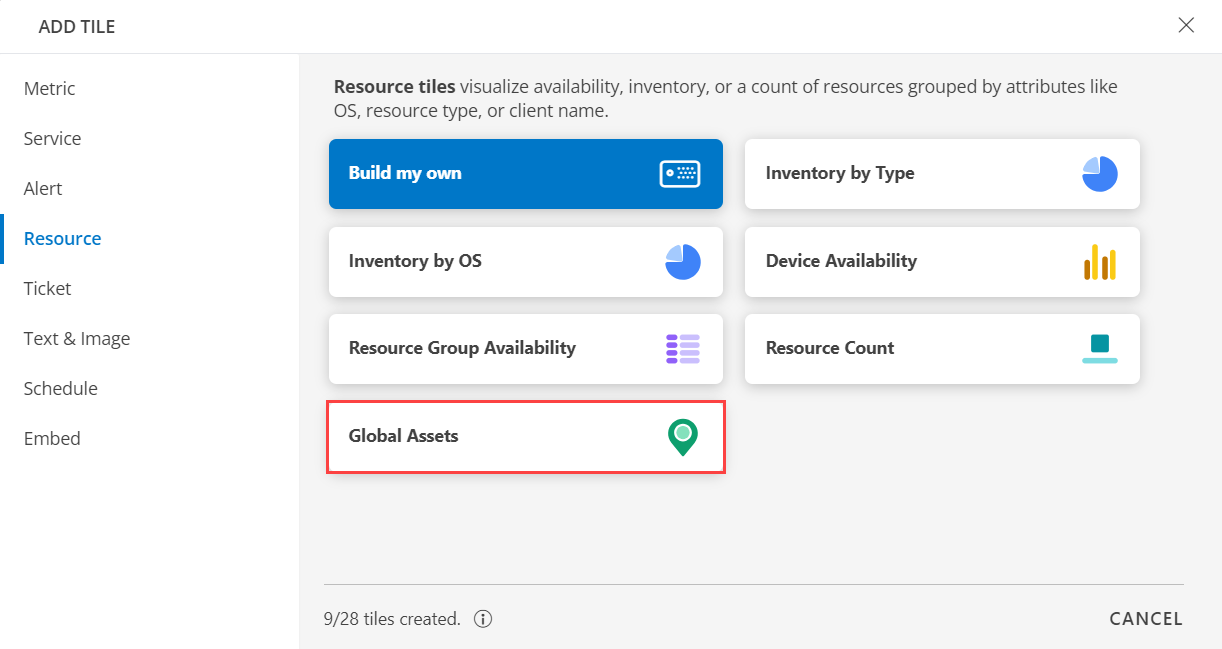
| Global Assets | Visualize inventory across the geography. |
Build my own
Click here to view how to Build Your Own Query
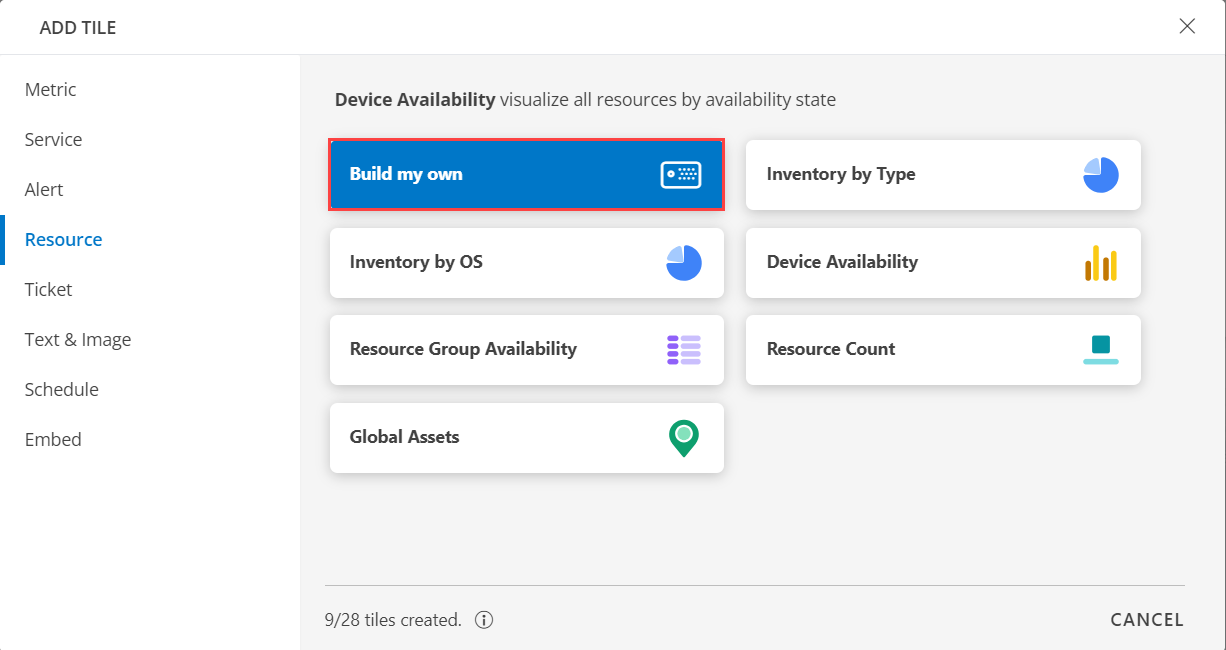
- Select the Build my own tab. This enables you to create a custom tile.
Click the + QUERY and select the attributes from the drop-down list as you build the query. Click the + button to add additional attributes.
Note: You can combine multiple filters together to view only the required alerts. The query is completed and the results are displayed in the preview graph.
Alternatively, click </> to use the advanced query builder.
Note: Click </> again to close the advanced query field and switch back to the basic query builder format.Enter a query or click inside the box to see a list of OpsQL attributes.
Click the optional Legend icon and enter {{ in the EDIT LEGEND field to see a list of options.
Select the visualization from the following options:
| Chart Type | Description |
|---|---|
| Pie | Displays a pie chart. |
| Single Value | Displays a single value. |
| List | Displays values in a list format. |
| Bar | Displays the bar representation of the values. |
| Geo | Displays the geographical location of the resource. |
From the GROUP BY option, select an attribute. You can select up to two attributes.
Notes:
- In the List visualization, the second attribute values are displayed in a multi-column colored list.
- By default type the attribute.
- You also have the option to edit the + Query and Attribute The following is a sample illustration of a multi-column list:
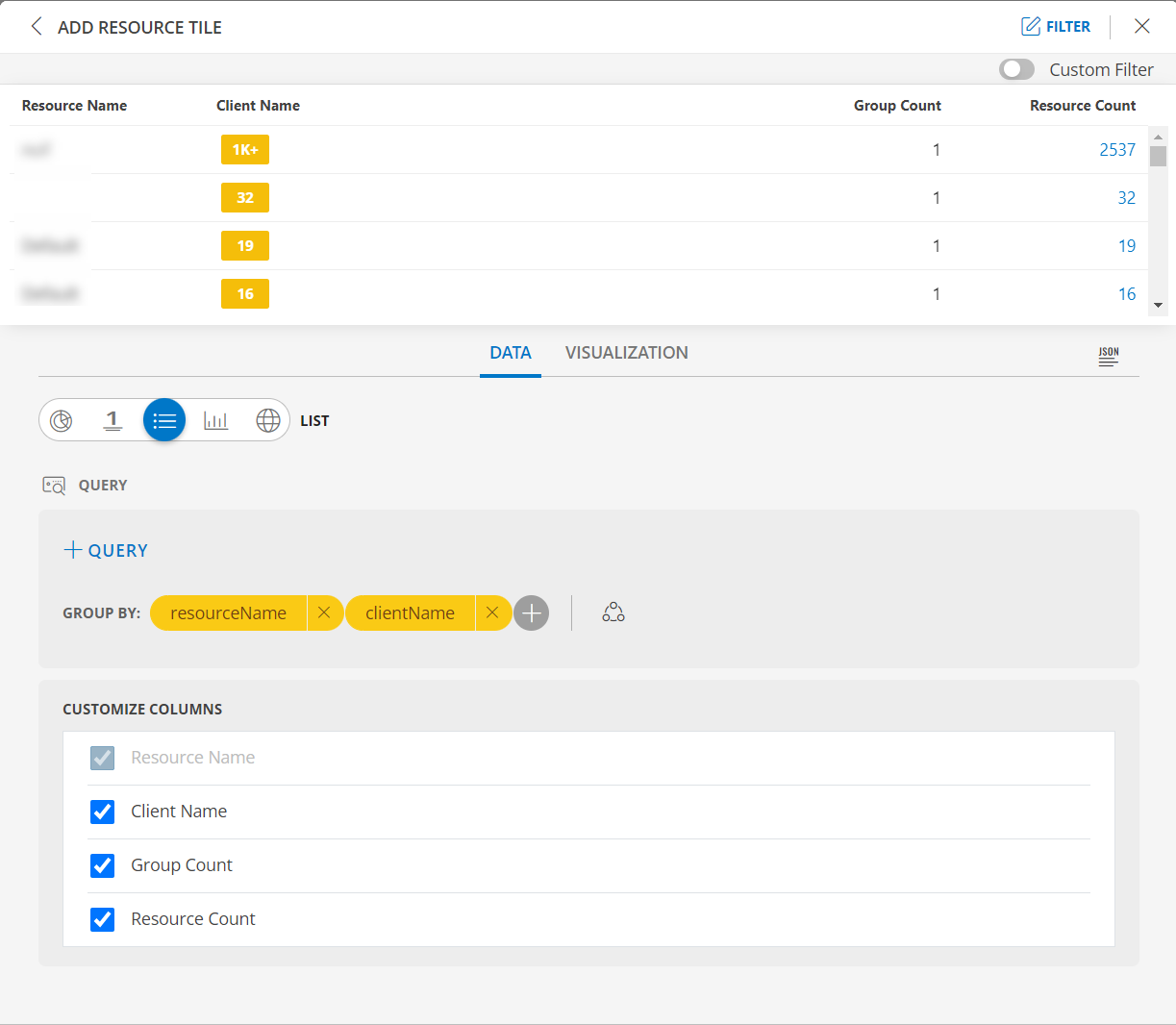
Enable the Split subgroups to view each grouping as a separate row.
Notes:- The multi-column list and split subgroup options are available for List chart only.
- The colors are displayed based on the default color categorization of alerts.
- Click the count or any column in the multi-column list to drill down and see the contextual list of alerts in the alerts browser.
See Visualization to know on how to customize the Resource Tile.
Click CREATE. The Resource tile is created and displayed on the main dashboard page.
Inventory by Type
Click here to view Inventory by Type
- Select the Inventory by Type tab. This enables you to create a custom tile.
Click the + QUERY and select the attributes from the drop-down list as you build the query. Click the + button to add additional attributes.
Note: You can combine multiple filters together to view only the required alerts. The query is completed and the results are displayed in the preview graph.
Alternatively, click </> to use the advanced query builder.
Note: Click </> again to close the advanced query field and switch back to the basic query builder format.Enter a query or click inside the box to see a list of OpsQL attributes.
Click the optional Legend icon and enter {{ in the EDIT LEGEND field to see a list of options.
Select the visualization from the following options:
| Chart Type | Description |
|---|---|
| Pie | Displays a pie chart. |
| Single Value | Displays a single value. |
| List | Displays values in a list format. |
| Bar | Displays the bar representation of the values |
| Geo | Displays the geographical location of the resource. |
From the GROUP BY option, select an attribute. You can select up to two attributes.
Notes:
- In the List visualization, the second attribute values are displayed in a multi-column colored list.
- By default type the attribute.
- You also have the option to edit the + Query and Attribute The following is a sample illustration of a multi-column list:
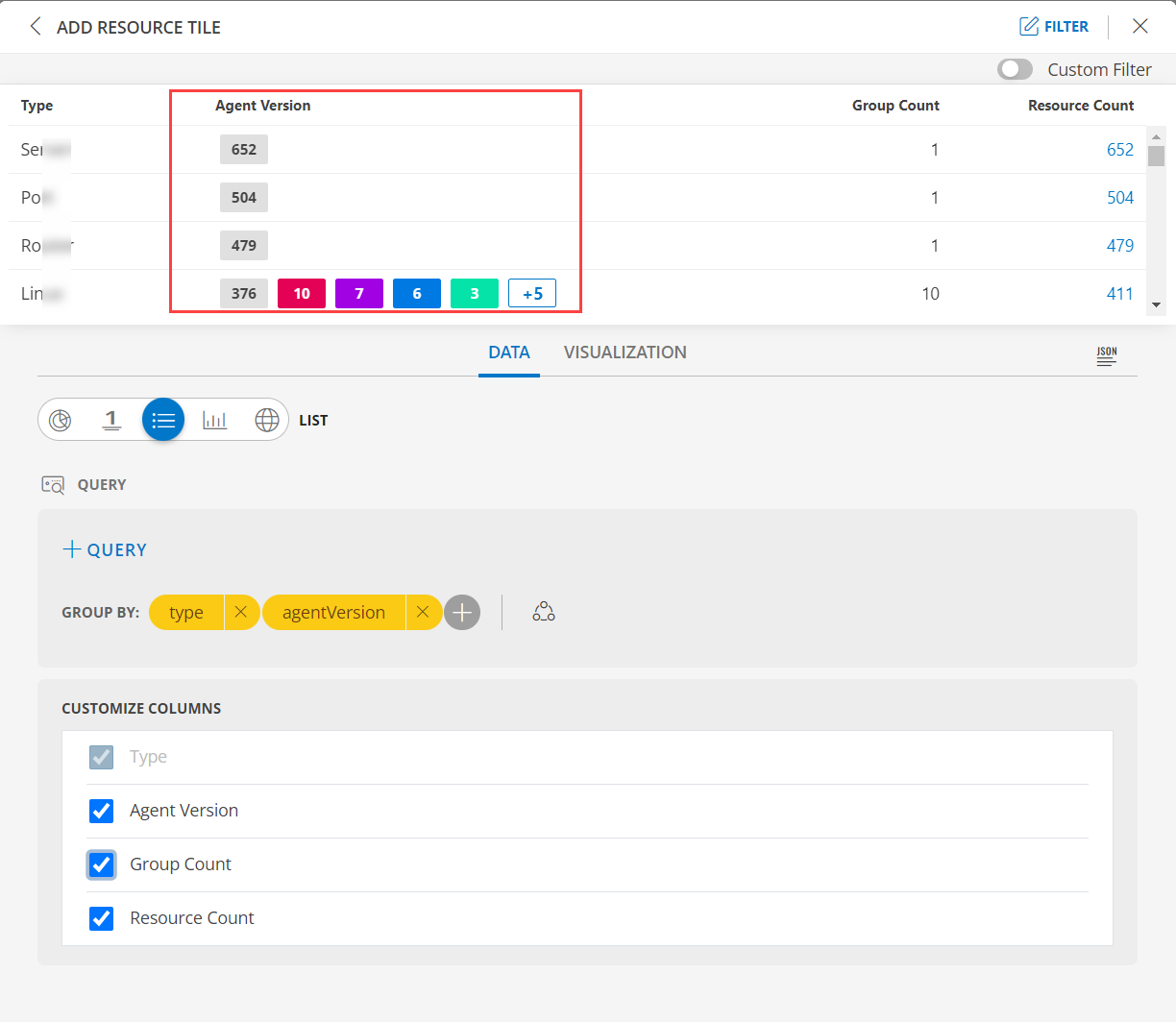
Enable the Split subgroups to view each grouping as a separate row.
Notes:- The multi-column list and split subgroup options are available for List chart only.
- The colors are displayed based on the default color categorization of alerts.
- Click the count or any column in the multi-column list to drill down and see the contextual list of alerts in the alerts browser.
See Visualization to know on how to customize the Resource Tile.
Click CREATE. The Resource tile is created and displayed on the main dashboard page.
Inventory by OS
Click here to view Inventory by OS
- Select the Inventory by OS tab. This enables you to create a custom tile.
Click the + QUERY and select the attributes from the drop-down list as you build the query. Click the + button to add additional attributes.
Note: You can combine multiple filters together to view only the required alerts. The query is completed and the results are displayed in the preview graph.
Alternatively, click </> to use the advanced query builder.
Note: Click </> again to close the advanced query field and switch back to the basic query builder format.Enter a query or click inside the box to see a list of OpsQL attributes.
Click the optional Legend icon and enter {{ in the EDIT LEGEND field to see a list of options.
Select the visualization from the following options:
| Chart Type | Description |
|---|---|
| Pie | Displays a pie chart. |
| Single Value | Displays a single value. |
| List | Displays values in a list format. |
| Bar | Displays the bar representation of the values |
| Geo | Displays the geographical location of the resource. |
From the GROUP BY option, select an attribute. You can select up to two attributes.
Notes:
- In the List visualization, the second attribute values are displayed in a multi-column colored list.
- By default os the attribute.
- You also have the option to edit the + Query and Attribute The following is a sample illustration of a multi-column list:
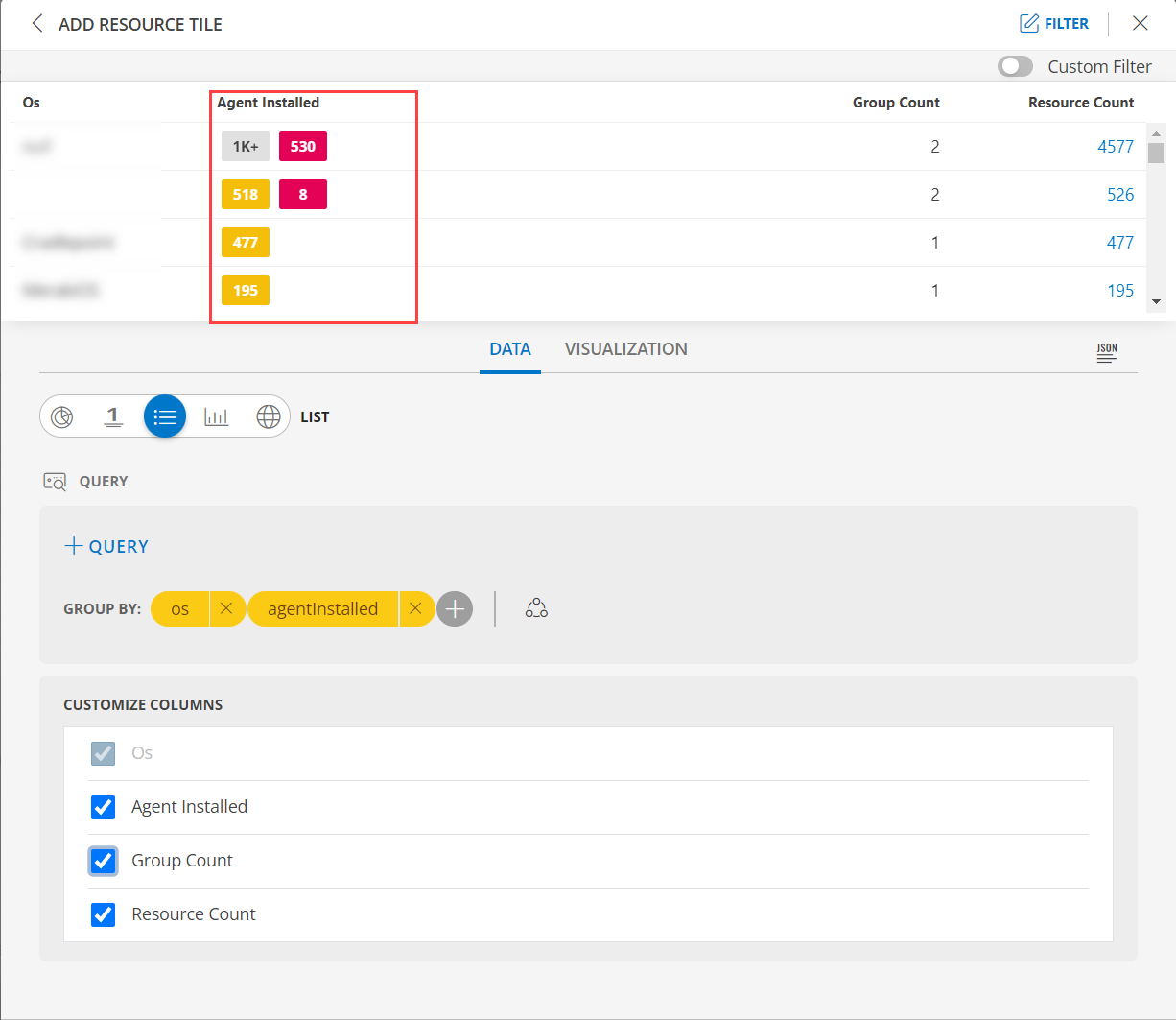
Enable the Split subgroups to view each grouping as a separate row.
Notes:- The multi-column list and split subgroup options are available for List chart only.
- The colors are displayed based on the default color categorization of alerts.
- Click the count or any column in the multi-column list to drill down and see the contextual list of alerts in the alerts browser.
See Visualization to know on how to customize the Resource Tile.
Click CREATE. The Resource tile is created and displayed on the main dashboard page.
Device Availability
Click here to view Device Availability
- Select the Device Availability tab. This enables you to create a custom tile.
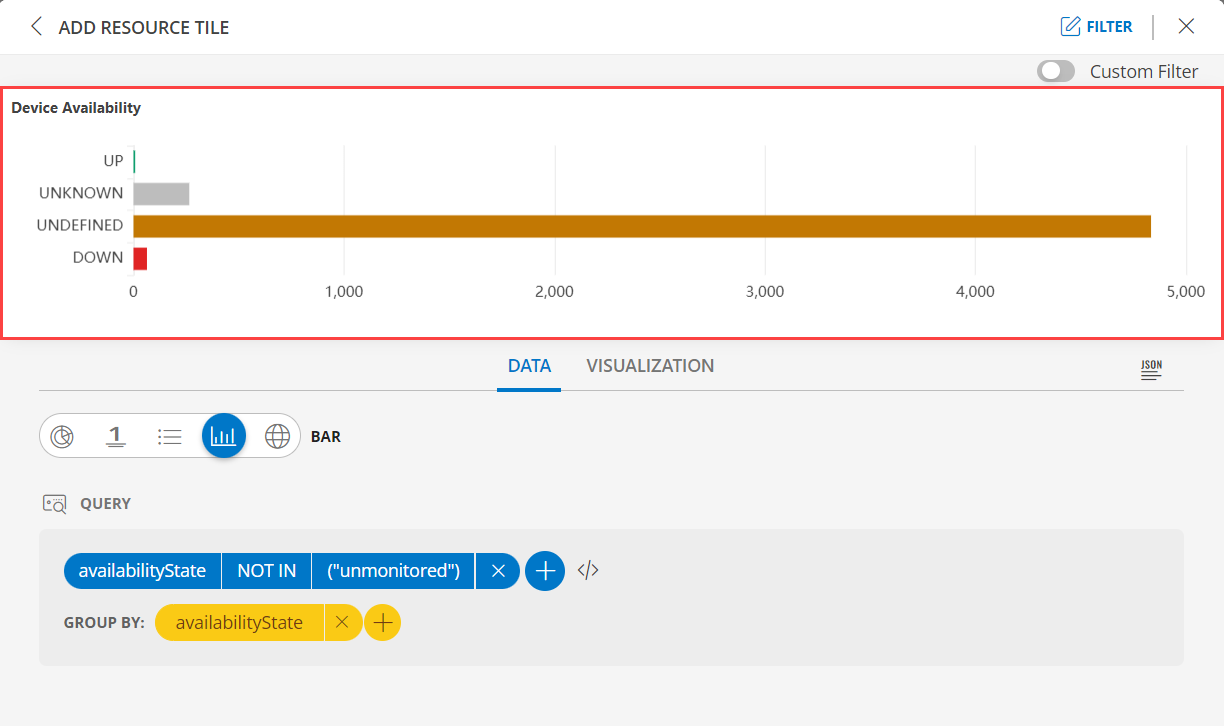
Click the + QUERY and select the attributes from the drop-down list as you build the query. Click the + button to add additional attributes.
Notes:
- By default the OPSQL query is already generated. Below is the OpsQl:
availabilityState NOT IN ("unmonitored")- You can combine multiple filters together to view only the required alerts. The query is completed and the results are displayed in the preview graph.
Alternatively, click </> to use the advanced query builder.
Note: Click </> again to close the advanced query field and switch back to the basic query builder format.Enter a query or click inside the box to see a list of OpsQL attributes.
Click the optional Legend icon and enter {{ in the EDIT LEGEND field to see a list of options.
Select the visualization from the following options:
| Chart Type | Description |
|---|---|
| Pie | Displays a pie chart. |
| Single Value | Displays a single value. |
| List | Displays values in a list format. |
| Bar | Displays the bar representation of the values |
| Geo | Displays the geographical location of the resource. |
From the GROUP BY option, select an attribute. You can select up to two attributes.
Notes:
- In the List visualization, the second attribute values are displayed in a multi-column colored list.
- By default availabilityState is the attribute.
- You also have the option to edit the + Query and Attribute The following is a sample illustration of a multi-column list:
- See Visualization to know on how to customize the Resource Tile.
- Click CREATE. The Resource tile is created and displayed on the main dashboard page.
Resource Group Availability
Click here to view the Resource Group Availability
- Select the Resource Group Availability tab. This enables you to create a custom tile.
Click the + QUERY and select the attributes from the drop-down list as you build the query. Click the + button to add additional attributes.
Note:
- You can combine multiple filters together to view only the required alerts. The query is completed and the results are displayed in the preview graph.
Alternatively, click </> to use the advanced query builder.
Note: Click </> again to close the advanced query field and switch back to the basic query builder format.Enter a query or click inside the box to see a list of OpsQL attributes.
Click the optional Legend icon and enter {{ in the EDIT LEGEND field to see a list of options.
Select the visualization from the following options:
| Chart Type | Description |
|---|---|
| Pie | Displays a pie chart. |
| Single Value | Displays a single value. |
| List | Displays values in a list format. |
| Bar | Displays the bar representation of the values |
| Geo | Displays the geographical location of the resource. |
From the GROUP BY option, select an attribute. You can select up to two attributes.
Notes:
- In the List visualization, the second attribute values are displayed in a multi-column colored list.
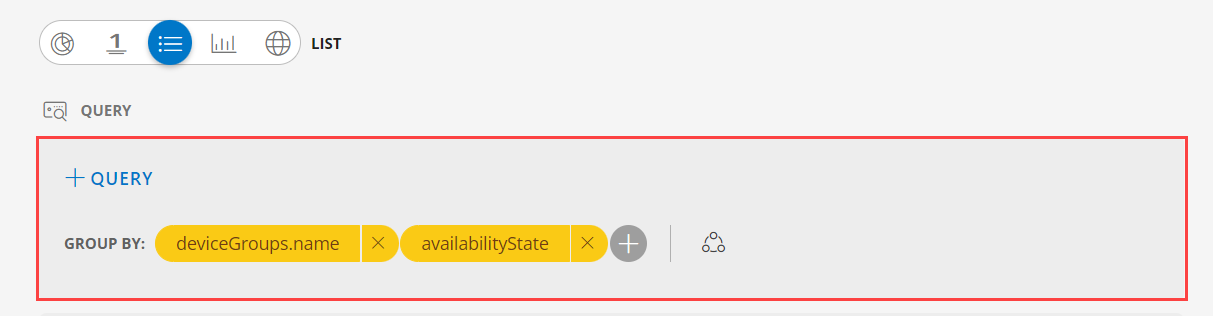
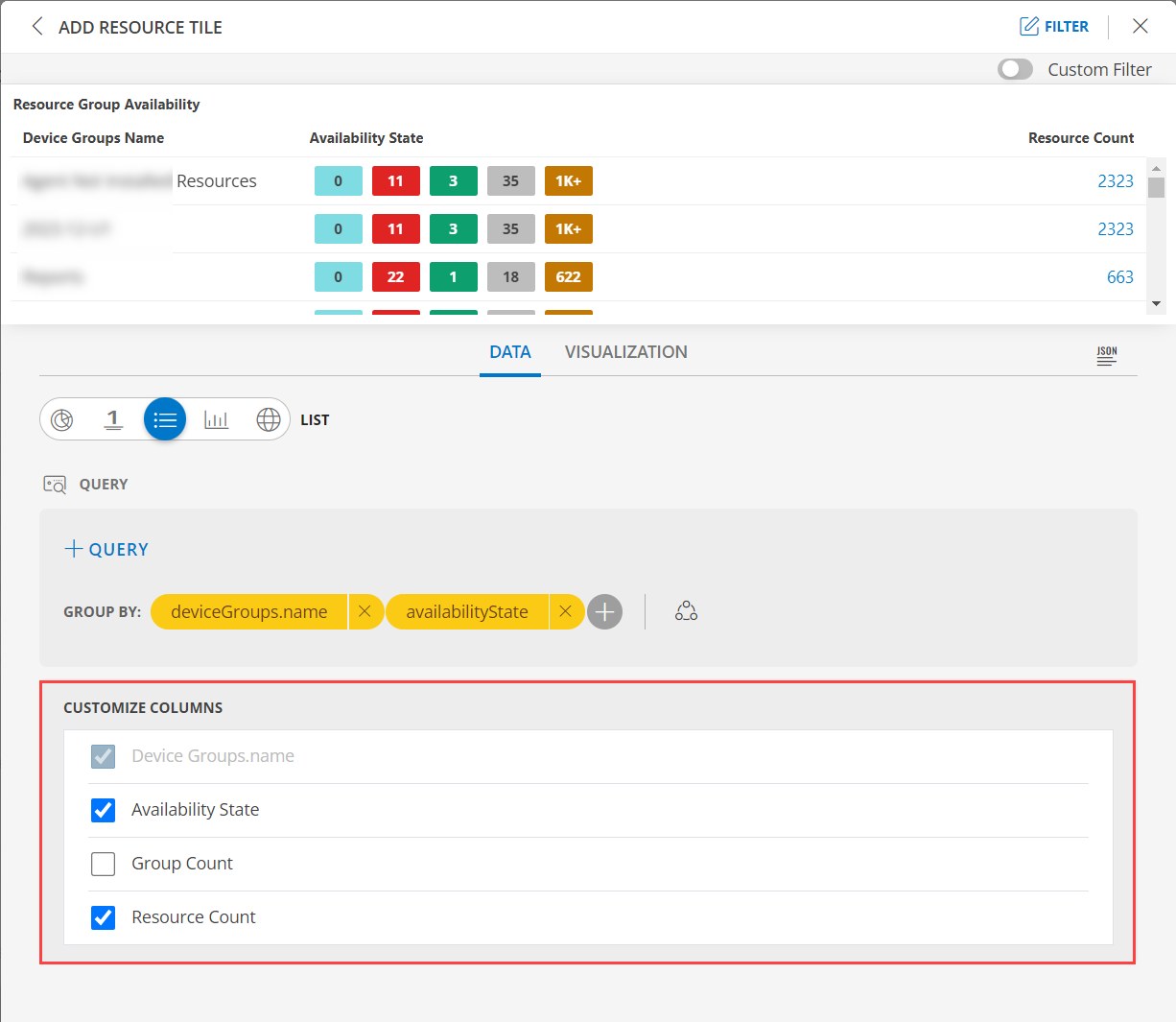
- By default deviceGroups.name and availabilityState is the attribute.
- You also have the option to edit the + Query and Attribute The following is a sample illustration of a multi-column list:
- In the CUSTOMIZE COLUMNS section, select the checkbox to display the information.
| Functionality | Description |
|---|---|
| Device Groups.name | Name of the device group Notes: By default Device Groups.name is checked and cannot be unchecked. |
| Availability State | Check the status of the resource. |
| Group Count | Group count information for resource. |
| Resource Count | View the resource count information for the resource. |
- See Visualization to know on how to customize the Resource Tile.
- Click CREATE. The Resource tile is created and displayed on the main dashboard page.
Resource Count
Click here to view the Resource Count
- Select the Resource Count tab. This enables you to create a custom tile.
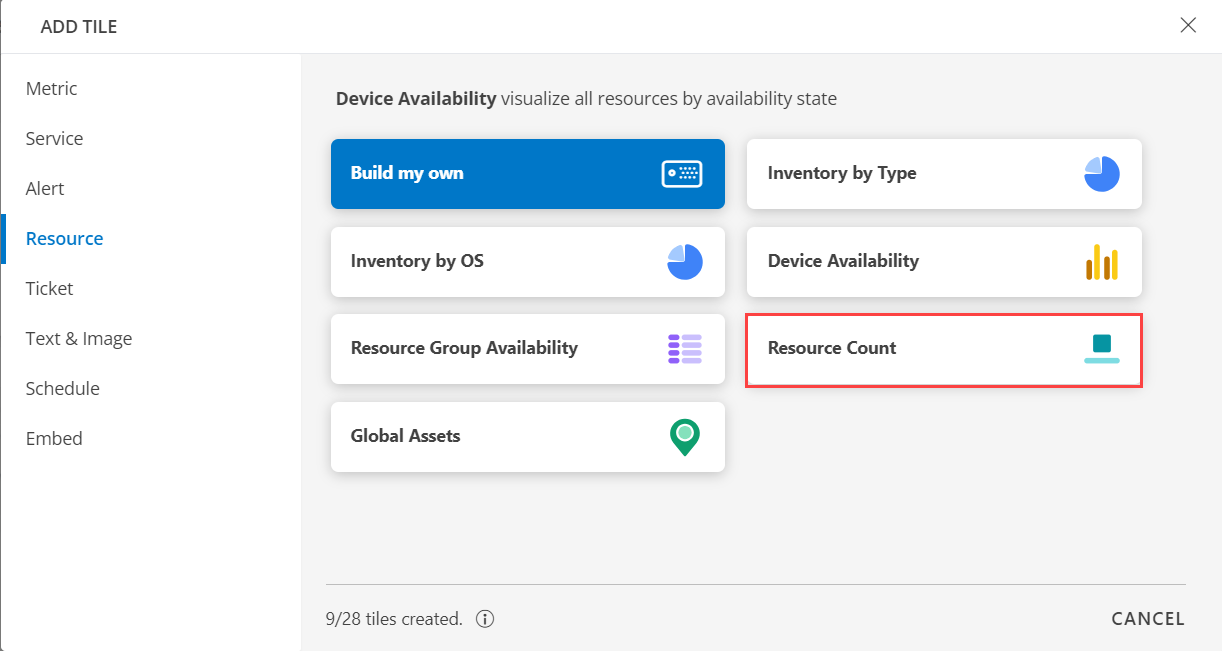
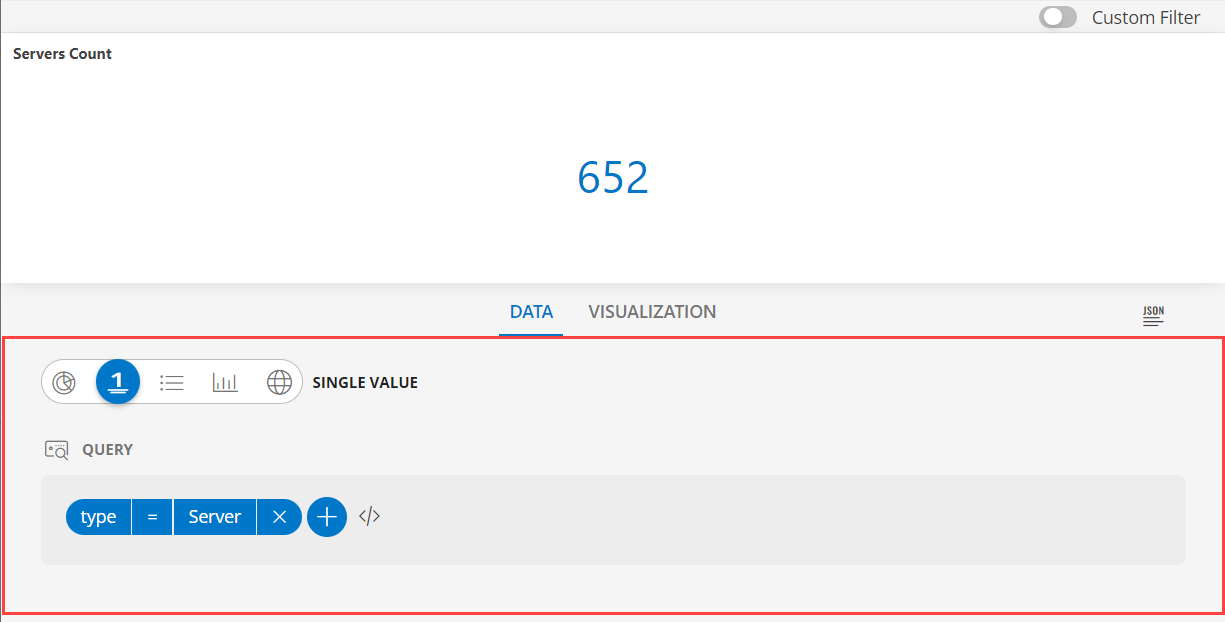
- The default OPSQL query is already generated. Below is the OPSQL:
type = "Server"Note: You also have the option to edit the OPSQL.
- Alternatively, click </> to use the advanced query builder.
Note: Click </> again to close the advanced query field and switch back to the basic query builder format. - Enter a query or click inside the box to see a list of OpsQL attributes.
- Select the visualization from the following options:
| Chart Type | Description |
|---|---|
| Pie | Displays a pie chart. |
| Single Value | Displays a single value. |
| List | Displays values in a list format. |
| Bar | Displays the bar representation of the values |
| Geo | Displays the geographical location of the resource. |
- In the List visualization, the servers count is displayed. The following is a sample illustration of a multi-column list:
- See Visualization to know on how to customize the Resource Tile.
- Click CREATE. The Resource tile is created and displayed on the main dashboard page.
Global Assets
Click here to view the Global Assets
- Select the Global Assets tab. This enables you to create a custom tile.
Click the + QUERY and select the attributes from the drop-down list as you build the query. Click the + button to add additional attributes.
Note: You can combine multiple filters together to view only the required alerts. The query is completed and the results are displayed in the preview graph.
Alternatively, click </> to use the advanced query builder.
Note: Click </> again to close the advanced query field and switch back to the basic query builder format.Enter a query or click inside the box to see a list of OpsQL attributes.
Select the visualization from the following options:
| Chart Type | Description |
|---|---|
| Pie | Displays a pie chart. |
| Single Value | Displays a single value. |
| List | Displays values in a list format. |
| Bar | Displays the bar representation of the values |
| Geo | Displays the geographical location of the resource. |
From the GROUP BY option, select an attribute. You can select up to two attributes.
Notes:
- In the Geo visualization, the second attribute values are displayed in a multi-column colored list.
- By default location the attribute.
- You also have the option to edit the + Query and Attribute The following is a sample illustration of a multi-column list:
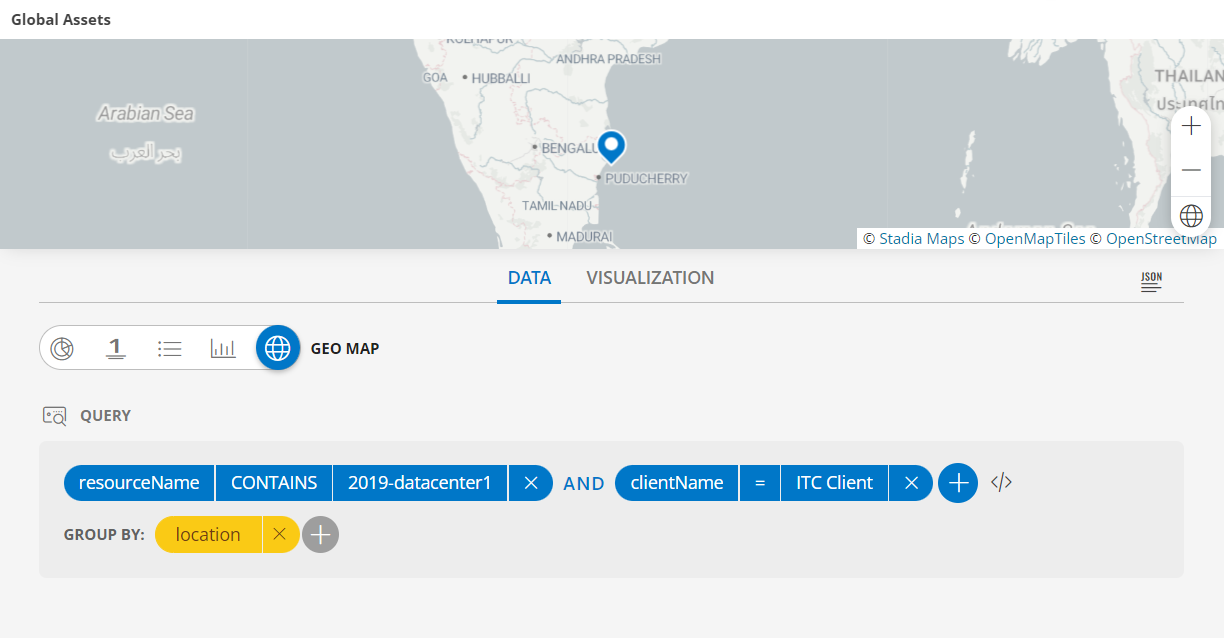
- See Visualization to know on how to customize the Resource Tile.
- Click CREATE. The Resource tile is created and displayed on the main dashboard page.
Visualization
- Click the Visualization tab to customize the visualization further:
- HEADER: Set a name, color, size, and alignment for the header.
- Grid Lines: Select the color of the grid lines, enable or disable the grid lines by clicking the toggle ON or OFF, Grid Lines option.
Note: By default the Grid Lines is enabled. - Background Color: Select the background color, enable or disable the background color by clicking the toggle ON or OFF background color.
Note: By default the Background Color is disabled. - Attribute: Select the color for the attribute, the size, bold or Italics.
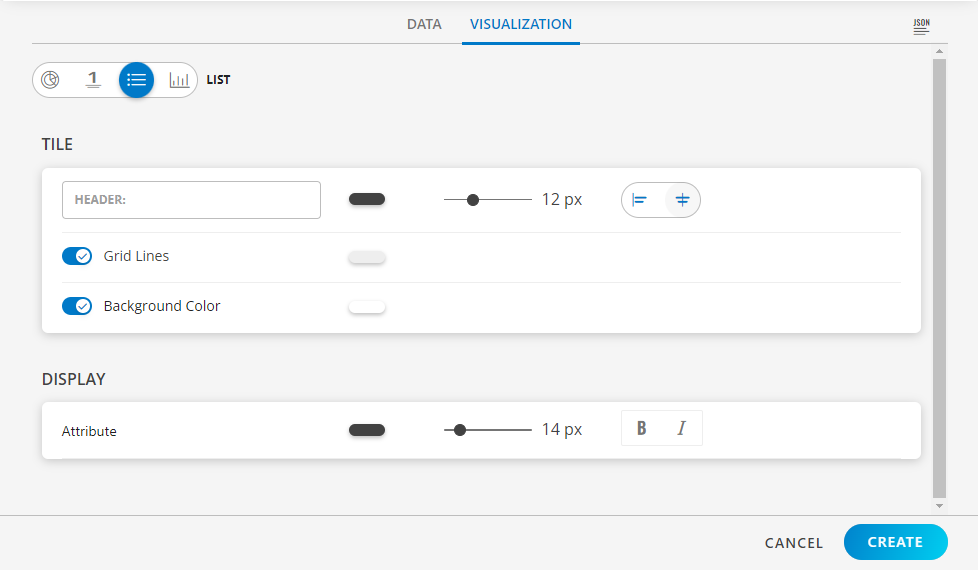
Examples
The following are example illustrations for each visualization:
PIE visualization
The following is the PIE chart visualization with the inputs:
- Attribute -
entityType = RESOURCE - Group By
- Attribute 1 =
availabilityState - Attribute 2 =
nativeType
- Attribute 1 =
- Legend -
{{nativeType}}
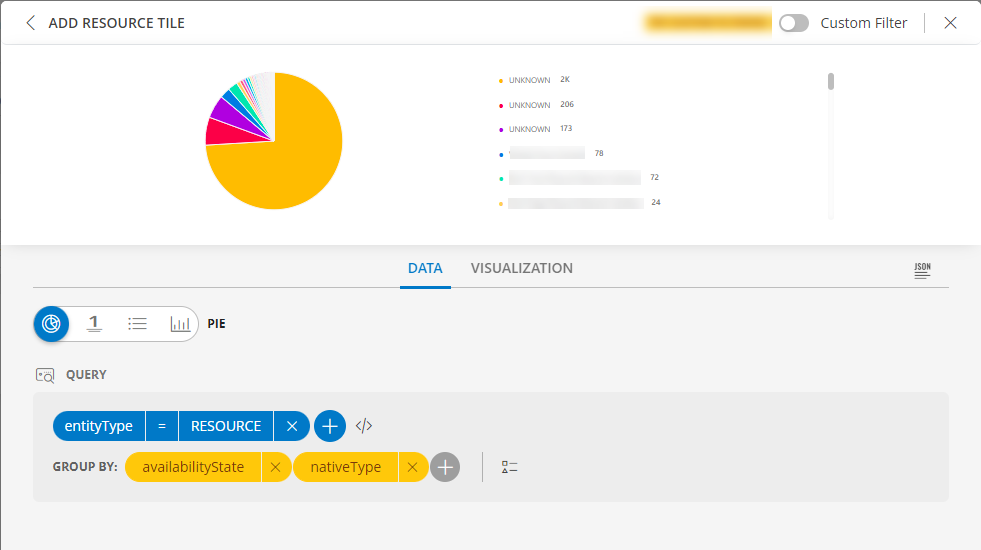
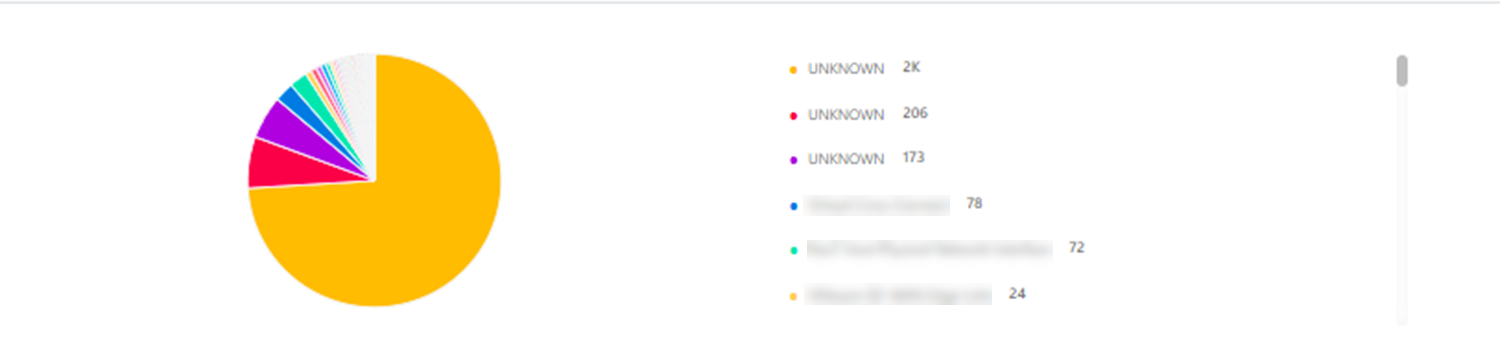
PIE dashboard view
The following is the PIE chart dashboard view:
LIST visualization
The following is the LIST visualization with the inputs:
- Attribute -
entityType = RESOURCE AND hasRelationship = true - Group By
- Attribute 1 =
type - Attribute 2 =
aliasName
- Attribute 1 =
- Split subgroups =
enabled - Dashboard time range =
All Tickets
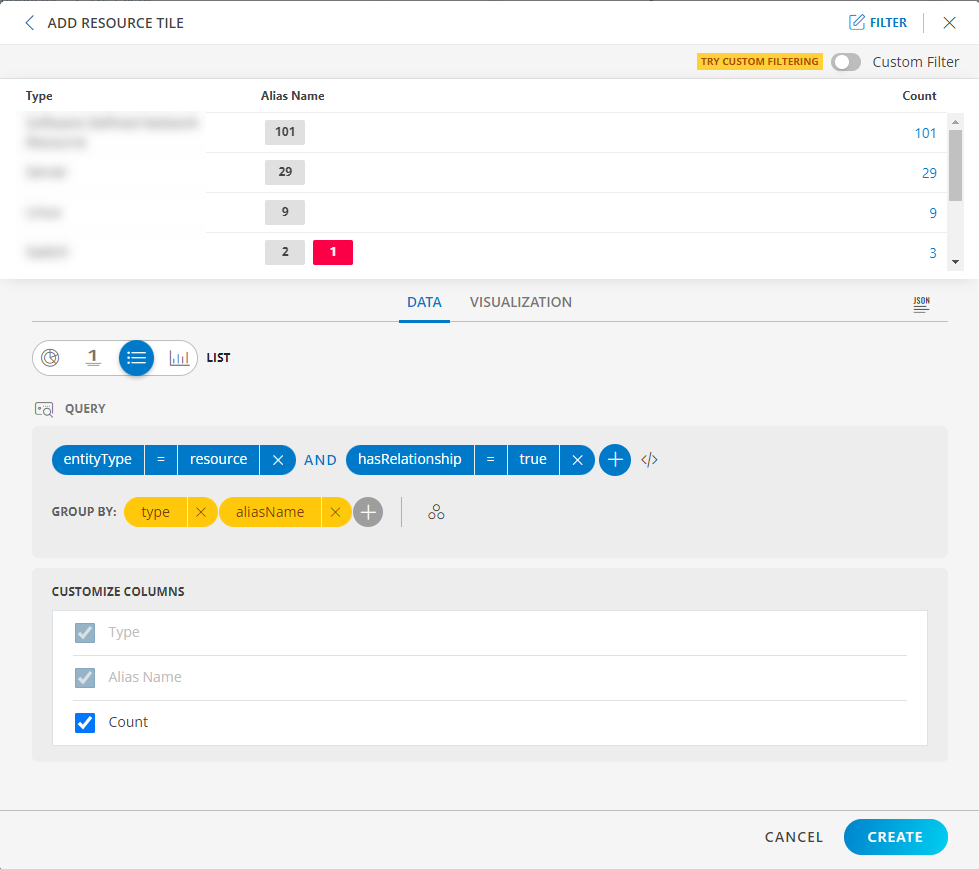
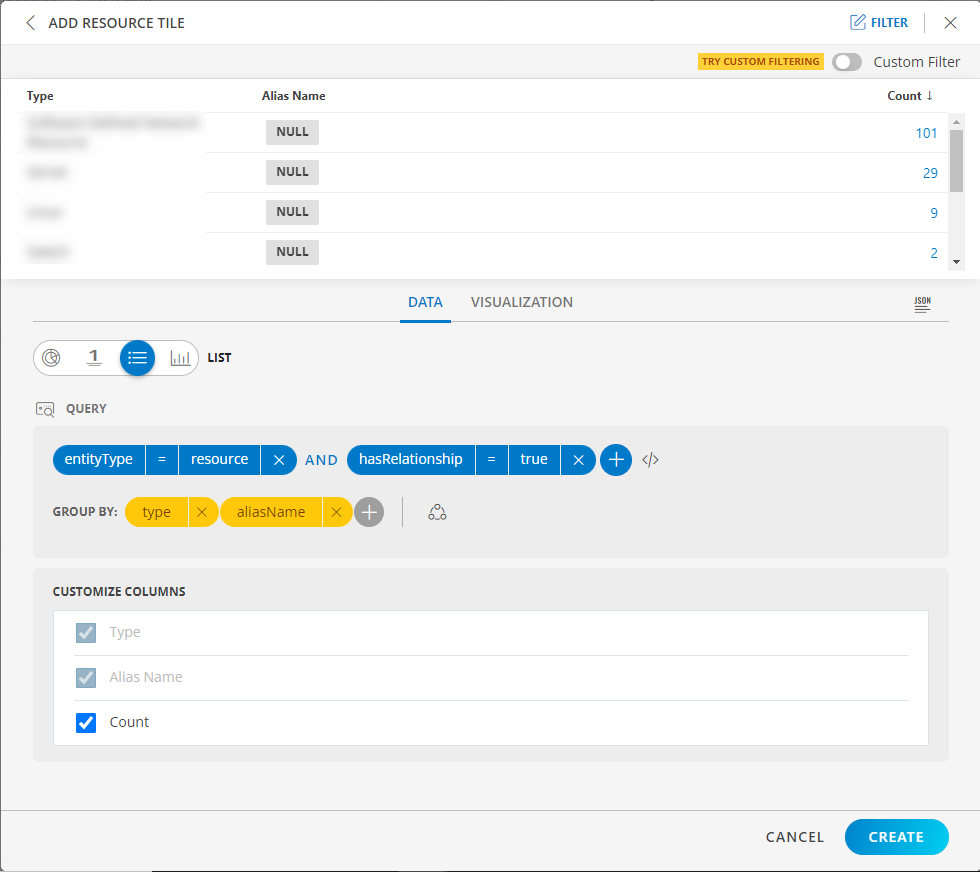
The Split subgroups toggle switch displays results with the attribute name. The following is a sample illustration:
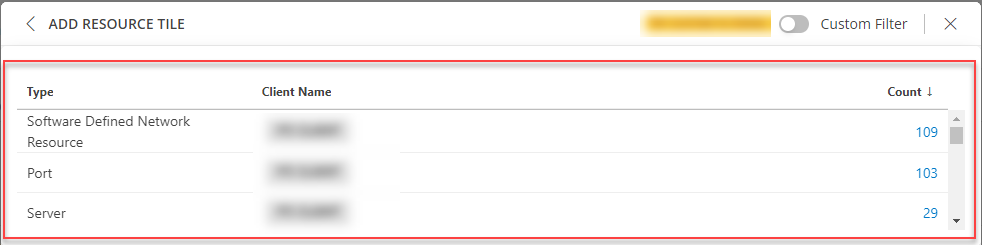
LIST dashboard view
The following is the LIST dashboard view:
BAR visualization
The following is the BAR visualization with the inputs:
- Attribute -
entityType CONTAINS NON_MON_RESOURCES - Group By
- Attribute 1 =
type - Attribute 2 =
clientName
- Attribute 1 =
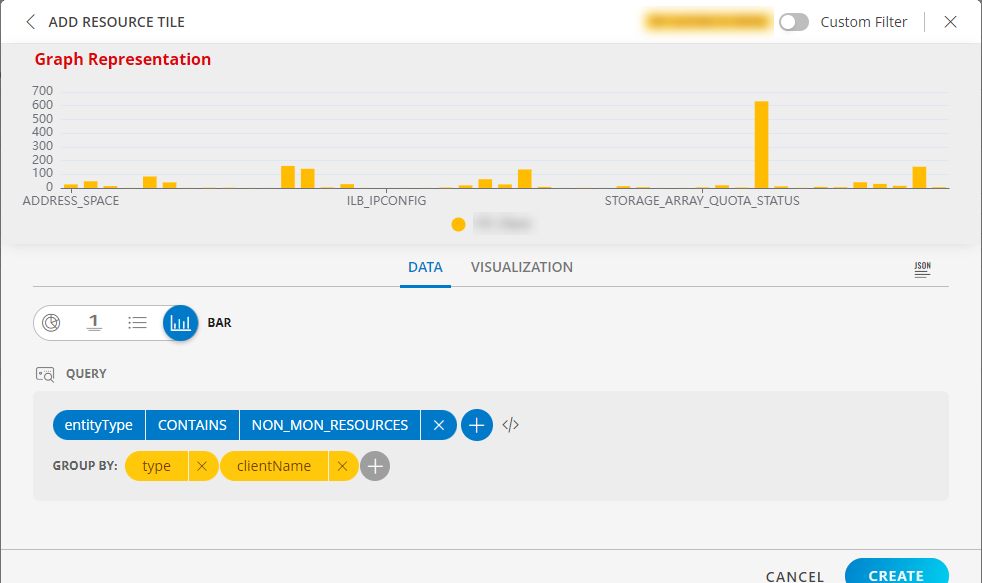
Notes:
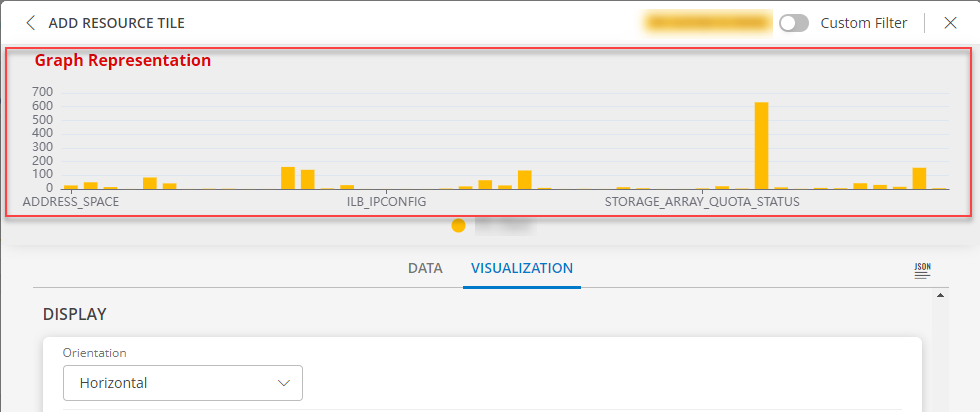
- Select Horizontal or Vertical representation of the data from the Orientation dropdown list box in the Visualization tab.
Note: By default the Horizontal axis is enabled. - Click the stacked bar to display the multiple group information.
- Per query, Time Series tile displays up to 30 series which are mapped to the order of this color chart. You may click a swatch to edit color or click + drag to reorder.
- You may enable and disable a legend by clicking the name/color of the specific legend.
- Click Go Back to return to the view all the legend.
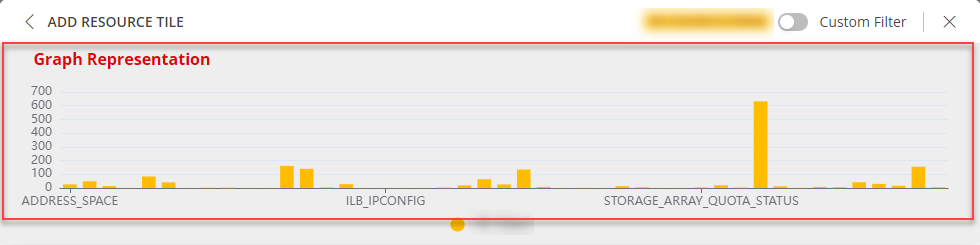
BAR dashboard view
The following is the BAR dashboard view:
Horizontal Axis view
Vertical Axis View
Sites
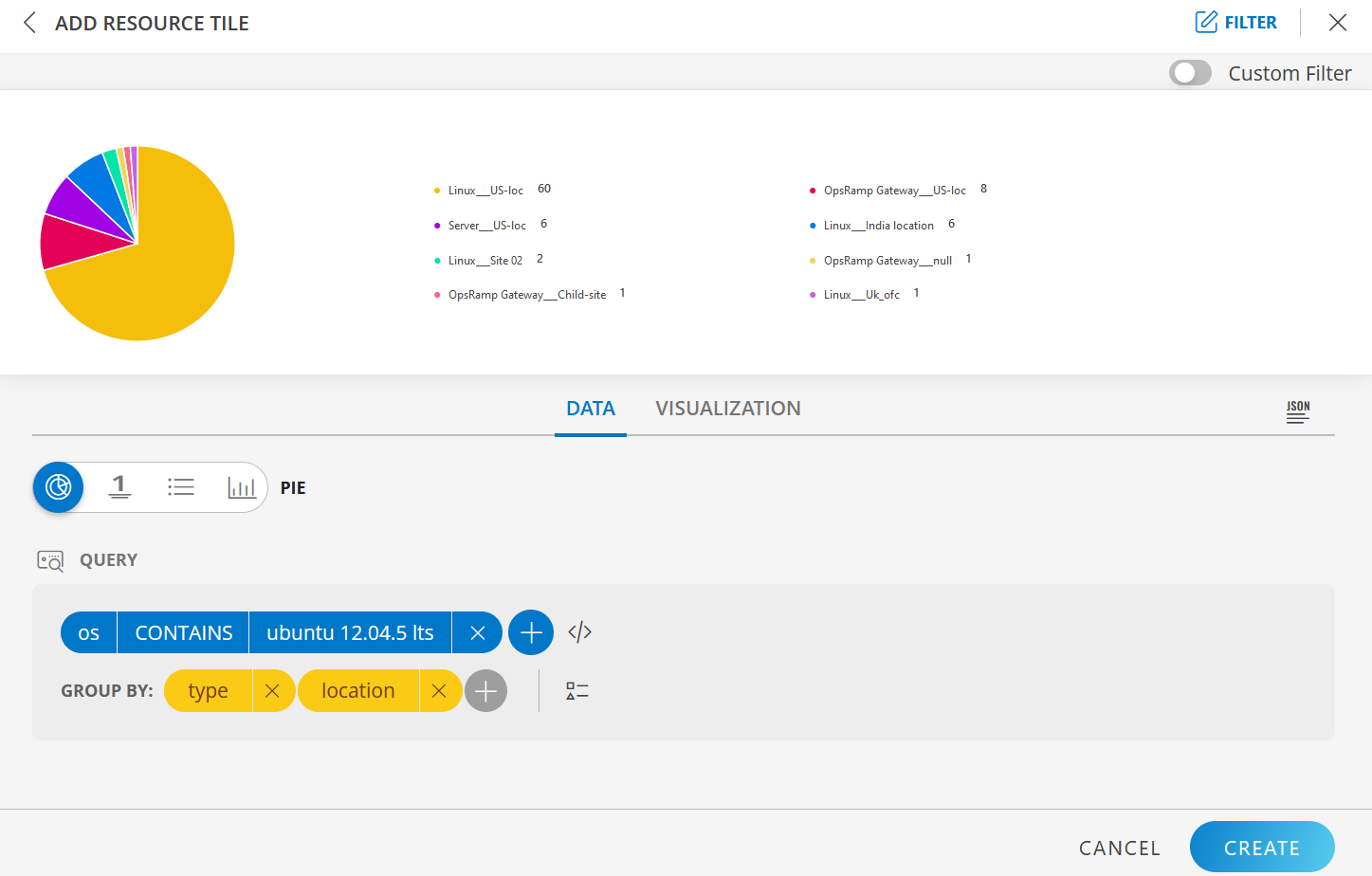
Use the location attribute to query sites in the Resource tile.
The following example shows location wise and resource type wise resources whose operating system contains “ubuntu”.
Query: os CONTAINS ubuntu
Group By: location and type
Geomap Visualization View
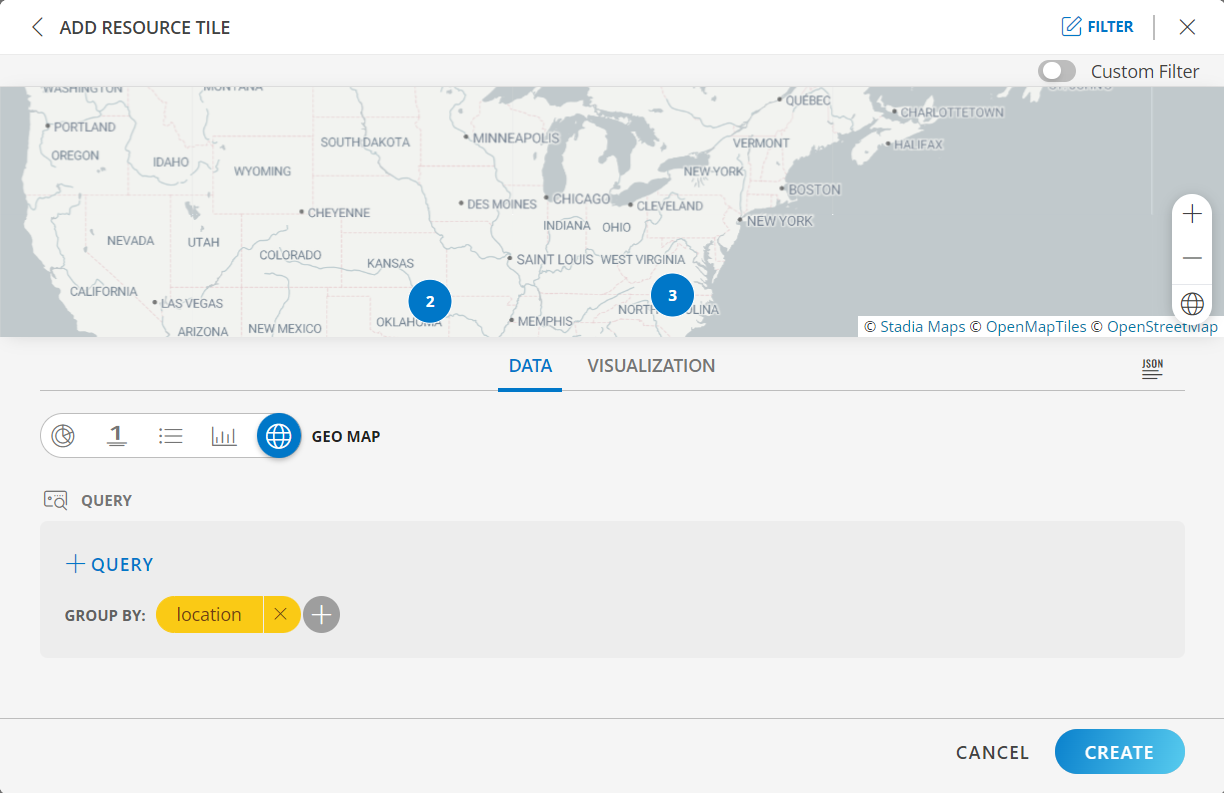
The Geomap visualization feature enables users to efficiently analyze and understand location-specific data with a quick glance. By integrating a Geomap into Dashboard 2.0, users can visually depict the distribution of resources based on site location.
For users interested in viewing resources scattered across locations, it is recommended to associate the resource with a site. Refer to the Group Resources by Location documentation to learn more about creating a site and effectively managing resource grouping based on their geographical locations.
The following is the visualization with the inputs:
- Group By:
location
Notes:
- You can zoom in on the map, by clicking the + icon and zoom out by clicking the - icon on the bottom right corner.
- Click the location to VIEW RESOURCE of that location.
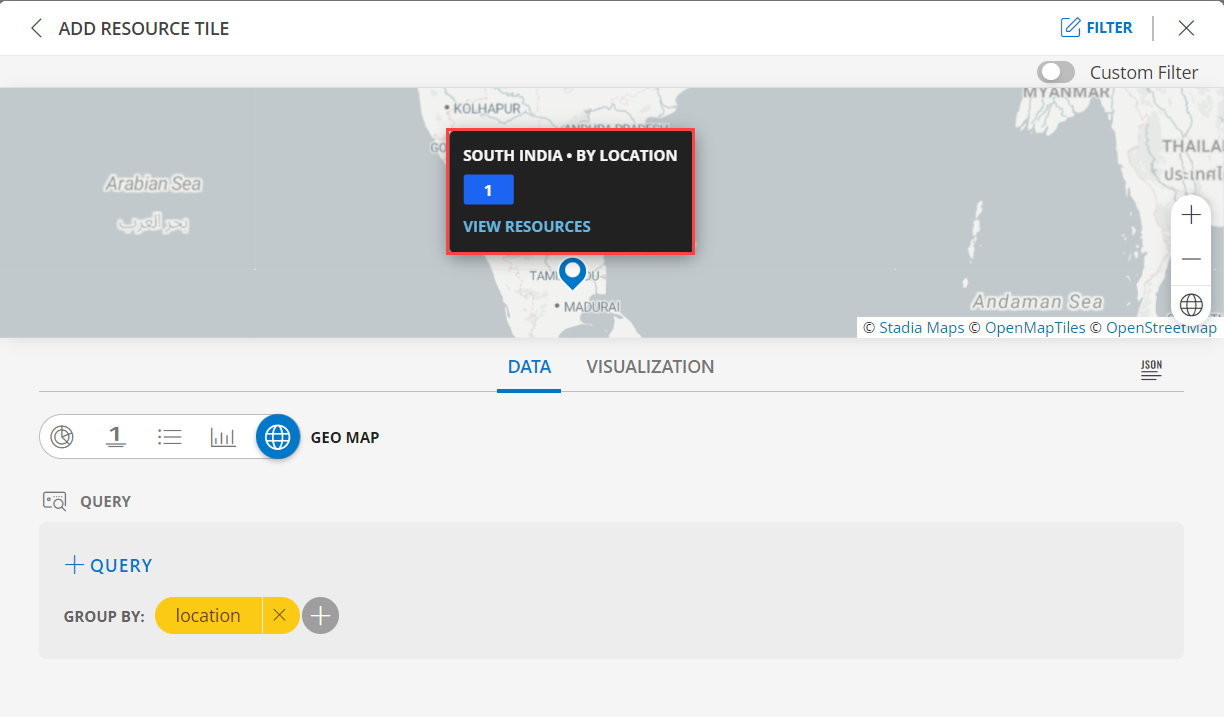
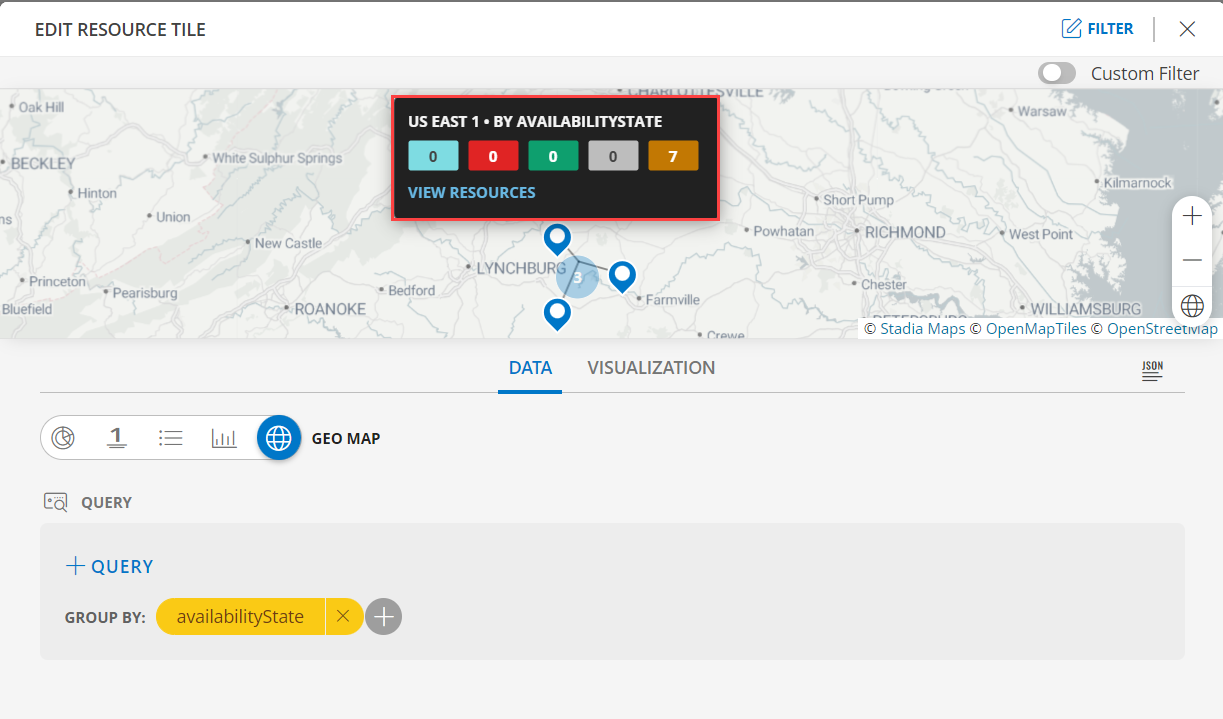
To understand more about the availability of a particular resource in a particular site, let us consider the following example:
- Group By:
availabilityState
- Group By:
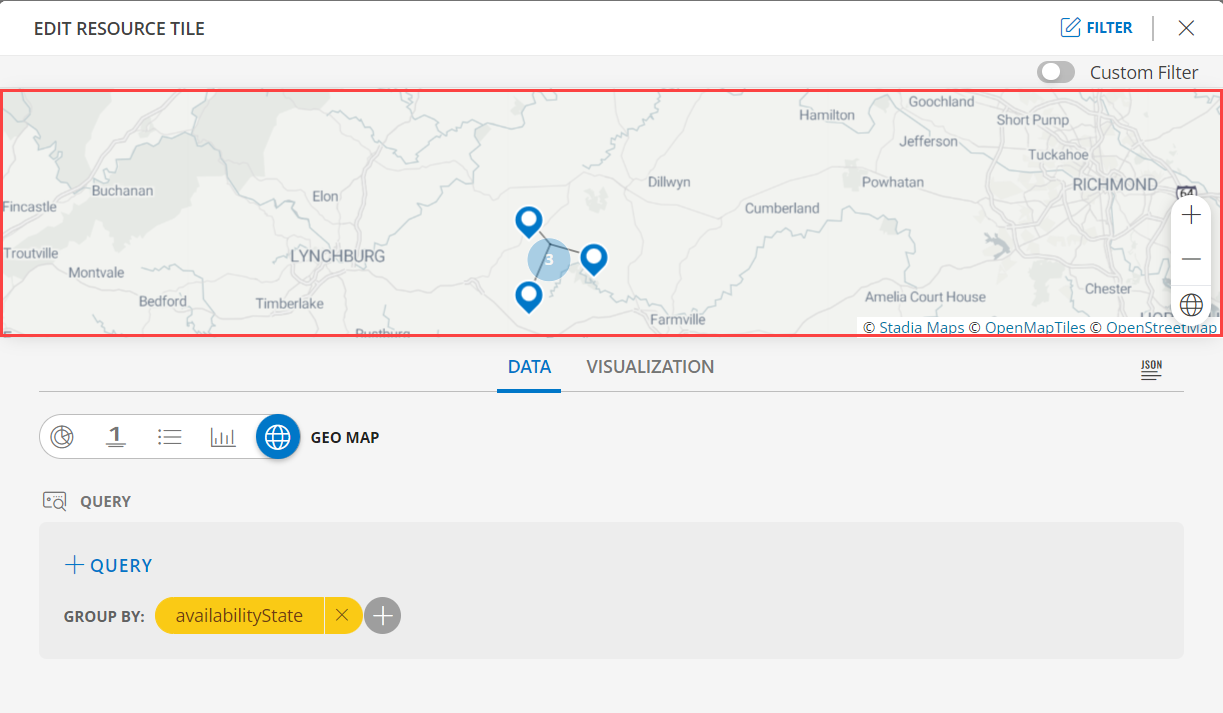
The status is displayed as both label (text) and numeric value. The following are the values:
- Unmonitored
- Up
- Down
- Unknown
- Undefined