Make sure that Microsoft Windows OS integration is installed before download. If not installed, refer to Install Microsoft Windows OS Integration document.
OpsRamp agents can connect to the OpsRamp cloud in two ways:
- Direct Agent: The direct agent connects to the OpsRamp cloud directly, and this type of agent does not require any special configuration.
- Proxy Agent: The proxy agents are configured to connect to the cloud using an HTTP proxy embedded in the gateway.
Download Windows Agent
Here we are explaning download steps for EXE file. You can follow the same procedure for other such as: MSI and Deployment tool.
Download Direct Agent
Navigate to Setup > Account > Integrations.
From the Installed Integration page, click the Microsoft Windows OS tile.
Click the +Add button. The Install Windows Agent page appears.
Select the Agent Type as Direct.
Click on Windows Agent EXE widget and then click Download Windows Agent EXE button to download the EXE file.
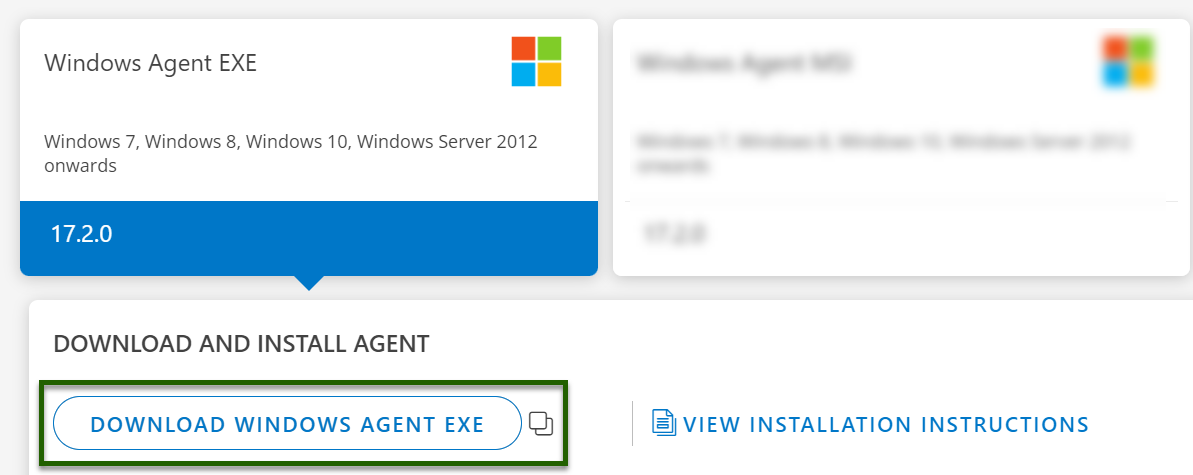
The file is saved in your local system.
Make sure that you verify the SHA-256 checksum of the downloaded file.
Download Proxy Agent
From the Installed Integration page, click the Microsoft Windows OS tile.
Click the +Add button. The Install Windows Agent page appears.
Select the Agent Type as Proxy.
From the Primary collector profile section, select the primary collector profile.
Enable the “Add Secondary Proxy” option to configure a secondary gateway profile. (Optional)
If enabled, select the secondary collector profile from the available list.
Now, click on Windows Agent EXE widget and then click Download Windows Agent EXE button to download the EXE file.
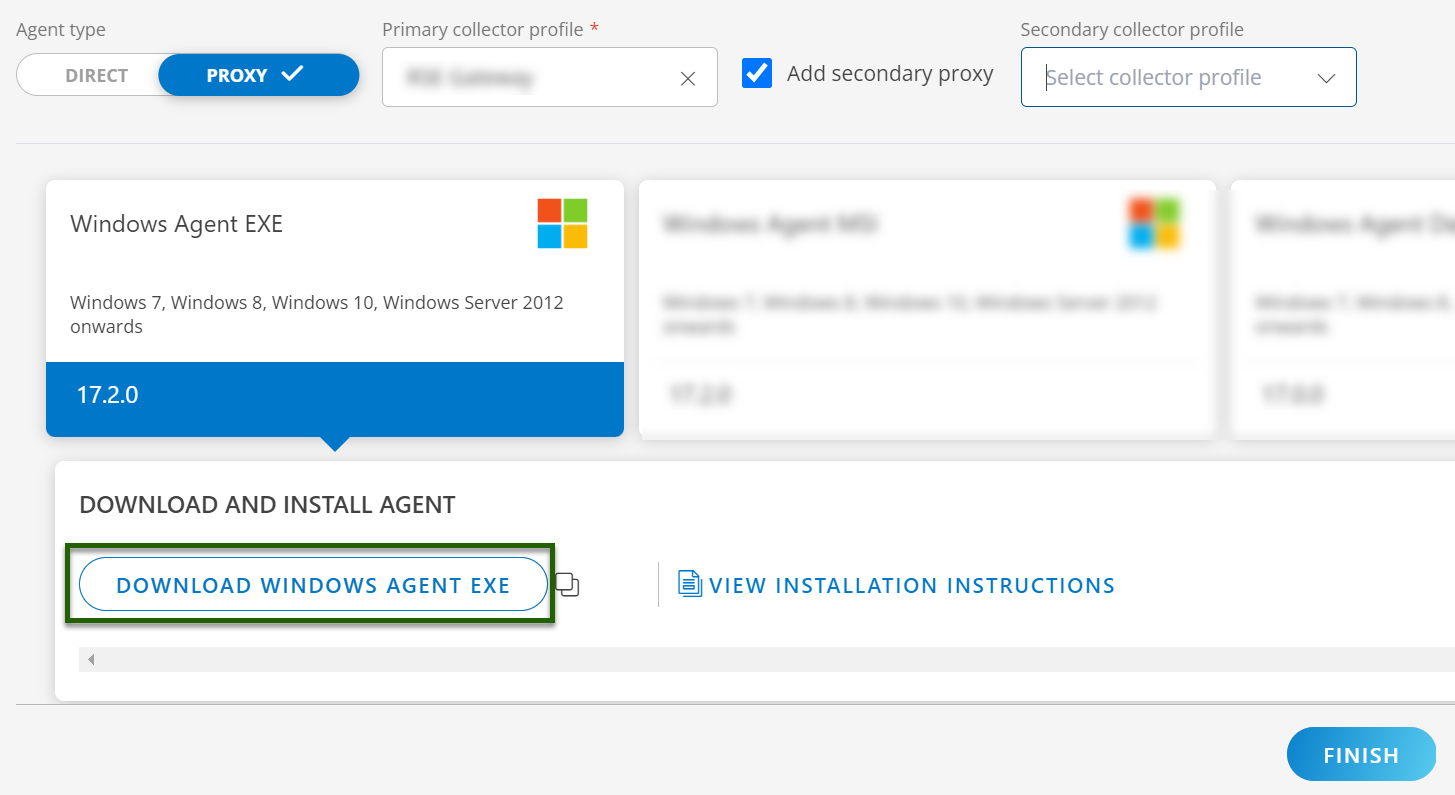
The file is saved in your local system.
Make sure that you verify the SHA-256 checksum of the downloaded file.