Introduction
Updating the OpsRamp agent is essential to support the latest features, bug fixes, and performance improvements. It is recommended to keep the agent updated to the latest version.
Agent Versions
Based on the type of versions, agents are categorized as G1 or G2:
- G1 Agents: Versions less than 3.9.9-1 for Linux and 5.99.0022 for Windows.
- G2 Agents: Versions greater than 3.9.9-1 for Linux and 5.99.0022 for Windows.
Considerations
When updating from G1 to G2, keep in mind:
- G1 to G2 updates are not supported for some Windows versions.
- G2 agents do not support agent-based SNMP Monitors and SNMP Trap Monitors; use gateway-based monitors instead.
- All features (Remote Command, Patch Management, Automation, Remote Console) are enabled by default in G2.
- Custom monitors using the Vistara path need their path updated for branding changes. OpsRamp-developed custom monitors do not require changes.
Constraints
The following remote commands are not supported on Linux and Windows after updating to G2:
- SNMP WALK
- OpsRampAgent Modules
Prerequisites
Ensure the agent is online and communicating with the cloud.
Update Agents
Follow these steps to update the agent to the latest version:
- Install the integration. Refer the Install Linux OS Integration and Install Microsoft Windows OS Integration to know how to install the integration.
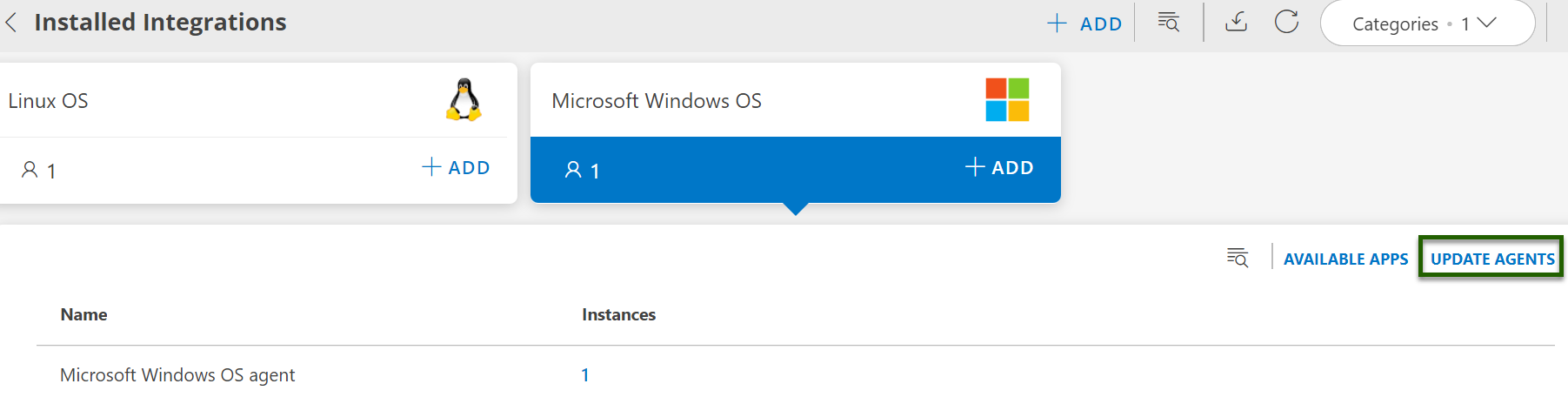
- Clik the respective integration tile.
- Click Update Agents. Update Agents page appears.
- Select the required agent devices from the list and click Action button.

- Do one of the following action to update the agent:
- Update Now: If you want the devices to be forced updates, select the required agent devices from the list, and click Update now. The update is triggered immediately, and devices are updated within minutes.
- Update on Scheduled: Select the required agent devices from the list and click Update on Schedule to scheduled update.
Every six hours, agents check the OpsRamp Cloud for updates and automatically update if a new version is available. - Do Not Allow: Click Do not allow option to remove the allowed devices from the list.
Additional Details
During the update process, OpsRamp displays status messages in the Status column. Hover over the status message for more details.
- Update Success: Indicates the Agent updated to the latest version without any issue.
Example: Update Success - Timestamp (UTC):
, Successfully Agent updated to . - Download Failed: indicates the file required for agent update failed to download.
Example: Download Failed - Timestamp (UTC):
, Difference in downloaded patch size, Downloaded size - , Actual size - . - Update Failed: Indicates the required file to update the agent was downloaded successfully, but the update process failed.
Example: Update Failed - Timestamp (UTC):
, Agent update failed while running the update/package file.
These messages help diagnose issues without needing to check the agent log files.
Available Apps
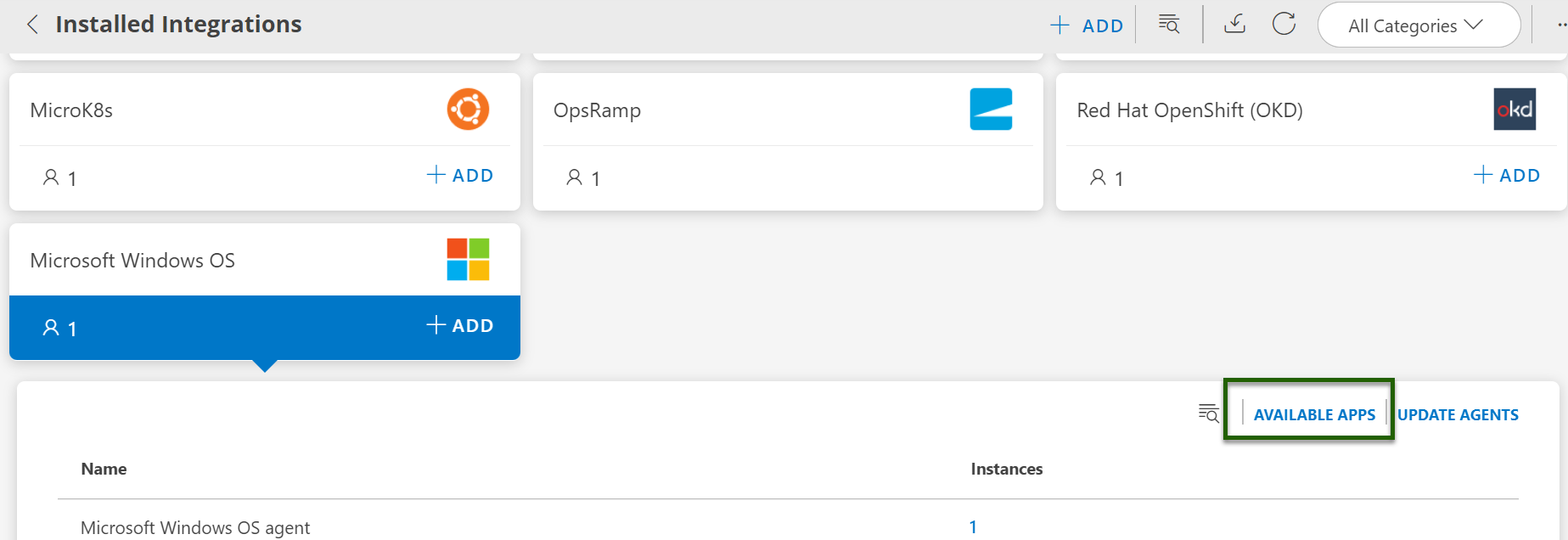
The Available Apps option provides a centralized way to manage app detection rules. For more details, refer to the view documentation.